How to Turn DefiniteSEO Modules On or Off from the Dashboard
Turning off modules you do not use keeps your admin focused and stops features running that you do not need. Below you will learn how to open the dashboard, read a card in full, enable or disable a module and save, how module dependencies work, and exactly which modules are free and which need a Pro plan.
On this page
Open the DefiniteSEO dashboard
In the WordPress admin sidebar, click DefiniteSEO, then Dashboard. The dashboard opens with the DefiniteSEO PRO card first, followed by every module as its own card.
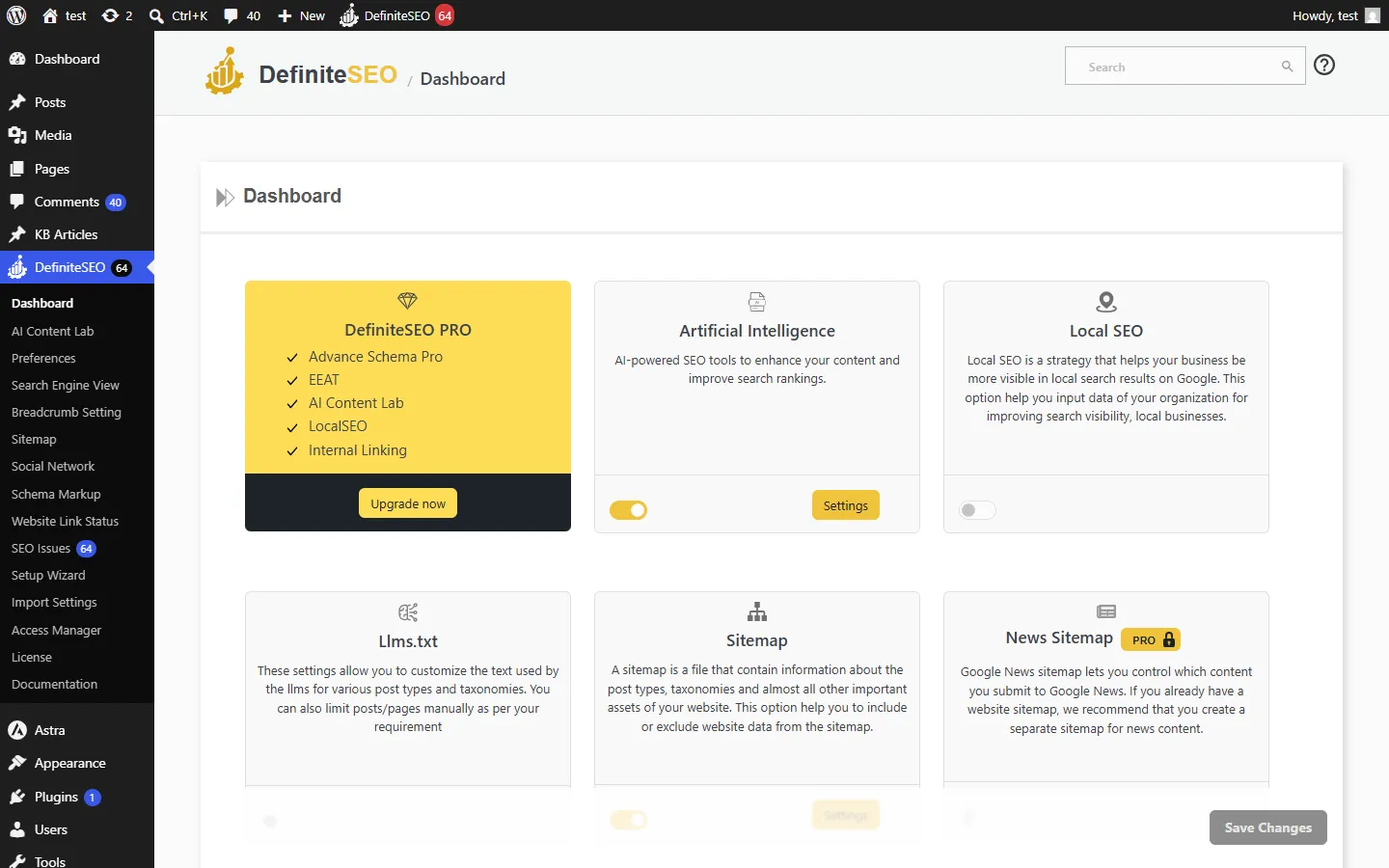
Read a module card
Every module card shows the same parts, so once you can read one you can read them all:
- Icon, name, and description: what the module does, in one line.
- Toggle: at the bottom left, switches the module on or off. A gold, filled toggle means it is on.
- Settings button: at the bottom right, opens that module’s options in a new browser tab. It appears only while the module is on.
- Pro badge: Pro-only modules show a lock badge naming the plan they need (for example, Solo). Once your plan includes the module, the badge changes to an unlocked icon.
- Info icon: a small info icon next to the name means the module is free but has a few Pro-only options. Schema Markup and WooCommerce SEO are the two free modules that show it.
The DefiniteSEO PRO card at the top is not a module. It lists premium highlights (Advance Schema Pro, EEAT, AI Content Lab, Local SEO, and Internal Linking) and gives you an Upgrade now button, or Manage Your License if you already have Pro.
Turn a module on or off and save
Click the toggle on a card to switch that module on or off. When you turn a module on, its Settings button appears so you can open and configure it. When you are finished, click Save Changes at the bottom of the dashboard. Your toggles take effect only after you save.
Module dependencies and WooCommerce
Some modules build on another module and cannot be turned on by themselves:
- News Sitemap and Video Sitemap require the Sitemap module to be on.
- 404 Monitor requires the Website Link Analysis module to be on.
When the parent module is off, the child module’s toggle is disabled, and hovering it shows a message such as “Please enable Sitemap module to use this extension.” Turn the parent on first, and the child becomes available.
The WooCommerce SEO card only works when WooCommerce is active on your site. Without it, the card is disabled and shows a note that you need to install and activate WooCommerce to use those options.
Which modules are free and which are Pro
These are the actual module cards on the dashboard, split by plan:
- Free (toggle without a license): Artificial Intelligence, Local SEO, Llms.txt, Sitemap, Schema Markup, Access Manager, Website Link Analysis, Redirection, 404 Monitor, WooCommerce SEO, and Readability.
- Pro (locked with the required plan): News Sitemap, Video Sitemap, Internal Linking, Content Errors, EEAT Skills, Crawler Optimization, White Label, AI SEO Agent, AI Internal Linking, and AI Image SEO.
Frequently asked questions
Do I need to turn on every module?
No. Enable only the features you use and leave the rest off. A smaller set of active modules keeps your admin simpler and avoids running features you do not need.
What happens when I turn a module off?
Its features stop running and its Settings link is hidden, but your saved settings are kept. Turning the module back on restores everything as it was.
Do my changes apply immediately?
No. Toggles take effect after you click Save Changes at the bottom of the dashboard. Until you save, your changes are not applied.
Why is a module’s toggle disabled?
There are three reasons: it is a Pro module and your plan does not include it (it shows a lock badge with the plan needed), it depends on a parent module that is off (such as 404 Monitor needing Website Link Analysis), or it is the WooCommerce SEO card and WooCommerce is not active.
Why does a module have an info icon next to its name?
The info icon marks a free module that has some Pro-only options. You can use the module fully on the free plan, and only its advanced options need an upgrade. Schema Markup and WooCommerce SEO are the two modules that show it.
Can I control who is allowed to change these modules?
Yes. Use Access Manager to grant or restrict the Dashboard and individual module permissions for each user role, so only the right people can turn features on or off.