Author and reviewer EEAT signals for WordPress
Show search engines who wrote and reviewed your content by adding author and reviewer profiles, bios, and credentials.
Plan: All Pro plans (requires the EEAT Skills feature enabled)
On this page
- What it does
- Set up an author profile
- Assign a reviewer to a post
- Display author and reviewer blocks
- Settings reference
- Limits and good to know
- FAQ
What it does
EEAT stands for Experience, Expertise, Authoritativeness, and Trust, the qualities Google looks
for in content. DefiniteSEO Pro lets you add real author and reviewer information to your posts:
who wrote the article, their credentials and social profiles, and who fact-checked it. This
information can appear on the page and in structured data, helping search engines connect your
content to credible people.
Set up an author profile
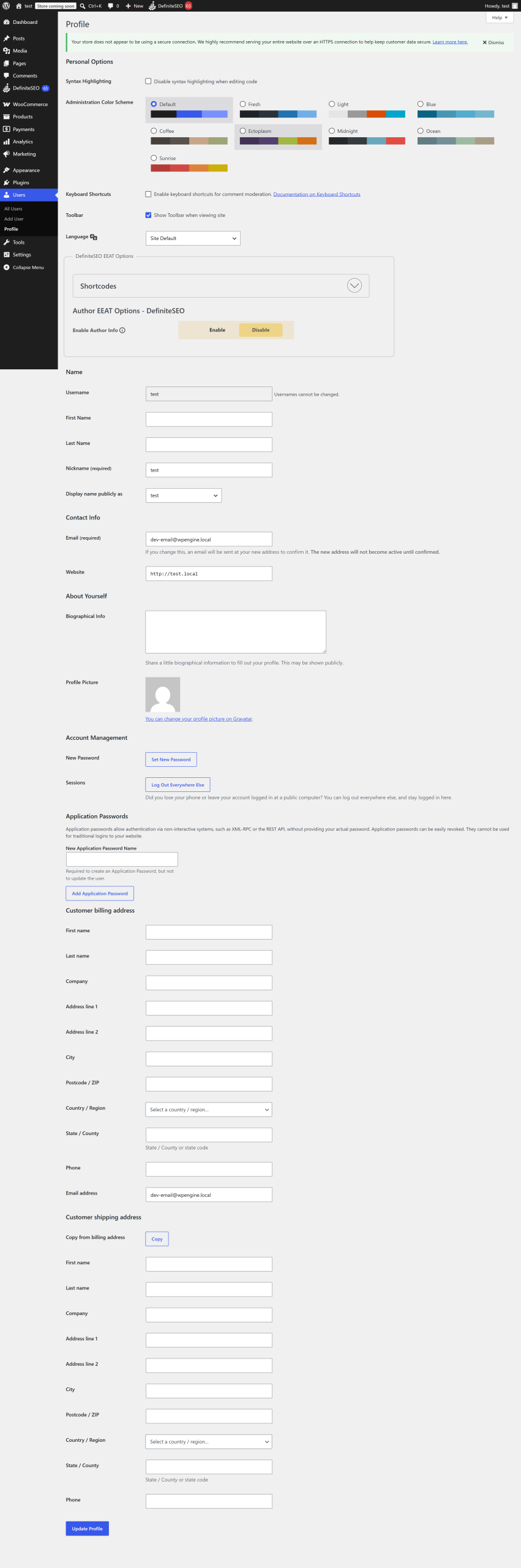
Author EEAT fields live on each user's WordPress profile.
- Go to Users and edit the author's profile.
- Find the EEAT Options section and turn on Enable Author Info.
- Fill in the fields you want to show: Alumni Of, Employer Name, Job Title, Knows About, Author
Bio, Author Image URL, and Author Excerpt. - Open Profile Options to add social links (Facebook, X, Instagram, LinkedIn, YouTube, and a
custom URL). - Save the profile.
Tip: The Knows About field pulls from your EEAT Skills list. Add topics under the
DefiniteSEO Preferences > EEAT Skills page first, then select them here.
Assign a reviewer to a post
A reviewer is the person who fact-checked or medically or legally reviewed a post.
- Open a post in the Classic editor.
- In the Reviewer for EEAT box, choose the reviewer.
- Optionally turn on Disable Author EEAT info on this post if you do not want author info on
that specific post. - Update the post.
Note: The reviewer box renders in the Classic editor. In the block editor and Elementor,
the reviewer and EEAT controls appear in their respective panels.
Display author and reviewer blocks
Use shortcodes to place the author or reviewer block in your theme or content:
- Author block: Written by -

Param Chahal has been working in software development and digital marketing since 1998. He holds both a Bachelors and a...
- Reviewer block:
For the block editor, add a Shortcode block containing the shortcode. For a theme template, use Param Chahal has been working in software development and digital marketing since 1998. He holds both a Bachelors and a...
<?php echo do_shortcode( " in single.php.
Settings reference
| Setting | What it does | Default | Notes |
|---|---|---|---|
| Enable Author Info | Show author EEAT info for this user | Off | Per user profile |
| Alumni Of | Institutions the author studied at | Empty | Name and URL, add multiple |
| Employer Name | The author's employer | Empty | Optional |
| Job Title | The author's job title | Empty | Optional |
| Knows About | Topics of expertise | Empty | Pulled from the EEAT Skills list |
| Author Bio | Short biography | WordPress bio | Uses the WordPress author bio if blank |
| Author Image URL | Author photo | Empty | Square images work best |
| Author Excerpt | Short author summary | Empty | Optional |
| Profile Options | Social profile links | Empty | Facebook, X, Instagram, LinkedIn, YouTube, custom |
| Reviewer for EEAT | Fact-checker for a post | None | Set per post |
| Disable Author EEAT on this post | Hide author info for one post | Off | Set per post |
Limits and good to know
- Plan: Requires a Pro plan with the EEAT Skills feature enabled.
- Author info is stored per user; reviewer assignment is stored per post.
- Category authors and reviewers are available when author info is enabled for that taxonomy.
- Output: Author and reviewer details can appear on the page (via shortcodes) and in
structured data. See Schema and structured data.
FAQ
What is EEAT and does it affect rankings?
EEAT stands for Experience, Expertise, Authoritativeness, and Trust. It is part of how Google
evaluates content quality, especially for topics that affect health, finances, or safety.
Showing real author and reviewer credentials helps demonstrate these qualities.
Where do I add an author's credentials?
On the author's WordPress user profile, in the EEAT Options section. Turn on Enable Author Info,
then fill in the bio, employer, job title, expertise topics, and social profiles.
How do I show that an article was fact-checked?
Assign a reviewer to the post using the Reviewer for EEAT control, then display the reviewer
block with the shortcode. The reviewer can also be included in
structured data.
Why can I not see the reviewer box in the block editor?
The reviewer box shown in these steps is a Classic editor field. In the block editor and
Elementor the reviewer and EEAT controls appear in their own panels rather than as that box.
Related
- Schema and structured data: output author and reviewer schema.
- SEO Autofix: includes an author schema fixer.