DefiniteSEO Pro quick start: your first SEO autofix
Go from a fresh install to your first automatic SEO fix in about 10 minutes.
Plan: All Pro plans (AI fixes require Business)
On this page
- Before you begin
- Step 1: Turn on the modules you want
- Step 2: Fix a single post
- Step 3: Fix many posts at once
- Step 4: Review and undo
- Where to go next
- FAQ
Before you begin
Make sure you have installed and activated DefiniteSEO Pro and that your
license shows as valid. This quick start walks through a single post first, then a bulk run, so
you can see exactly what the plugin changes before you scale up.
Step 1: Turn on the modules you want
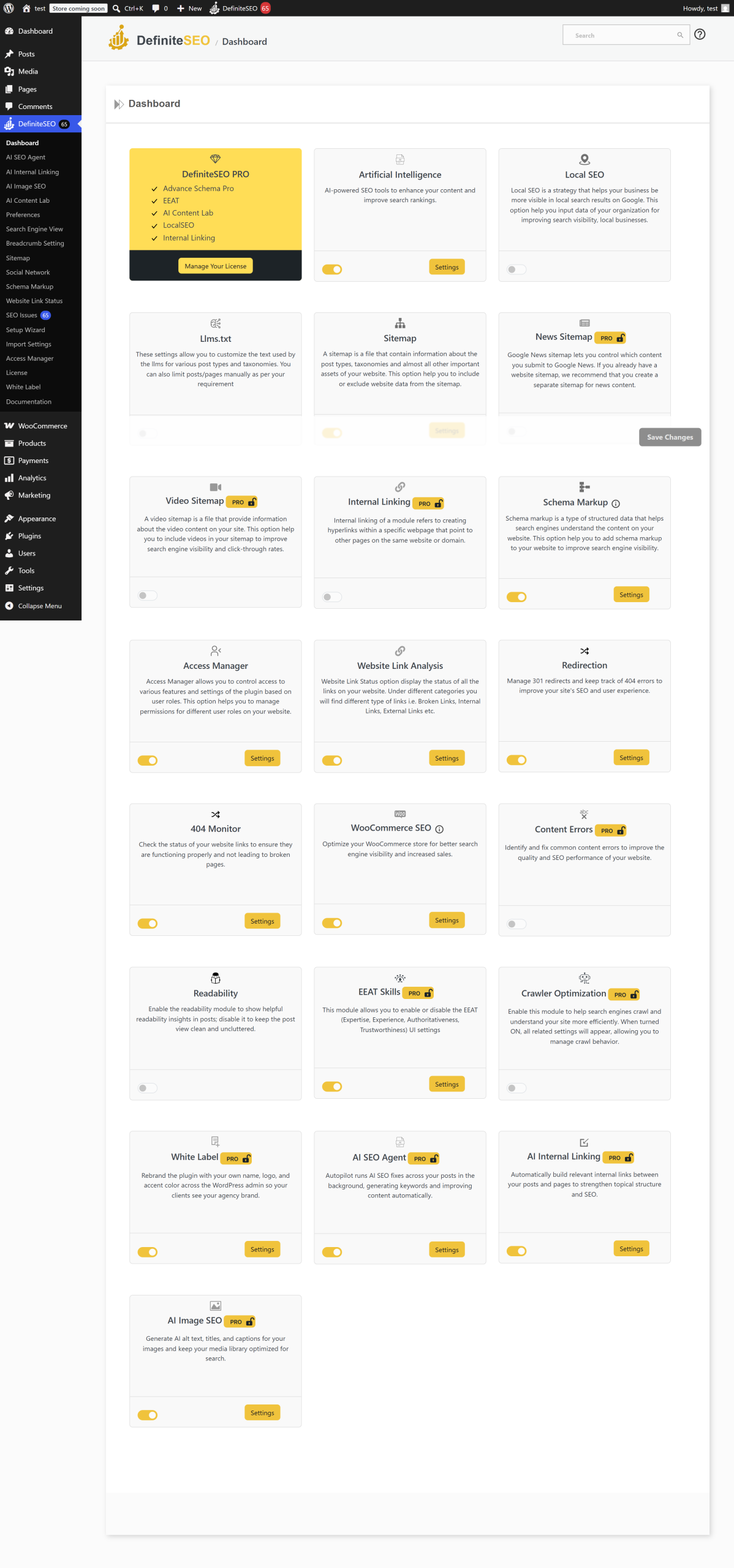
- Go to DefiniteSEO > Dashboard.
- Switch on the cards for the modules you plan to use. For a first run, the SEO Autofix tools
are enough. - Save if prompted.
Step 2: Fix a single post
The safest way to see what autofix does is on one post.
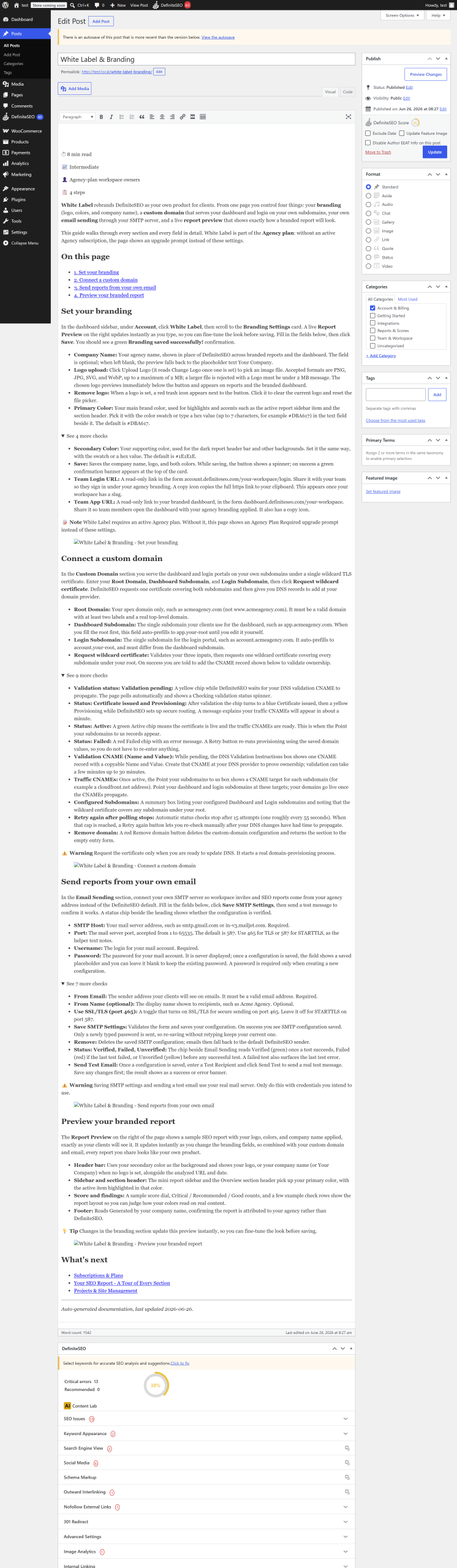
- Open any published post or page in the WordPress editor.
- In the DefiniteSEO sidebar, find the Points to improve panel. It lists the SEO issues
found on this post. - Select Fix next to an individual issue, or Fix all critical to resolve the flagged
critical issues in one click. - Wait for the panel to refresh and show the issues as resolved.
Tip: Mechanical fixes (like setting a canonical or enabling schema) are instant and free.
AI fixes (like rewriting a meta description) use credits and take a moment to generate.
Step 3: Fix many posts at once
Once you trust the results on one post, fix a batch.
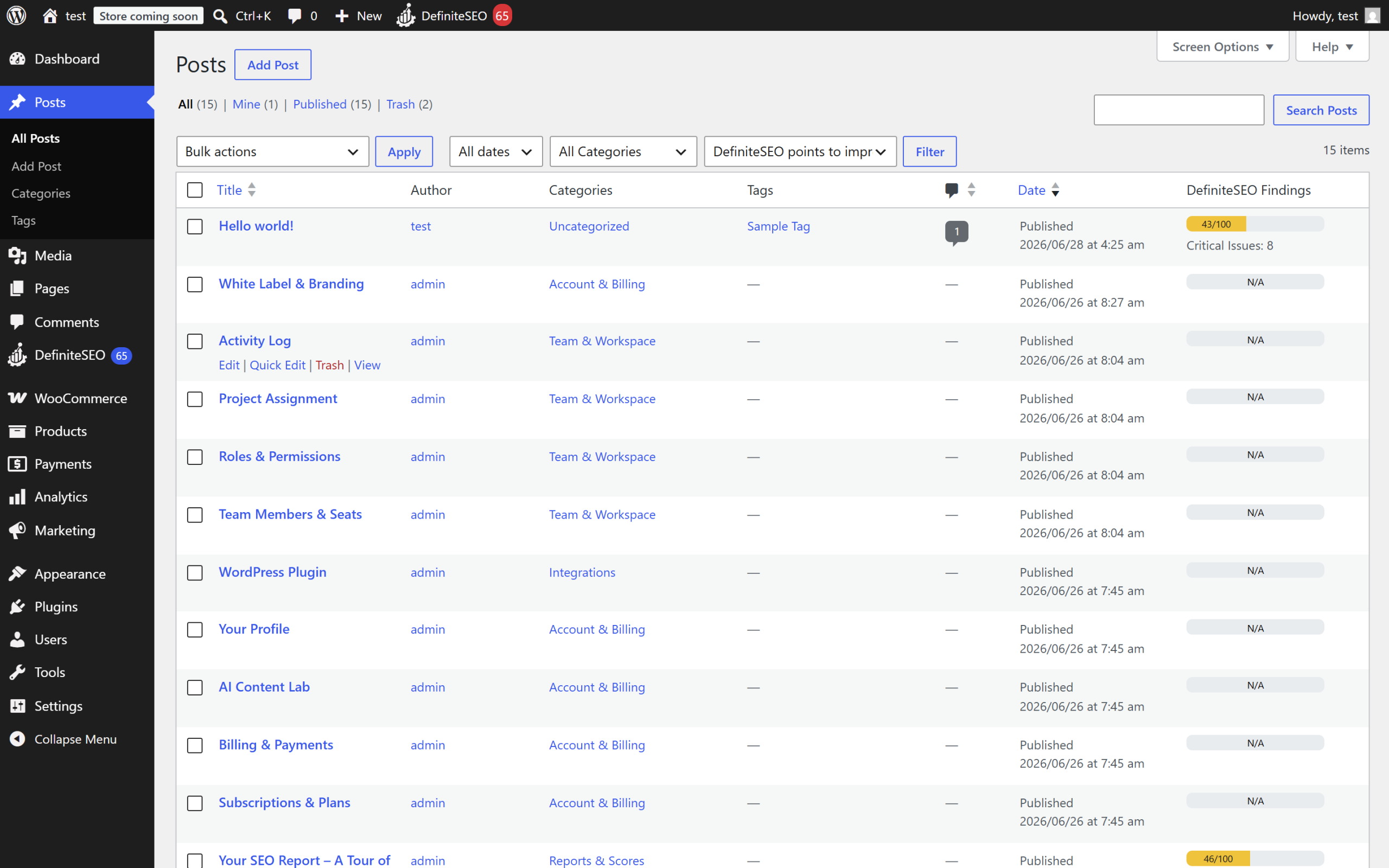
- Go to Posts > All Posts (or Products for WooCommerce).
- Select the checkboxes for the posts you want to fix.
- In the Bulk actions dropdown, choose Auto-Fix critical issues, then select Apply.
- The plugin queues the posts and fixes them in the background. A notice confirms how many were
queued.
Step 4: Review and undo
Every change DefiniteSEO makes is reversible.
- Review the affected posts to confirm the results look right.
- To roll something back, open the relevant module's Activity log and select Undo on
the run or the individual change. - Undo is available for 30 days after a change.
Note: Because bulk runs process in the background over several batches, very large sites
finish over multiple runs. That is expected. Check back and the queue will continue.
Where to go next
- Automate the whole process on a schedule with the
AI SEO Agent (Autopilot). - Add missing image alt text with AI Image SEO.
- Build internal links automatically with
AI Internal Linking.
FAQ
Is it safe to run autofix on my live site?
Yes. Start with a single post to see the changes, and remember every fix is reversible for 30
days from the Activity log. Mechanical fixes are deterministic; AI fixes generate new text you
can review and undo.
How long does a bulk autofix take?
It depends on how many posts you select and your host. Bulk runs process in the background in
batches, so large sites finish over several runs rather than all at once. A notice tells you how
many posts were queued.
Which fixes cost credits?
Mechanical fixes are free. AI fixes, such as generating a meta title, meta description, or image
alt text, use credits. See Plans and licensing for how credits relate
to your plan.
Related
- SEO Autofix: fix on-page SEO issues automatically: full details on the engine you just used.
- AI SEO Agent (Autopilot): schedule this so it runs on its own.