AI Internal Linking: add WordPress internal links automatically
Index your content and insert natural, relevant internal links between posts, with full control over anchors and limits.
Plan: Business
On this page
- What it does
- How to set it up
- Anchor types and diversity
- Pillar pages and important targets
- Settings reference
- Limits and good to know
- FAQ
What it does
AI Internal Linking (ILM) analyzes your posts, builds a semantic index of what each one is
about, and inserts internal links between related posts using natural anchor text. Good internal
linking spreads authority, helps search engines understand your site structure, and keeps
readers moving through related content. Runs happen in the background, on demand or via
Autopilot, and every link is reversible for 30 days.
How to set it up
The module has three tabs: Settings, Dashboard, and the Inbound link manager.
Configure the Settings tab
- Go to DefiniteSEO > AI Internal Linking and open Settings.
- Turn on Enable Autopilot if you want links added automatically.
- Choose a Mode (Conservative, Balanced, Aggressive, or Custom), which sets the quality
floor for how confident a suggestion must be before it is applied. - Set your limits: max links per source post, max incoming links per target, and the minimum
paragraph length eligible for a link. - Choose the post types to link and the allowed anchor types.
- Select Save settings.
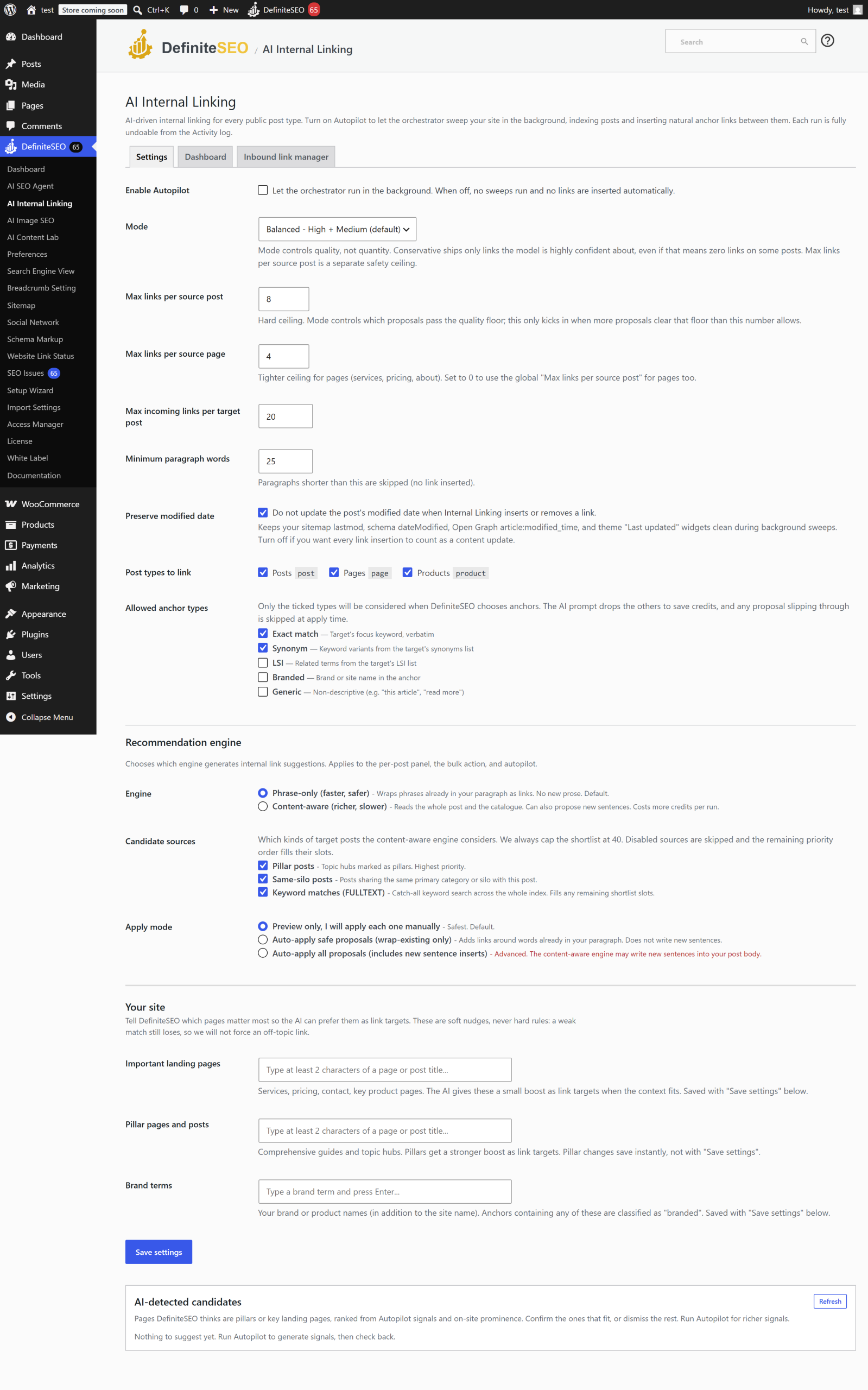
Build the index and run a sweep
- Open the Dashboard tab to see index coverage and the queue.
- Select Start full sweep to index and link your content, or Process one tick to advance
the queue a step at a time. - Review Recent runs, expand a run to see the links it added, and use Undo to revert.
Add inbound links to a specific page
- Open the Inbound link manager.
- Pick a target post you want more links pointing to.
- Review posts that mention it and apply the inbound links you want.
Anchor types and diversity
Internal links use one of five anchor styles. You choose which are allowed:
- Exact: the target's exact keyword.
- Synonym: a close variant of the keyword.
- LSI: a semantically related term.
- Branded: your brand or site name.
- Generic: a general phrase.
By default only Exact and Synonym are allowed, because they carry the strongest, least
noisy signal. Enable the others when your content calls for more variety. The module also tracks
anchor diversity and flags over-optimized targets so the same anchor is not overused.
Pillar pages and important targets
You can tell the module about your strategy so it links smarter:
- Pillar pages get a scoring boost so related posts preferentially link to them.
- Important target pages (services, pricing, key landing pages) are preferred as link
destinations when the context fits. - Brand terms beyond your site name are treated as branded anchors.
Settings reference
| Setting | What it does | Default | Notes |
|---|---|---|---|
| Enable Autopilot | Add internal links automatically | Off | Manual sweeps still work when off |
| Mode | Quality floor for applying a suggestion | Balanced | conservative, balanced, aggressive, custom |
| Post types to link | Which post types are linked | Post | Add pages, products, or CPTs explicitly |
| Max links per source post | Cap on outbound links added per post | 8 | Pages default to a lower cap of 4 |
| Max incoming per target | Cap on links pointing to one post | 20 | Prevents over-linking a single target |
| Minimum paragraph words | Shortest paragraph eligible for a link | 25 | Avoids linking from thin text |
| Allowed anchor types | Which anchor styles may be used | Exact, Synonym | Also LSI, Branded, Generic |
| Preserve modified date | Do not bump the post's modified date on apply | On | Keeps sitemaps and "last updated" clean |
| Recommendation engine | Phrase-only (Plan A) or content-aware AI (Plan B) | Plan A | Plan B adds pillar, silo, and full-text candidates |
| Plan B apply mode | How Plan B proposals are applied | Preview | preview, wrap_only, or both |
| Pillar boost | Scoring multiplier for pillar targets | 1.40 | Set to 1.0 to disable the boost |
| Email digest | Summary email of linking activity | On | Set recipient |
Limits and good to know
- Plan: Requires the Business plan or higher, and the AI Internal Linking dashboard card must
be on. - Credits: Local indexing is usually free (it reuses signals already computed); deriving new
semantics or ranking anchors with AI uses credits. - Undo: Every applied link is reversible for 30 days from the Activity log.
- Background behavior: The queue processes every few minutes via WordPress cron, with a
periodic re-sweep to keep the index fresh; large sites index over multiple runs. - Modified date: By default, applying a link does not change a post's modified date, so it
will not flood your sitemap's last-modified timestamps.
FAQ
What is a pillar page and why does it matter here?
A pillar page is a cornerstone post you want other content to support. AI Internal Linking gives
pillar pages a scoring boost so related posts preferentially link to them, concentrating internal
authority where it helps most.
How do I stop the same anchor text from being overused?
The module tracks anchor diversity and reports over-optimized targets on the dashboard. Keep
a mix of allowed anchor types (start with Exact and Synonym) and review the over-optimized list
to rebalance.
Will adding links change my posts' "last updated" dates?
No, not by default. Preserve modified date is on, so applying a link does not bump the post's
modified date. Your sitemap timestamps and "last updated" widgets stay accurate.
What is the difference between Plan A and Plan B?
Plan A is a phrase-only matcher that suggests links based on keyword matches. Plan B is a
content-aware AI flow that also considers pillar, silo, and full-text candidates for richer
suggestions. Plan B's apply mode lets you preview before anything is inserted.
Can I add links to one important page specifically?
Yes. Use the Inbound link manager: pick the target page, review posts that mention it, and
apply inbound links. You can also mark it as an important target so runs prefer it.
Related
- AI SEO Agent (Autopilot): index and link automatically after fixes.
- SEO Autofix: the fix engine that feeds the internal-linking index.
- Settings reference: all settings in one place.