How to Set Up DefiniteSEO with the Setup Wizard
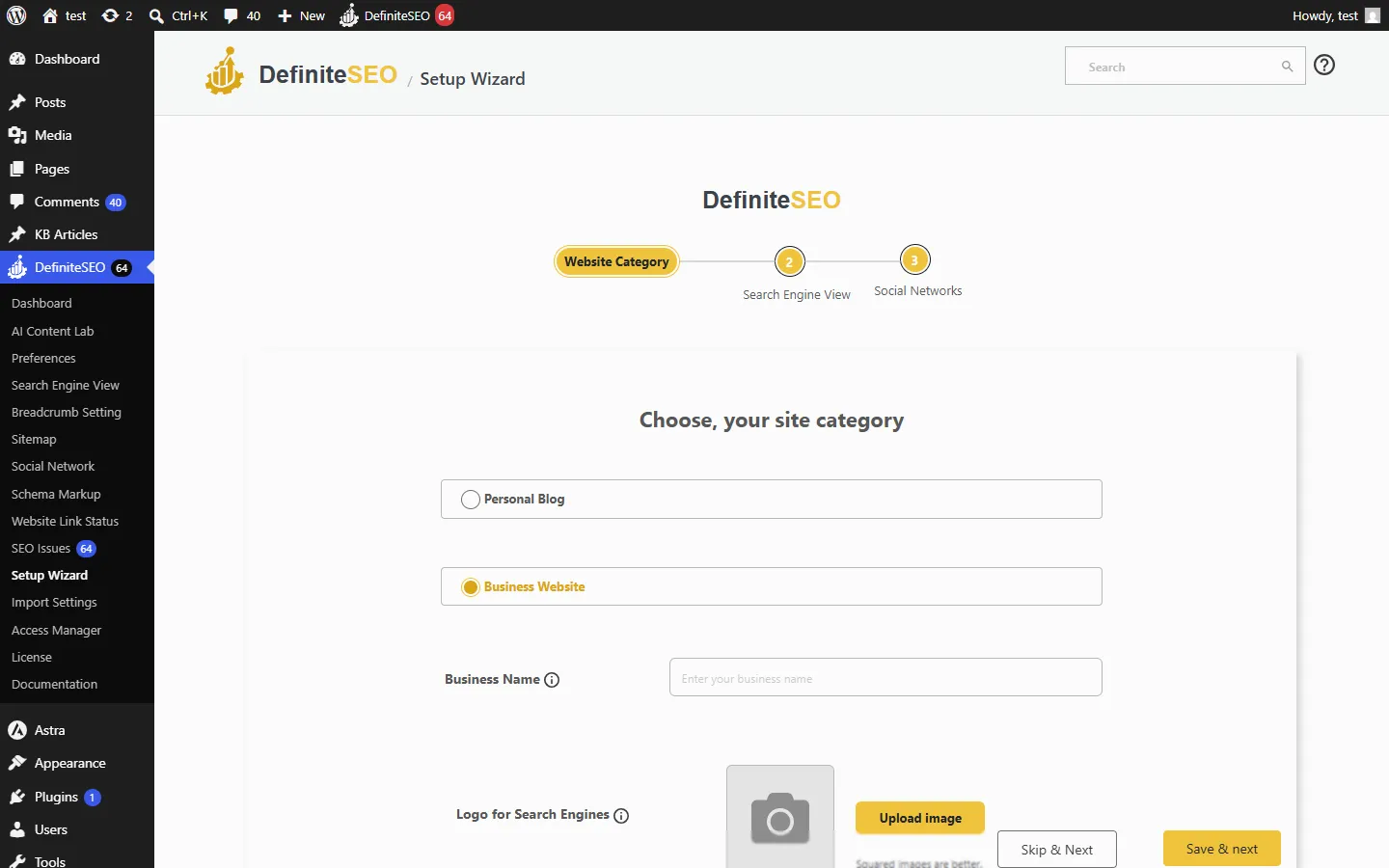
The progress bar at the top tracks three steps: Website Category, Search Engine View, and Social Networks. On each step you can use Save and next to save and continue, Skip and Next to move on without changing that step, or Back to return. When you finish, a summary screen confirms how many steps you completed and sends you to your dashboard.
On this page
Choose your website category
The first step asks whether your site is a Personal Blog or a Business Website. This is more than a label. It sets how DefiniteSEO describes your site in structured data: a Business Website is published as an Organization, and a Personal Blog as a Person. Search engines read this to build your knowledge panel and to connect your brand across the web.
Depending on your choice, fill in the fields below the options:
- Name (personal blog) or Business Name (business website): the name that represents the site.
- Avatar for Search Engines (personal) or Logo for Search Engines (business): a square image works best, because Google can show it in some result types.
- Image for Social Sharing: the default image used when your site is shared on social platforms. The recommended size is 1200 by 627 up to 1200 by 675 pixels.
When you are done, select Save and next to continue to the next step.
Set your homepage title and description
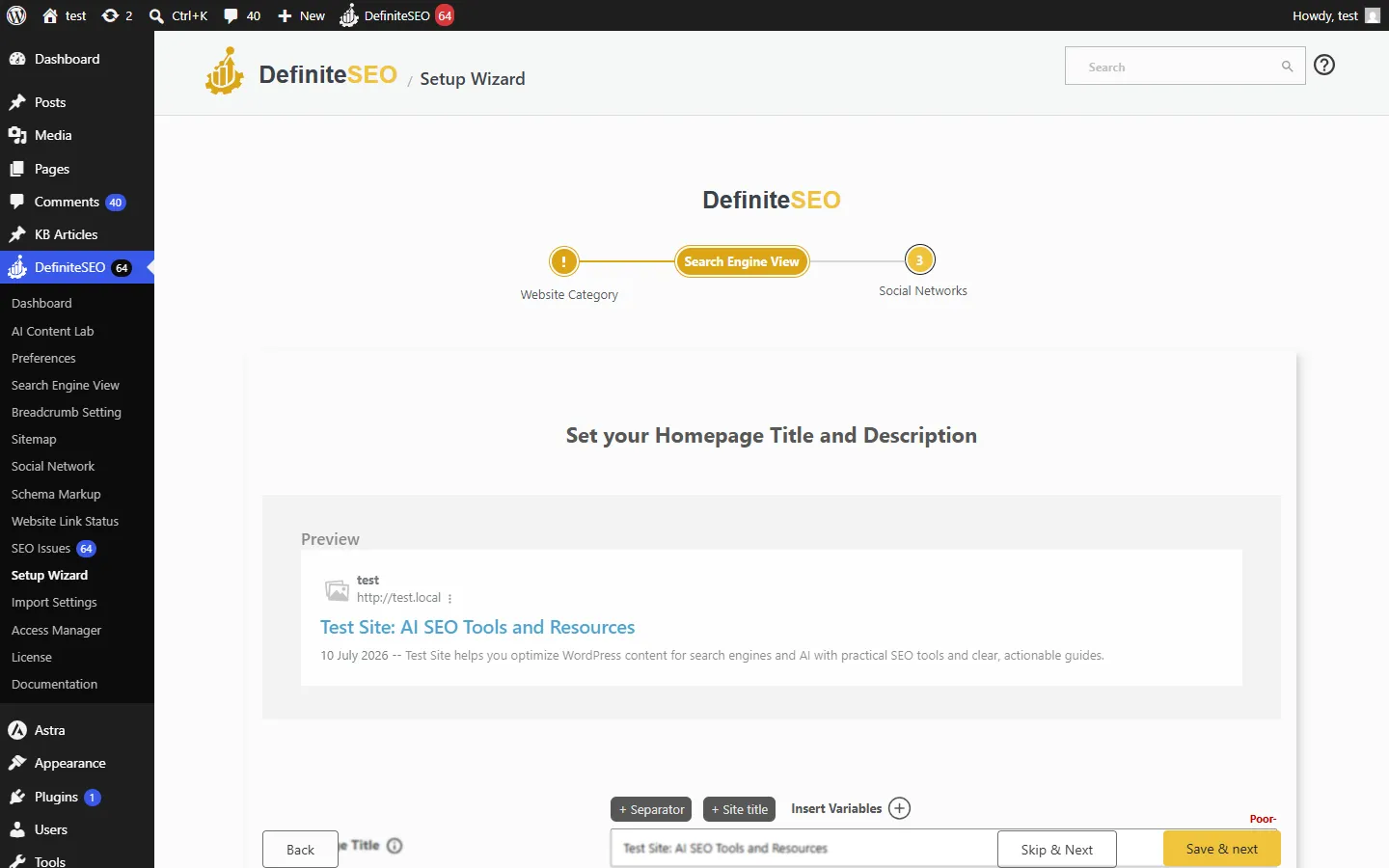
This step sets the title and meta description for your homepage, the text Google shows for your front page in search results. What you see here depends on how your homepage is set in Settings, then Reading.
When your homepage displays your latest posts, the fields are editable. A live Preview shows how the Google result will look, and a character-count score guides the length. Aim for a title around 60 characters and a description around 155, and include the main keyword people would search to find you. Use the Insert Variables control to add dynamic values such as the site title or a separator, then select Save and next.
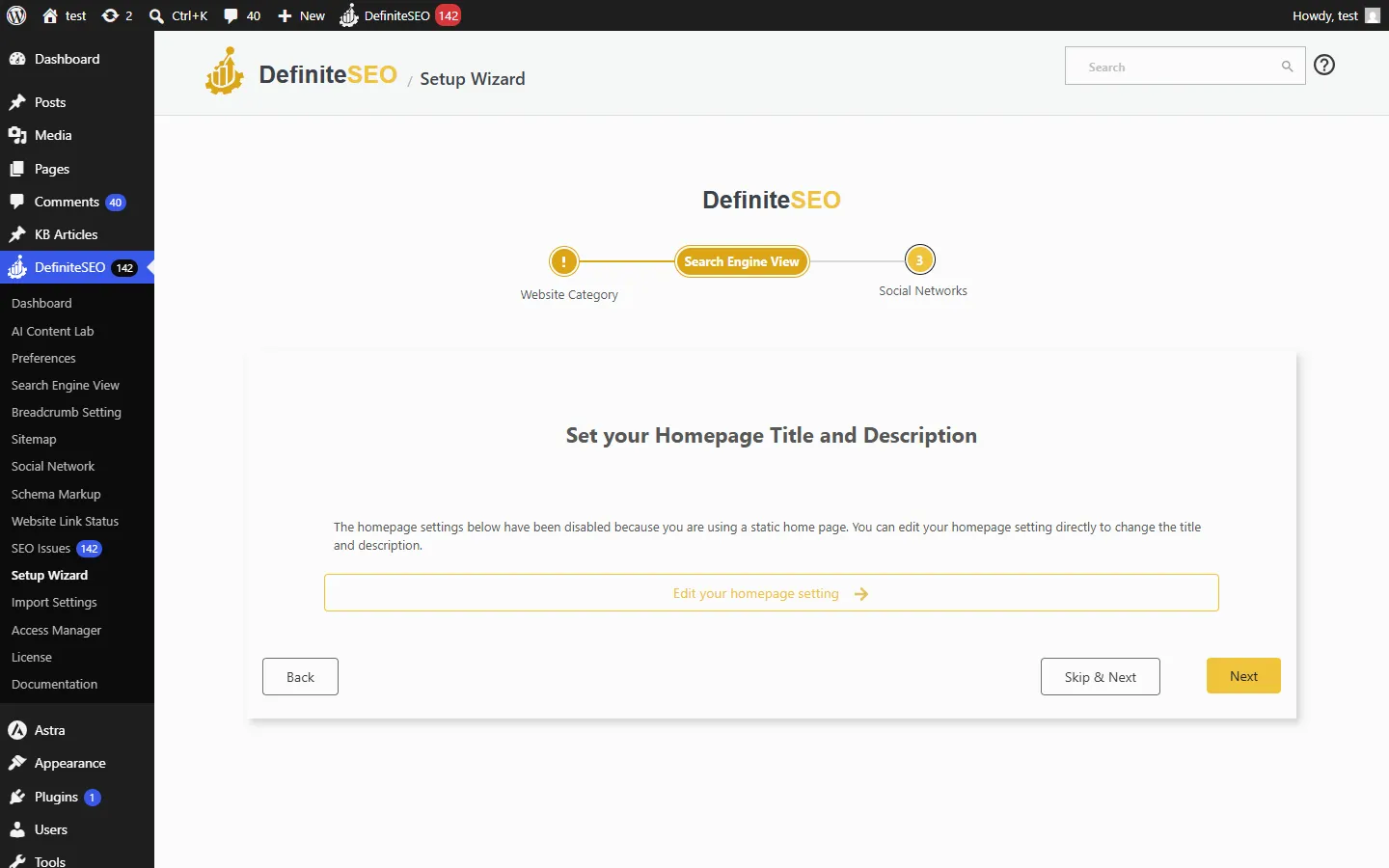
If your homepage is a static page
When your homepage is set to a static page (Settings, then Reading, then A static page), that page already carries its own SEO fields, so this step is disabled. Instead of editable fields you see a note that the homepage settings are turned off, and an Edit your homepage setting button that opens the page, where you set its title and description in the normal DefiniteSEO editor. The save button also reads Next instead of Save and next, because there is nothing to save on this screen.
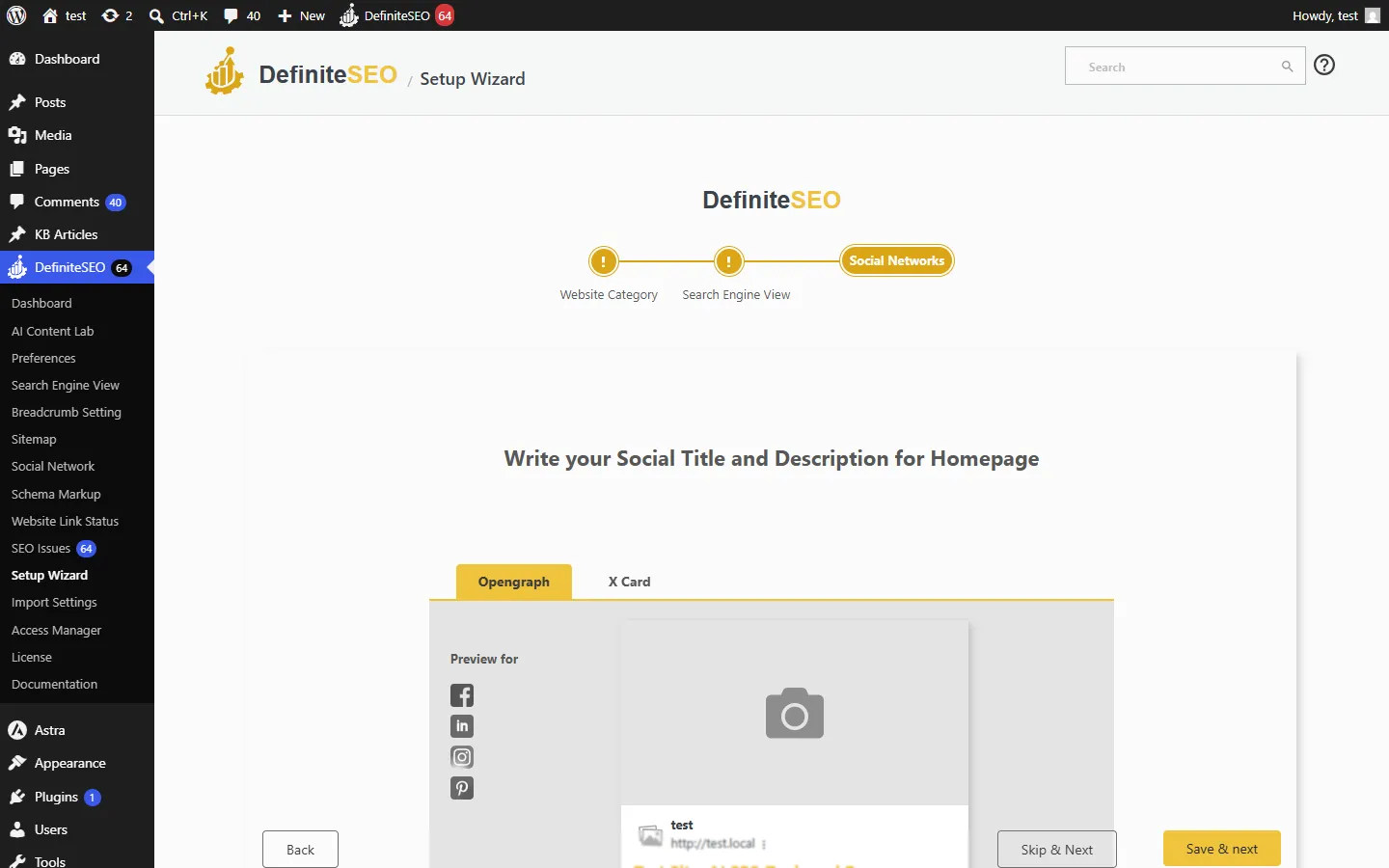
Set your homepage social preview
The last configuration step sets how your homepage looks when it is shared on social platforms. The Opengraph tab sets the image, title, and description used by Facebook, LinkedIn, Instagram, and Pinterest. The X Card tab sets the same for X (formerly Twitter). Upload a sharing image so links to your homepage show a rich preview instead of plain text.
Finish and go to your dashboard
After the last step, the wizard shows a Finished screen. The progress bar turns green, a message confirms “Setup complete. Your site is optimized with recommended defaults, which you can adjust anytime,” and a counter shows how many steps you completed, for example You have completed 3 steps out of 3. Click Go to dashboard to open DefiniteSEO and start resolving the SEO issues it found across your posts, pages, and settings.
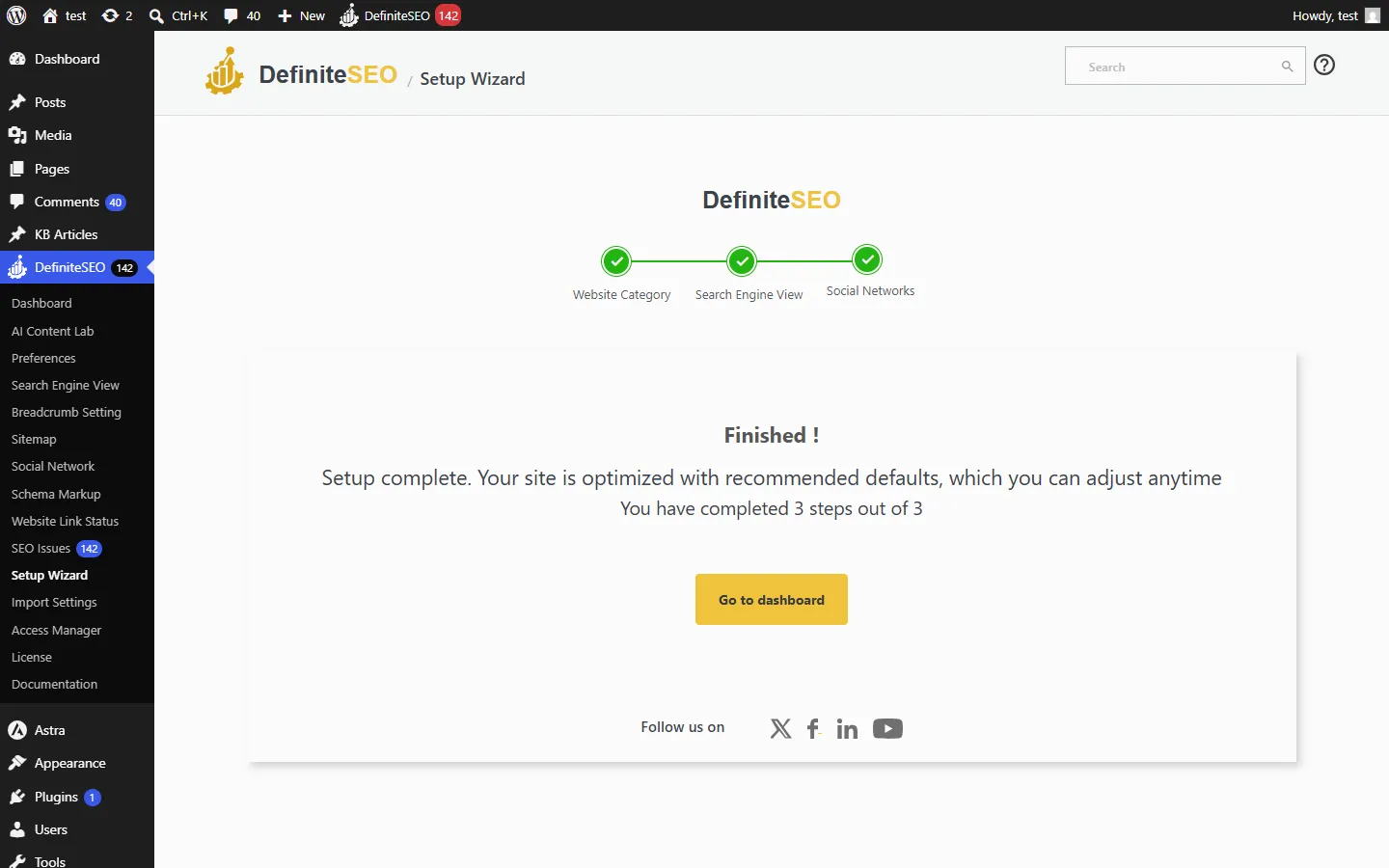
The counter reflects the steps you actually saved. If you moved past a step with Skip and Next, it is not counted, so the number may be lower than the total. You can rerun the wizard any time from DefiniteSEO, then Setup Wizard, to complete the steps you skipped.
Frequently asked questions
Do I have to complete the setup wizard?
No. Every step is optional, and you can skip any of them. The same options live under Search Engine View, Social Network, and Local SEO, so the wizard is simply the fastest way to set the basics in one pass.
Where do I find the setup wizard again?
Go to DefiniteSEO, then Setup Wizard in the WordPress admin sidebar. The wizard stays available after your first run, so you can revisit it any time.
Does the setup wizard change my content?
No. It only sets SEO metadata, which is your site identity, homepage title and description, and social preview. It does not edit your posts, pages, or theme.
What is the difference between a Personal Blog and a Business Website?
The choice sets your site’s schema identity. A Business Website outputs Organization schema with your name and logo, while a Personal Blog outputs Person schema. Pick the one that matches who publishes the site.
Why are the homepage title and social fields disabled?
Your homepage is set to a static page, which already has its own SEO fields. The wizard disables these steps and gives you an Edit your homepage setting button so you can set the title, description, and social preview on that page instead.
Does the wizard import from Yoast or other SEO plugins?
The wizard can import from Yoast SEO, and the Import step only appears when Yoast is installed. It does not import from other SEO plugins during the wizard. You can manage imports later under Import Settings.
What image sizes should I use in the wizard?
Use a square logo of at least 112 by 112 pixels for search engines, and a social sharing image of about 1200 by 630 pixels (the wizard suggests 1200 by 627 up to 1200 by 675).
What does “You have completed X steps out of Y” mean?
It counts the steps you saved with Save and next. Steps you passed with Skip and Next are not counted, so you can tell at a glance how much you configured and rerun the wizard to finish the rest.