Subscriptions & Plans
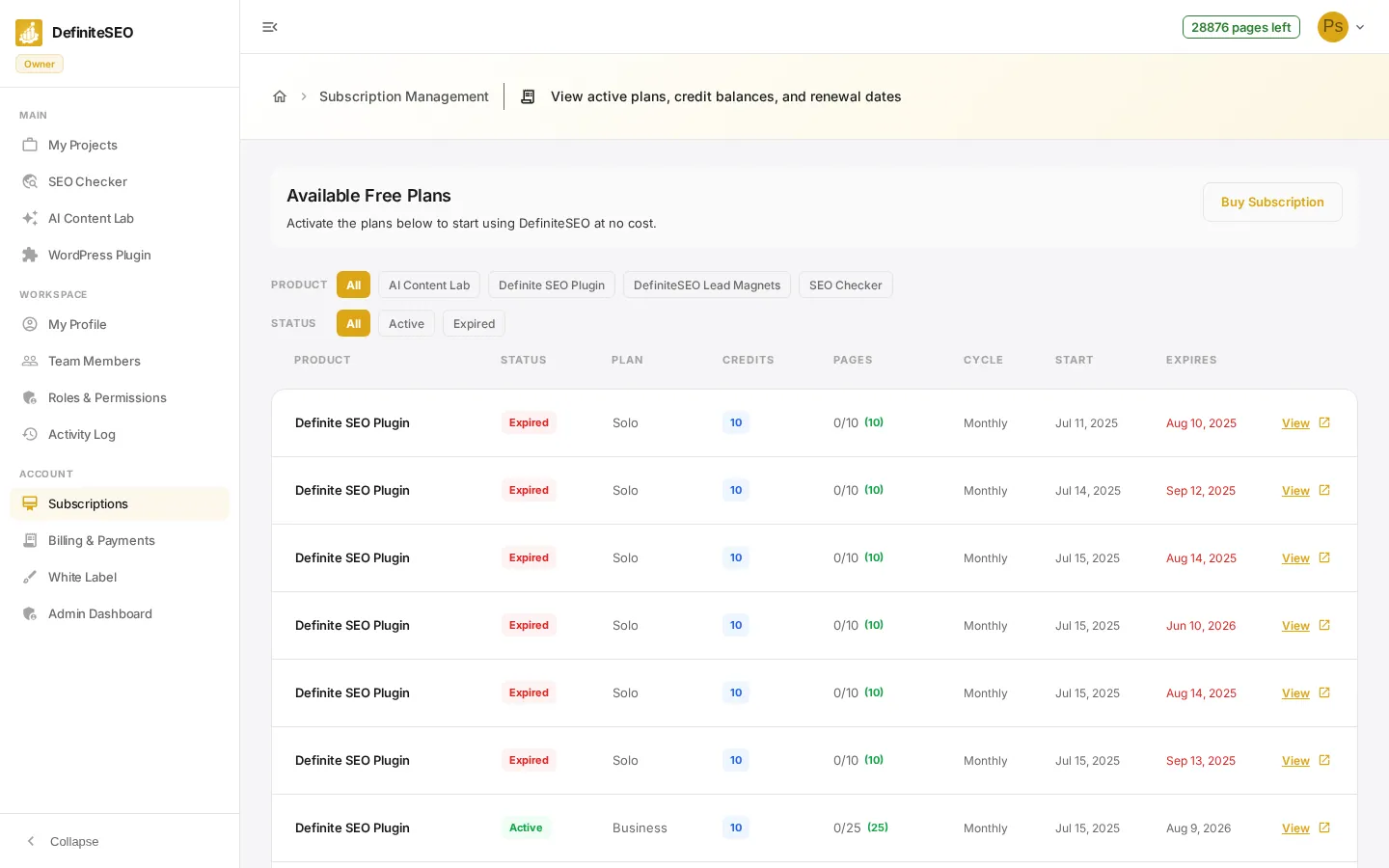
The Subscription Management page is the single place to see every plan on your account: which product each plan covers, its status, how many AI credits and page analyses you have left, the billing cycle, and the exact dates a plan started and renews or expires. An Available Free Plans card sits at the top so you can activate the free tier, start an AI trial, or buy a paid subscription without leaving the page.
This guide explains every part of the page in detail: the Available Plans card and its three actions, the Product and Status filter chips, every column in the subscriptions table, what the status and credit colors mean, the View action, and the empty and loading states you may see.
On this page
Open your subscriptions
In the dashboard sidebar, under Account, click Subscriptions. The page opens to Subscription Management, with the Available Free Plans card at the top and a table of every plan on your account below it. While the page loads you will briefly see a spinner; if a plan cannot be fetched, the page shows Failed to load subscriptions. instead of the table.
- Available Free Plans card: The card at the top is headed Available Free Plans with the subtext Activate the plans below to start using DefiniteSEO at no cost. It holds the actions for adding or changing a plan.
- Subscriptions table: Below the card, each row is one plan on your account, with columns for Product, Status, Plan, Credits, Pages, Cycle, Start, Expires, and a View action.
- Filter chips: Two rows of chips, Product and Status, sit between the card and the table so you can narrow the list to just the plans you want to see.
📝 Note You need to be signed in to view subscriptions. Workspace members see the plans provided by the workspace owner and cannot change them. A read-only notice appears reminding you to contact the owner to make changes.
Filter by product and status
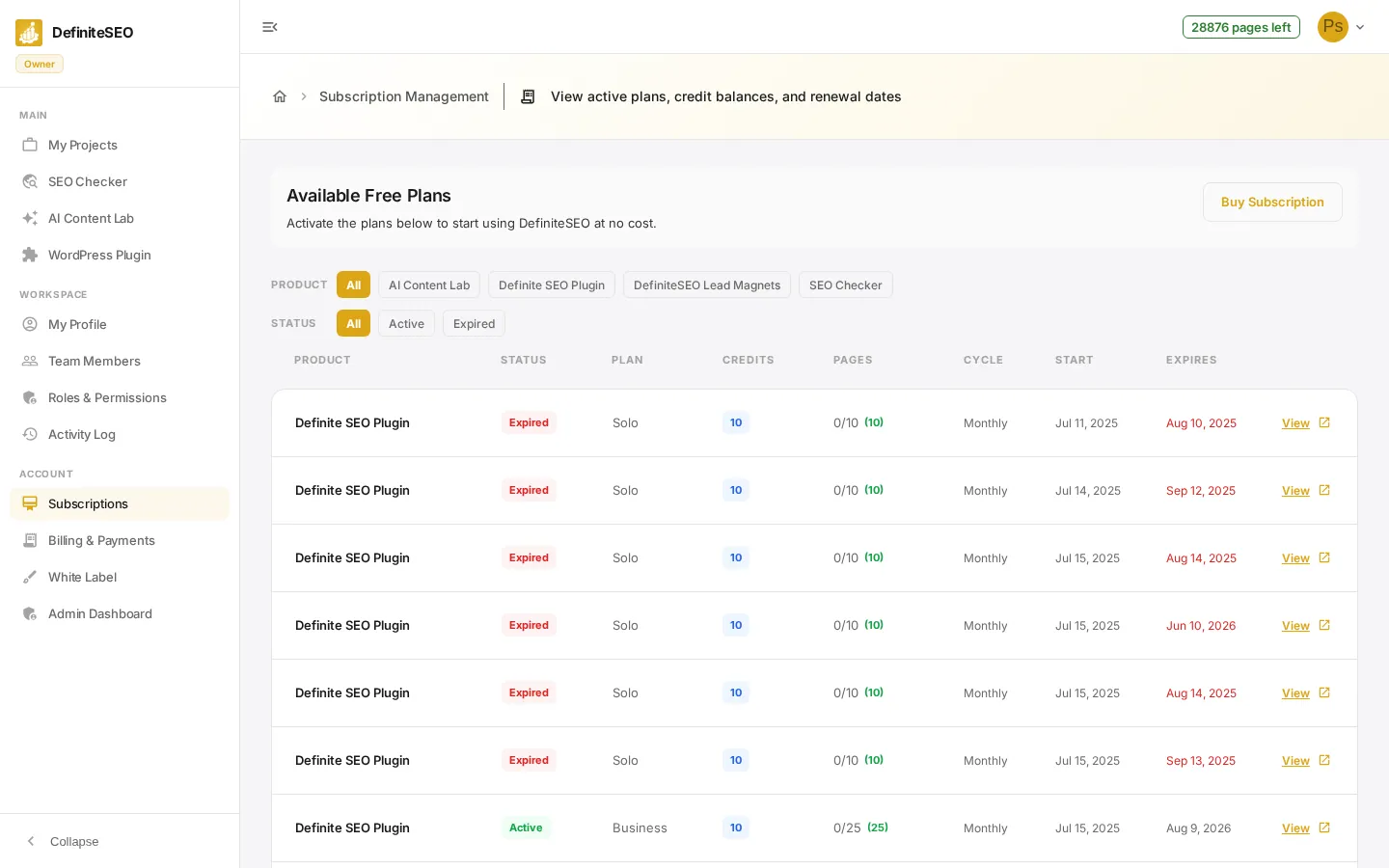
Two rows of chips above the table let you narrow the list. The Product row filters by product (for example SEO Checker or AI Content Lab), and the Status row filters by state (for example Active or Expired). The chips are built automatically from the plans you own, so you only ever see products and statuses that exist on your account. The active chip is highlighted; click All on either row to clear that filter.
- Product chips: Starts with an All chip, followed by one chip per distinct product on your account, listed alphabetically. Selecting one shows only that product's plans.
- Status chips: Starts with an All chip, followed by one chip per status present on your account, such as Active or Expired. Selecting one shows only plans in that state.
- Combined filters: Product and Status filters apply together, so you can narrow to, for example, only the Active plans for one product at once.
- No matches: If your chosen filters match nothing, the table is replaced by a No subscriptions match the selected filters. message; widen or clear a filter to see your plans again.
Understand your subscription details
Each row in the table describes one plan, read left to right across the columns. Colors carry meaning throughout the row, so status and remaining-page counts are obvious at a glance. Here is what every column tells you:
- Product: The product the plan applies to, such as SEO Checker, AI Content Lab, or Definite SEO Plugin. AI products (AI Content Lab) also show a purple AI badge next to the name.
- Status: The plan's state, shown as a color-coded pill: green for active, red for expired, and orange for cancelled. Any other state shows in neutral gray, and a missing status reads N/A.
- Plan: The name or tier of the plan, such as Solo or Business. It uses the plan label when available, otherwise the plan name, and reads N/A if neither is set.
- Credits: How many AI credits the plan carries, shown as a chip (zero if none). The chip is purple for AI Content Lab plans and blue for other products.
See 5 more checks
- Pages: Page analyses used against the plan limit, shown as used / limit, with the number remaining in parentheses beside it. The remaining count is green normally, orange when 2 or fewer are left, and red when none remain. Plans without a page limit show a dash.
- Cycle: The billing cycle for the plan, such as Monthly or Annual. Shows a dash when no cycle is set.
- Start: The date the plan started, formatted like Jul 15, 2025.
- Expires: The renewal or expiry date, in the same date format. It turns red once the plan's status is expired.
- View: The action at the end of each row. Click View (it carries an open-in-new icon) to open that plan's full detail page and see everything recorded for the subscription.
📝 Note If you have no plans at all, the table is replaced by a No subscriptions found. message. The Available Free Plans card still appears above it so you can start a free plan, an AI trial, or buy a subscription.
Start a plan or buy a subscription
Use the Available Free Plans card at the top of the page to add or change a plan. It holds up to three actions, each shown only when it applies to your account. Buy Subscription (top right of the card) opens the payment dialog so you can pick a paid plan and continue to checkout. When you do not yet have a free plan, a Free Plan card appears with a Start Free Plan button. When you have no AI trial and one is available, an AI Trial card appears with a Start AI Trial button.
- Buy Subscription: Opens the subscription payment dialog where you choose a paid plan and continue to checkout. For workspace members it appears only if they have the buy subscription permission.
- Start Free Plan: Activates the Free Plan, described on its card as 22 page analyses per month and 1 project, with no card required. The button reads Activating… while it works, then a confirmation appears. This card is hidden once you already have a free plan.
- Start AI Trial: Begins the AI Trial, described on its card as a 30-day trial of AI Content Lab, limited to one per user. The button reads Activating… while it works, then a confirmation appears. This card is hidden once you already have a trial or when no trial plan is available.
⚠️ Warning These buttons take effect immediately: Start Free Plan and Start AI Trial activate a plan right away, and Buy Subscription opens checkout. Use them only when you actually want to change your subscription.