AI Content Lab
The AI Content Lab is where DefiniteSEO turns your SEO work into finished copy: meta titles, meta descriptions, full page content, and complete SEO packages, all generated by AI. Every generation spends AI credits, and this page is your control center for those credits.
It answers three questions at a glance: how many credits you have, where they come from, and what each type of generation costs. This guide walks through every part of the page in detail, from the credit balance card to the subscriptions table, so you always know what you are spending and what to buy when you run low.
On this page
- 1. Open the AI Content Lab
- 2. Read the Total AI Credits Available card
- 3. Scan your Active Subscriptions list
- 4. Review the AI Features cards
- 5. Understand how credits are spent
- 6. Know the exact credit costs
- 7. Read the Your AI Subscriptions table
- 8. Buy more AI credits
- 9. Handle empty and error states
Open the AI Content Lab
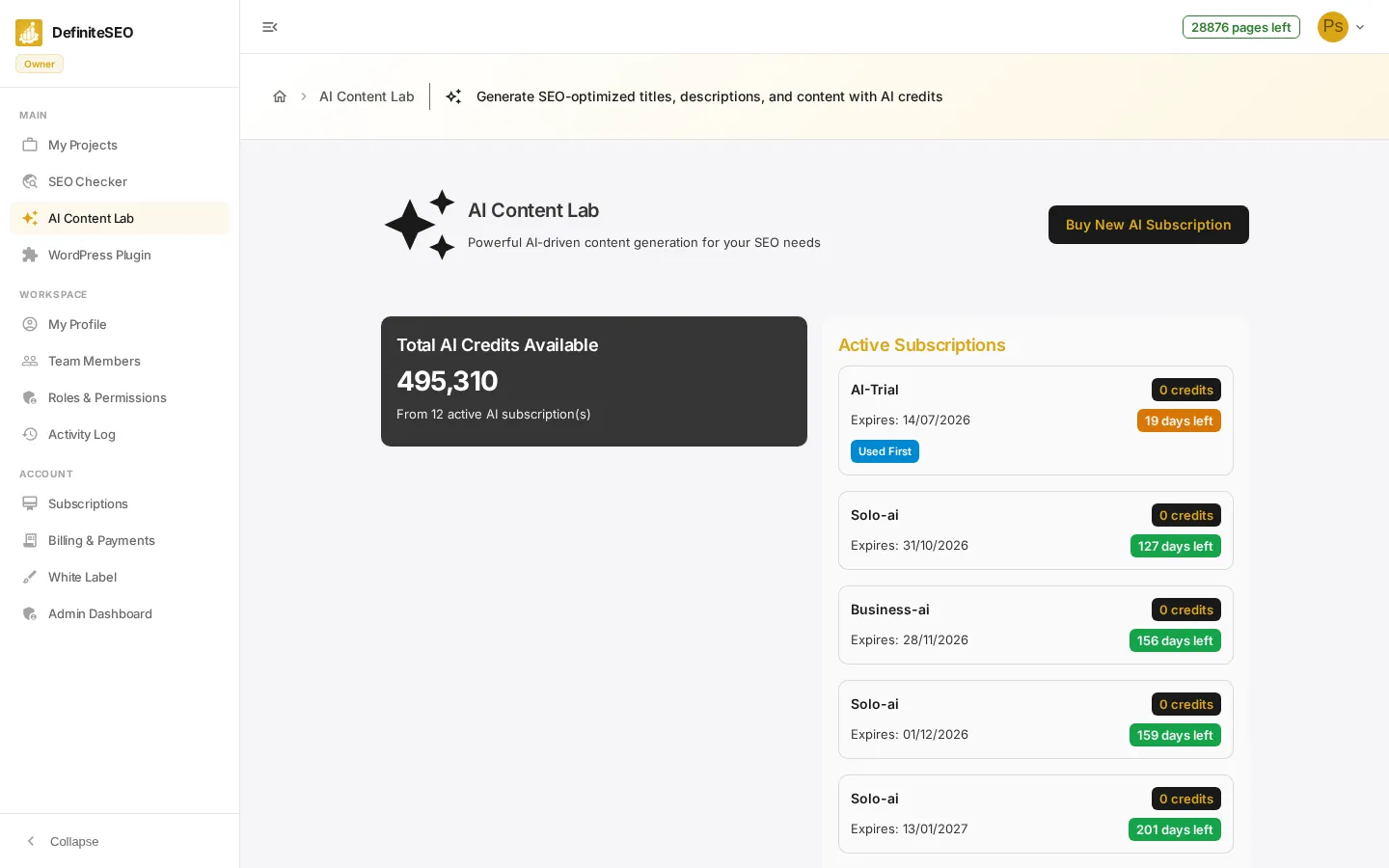
In the dashboard sidebar, under Main, click AI Content Lab. The page opens with a header reading AI Content Lab and the subtitle Powerful AI-driven content generation for your SEO needs. Below it you will see your credit balance, your active AI subscriptions, the AI feature cards, the How Credits Work explainer, and a table of all your AI subscriptions.
📝 Note The AI Content Lab is plan-gated. If you do not have access, you will see a locked screen and can ask your workspace owner to enable it.
Read the Total AI Credits Available card
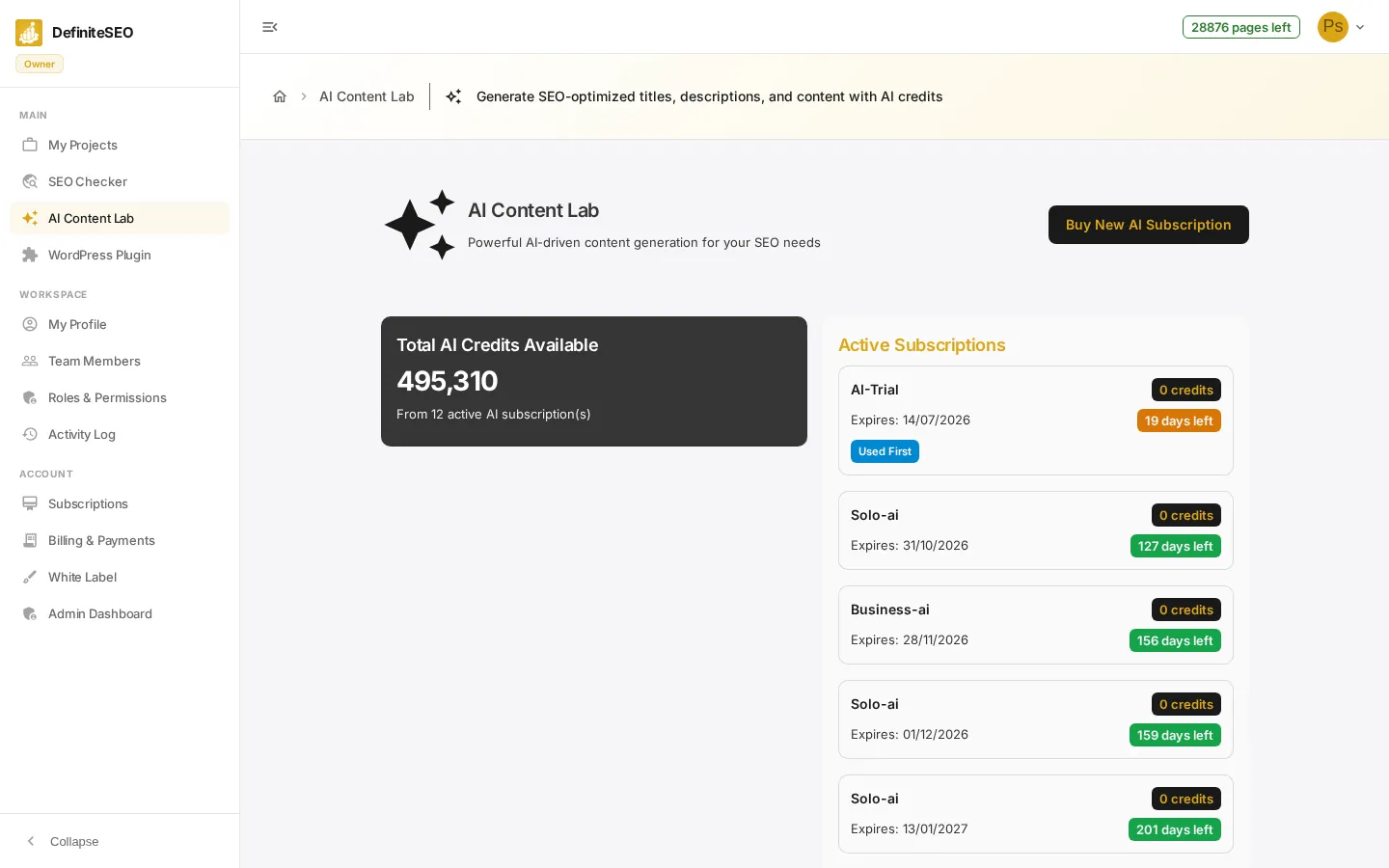
The dark Total AI Credits Available card sits at the top left. The large number is the sum of credits across every AI subscription that is currently active, shown with thousands separators (for example, 495,310). Underneath, a line reads From N active AI subscription(s), telling you how many subscriptions that total is drawn from.
- What counts toward the total: Only subscriptions tied to the AI Content Lab product whose status is active are added up. Expired, cancelled, or pending AI subscriptions do not contribute to this number.
- Card width adapts: When you have at least one active AI subscription, this card sits beside the Active Subscriptions list. When you have none, it widens to fill the row on its own.
- Zero-credit notice: If your total comes to 0, a blue info banner appears below the card reading that you don't have any AI credits and prompting you to purchase an AI subscription to get started.
💡 Tip Credits from your main subscription are used first, then your AI subscriptions in order of which expires soonest.
Scan your Active Subscriptions list
To the right of the credit card, the Active Subscriptions card lists each active AI subscription as its own bordered tile. The list is sorted by expiry date with the soonest expiry first, because that is the order credits are spent. Each tile carries the same set of details:
- Plan name: The subscription's plan label appears in bold at the top left of the tile, for example AI-Trial, Solo-ai, or Business-ai.
- Credits chip: A colored chip at the top right shows that subscription's remaining credits, formatted with thousands separators and the word credits, for example 0 credits.
- Expiry date: A line reading Expires: followed by the date the subscription ends, shown in your local date format.
- Days left chip: A chip showing how many days remain until expiry. Its color is a warning system: green when more than 30 days remain, amber when 30 days or fewer (down to 8), and red when 7 days or fewer are left.
- Used First marker: The first tile in the list, the one expiring soonest, carries a small blue Used First chip. This is the subscription the system draws from before any other AI subscription, so its credits are spent before they can expire.
📝 Note The Used First marker only ever appears on the top tile. As that subscription is exhausted or expires, the next-soonest subscription becomes the one used first.
Review the AI Features cards
Under the AI Features heading, three cards summarize what the AI Content Lab does for you. They are descriptive highlights of the service, not buttons:
- Fast Generation: Generate SEO-optimized content in seconds using advanced AI models.
- SEO Optimized: All content is optimized for search engines to improve your rankings.
- Multiple Formats: Generate titles, descriptions, meta tags, content, and more.
Understand how credits are spent
The How Credits Work card explains, in order, exactly how the system decides which credits to spend and what each generation costs. There are four numbered rules:
- 1. Main Subscription Credits Used First: When you use AI features, credits from your main subscription are deducted before any AI add-on subscription is touched.
- 2. Priority-Based AI Subscription Usage: After your main subscription's credits, the system spends AI subscription credits starting with the subscription that expires earliest, so nothing goes to waste. You can hold several active AI subscriptions at once.
- 3. Smart Credit Chaining: If one subscription does not hold enough credits for a request, the system automatically chains across multiple AI subscriptions, taking partial credits from each until the request is covered.
- 4. Credit Costs: Different AI features cost different amounts of credits. The exact costs are listed in the next step.
Know the exact credit costs
Inside rule 4 of How Credits Work, the page lists the precise cost of each generation type. Use these to estimate how far your balance will stretch:
- Meta Title: Generating a meta title costs 60 credits.
- Meta Description: Generating a meta description costs 155 credits.
- Full Content: Generating full page content costs 1000 credits.
- Complete SEO Package: A complete SEO package costs approximately 2125 credits, since it bundles the title, description, and content generations together.
💡 Tip Add the line items up to sanity-check the package: a meta title (60) plus a meta description (155) plus full content (1000) is the bulk of the 2125-credit Complete SEO Package.
Read the Your AI Subscriptions table
Lower down, the Your AI Subscriptions table lists every AI subscription you hold, active or not (this section is hidden when you have none). Each row spans five columns:
- Plan Name: The subscription's plan label, followed by a small AI chip that identifies it as an AI Content Lab subscription.
- Status: A chip showing the subscription's status. It is green when the status is active and a neutral default color otherwise.
- Credits: An outlined chip showing that subscription's credit balance, formatted with thousands separators and the word credits.
- Expiry Date: The date the subscription ends, shown in your local date format.
- Action: A View button that opens the full detail page for that specific subscription.
Buy more AI credits
When you are low on credits, click Buy New AI Subscription at the top right of the page to choose an AI plan and continue to checkout. This button only appears if you are allowed to purchase: workspace members need the buy subscription permission, while owners and standalone accounts always see it.
⚠️ Warning Buy New AI Subscription opens checkout right away. Use it only when you actually want to purchase more credits.
Handle empty and error states
The page tells you clearly when something is missing or wrong, so you are never left guessing:
- No credits: When your total credits are 0, a blue info banner invites you to purchase an AI subscription to get started with AI-powered content generation.
- No AI subscriptions yet: If you hold no AI subscriptions at all, the Active Subscriptions card and the Your AI Subscriptions table do not appear, and the credit card widens to fill the row.
- Loading: While your subscriptions are being fetched, the cards, feature tiles, and credit-rules card show placeholder skeletons in place of real data.
- Failed to load: If the subscriptions cannot be loaded, a red error banner reads that it failed to load subscriptions and asks you to try again later.