Activity Log
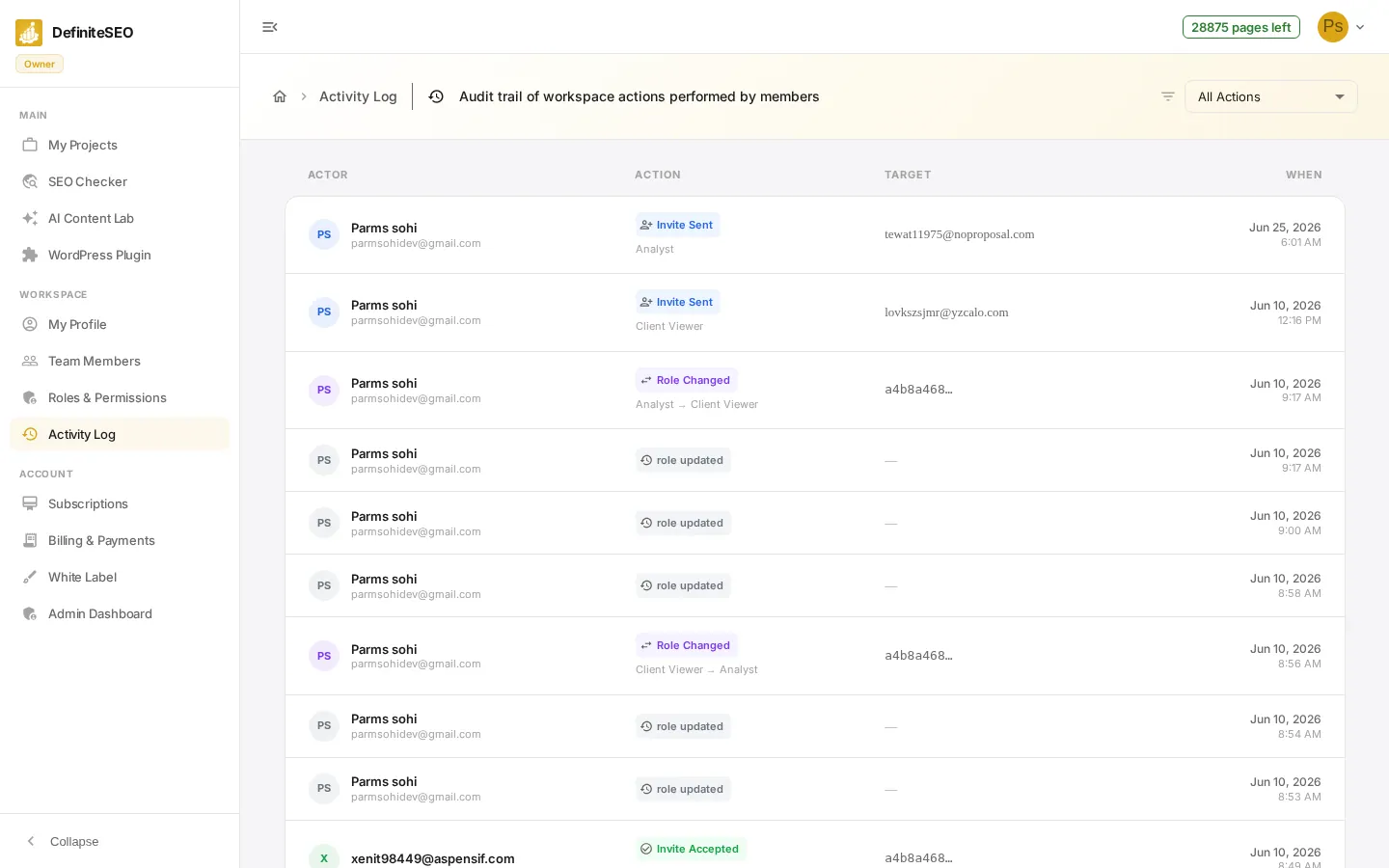
The Activity Log is your workspace’s audit trail: a permanent, time-stamped record of important actions such as invitations, role changes, suspensions, removals, and project assignments. It answers who did what, to whom, and when.
Use it for accountability, for troubleshooting (for example, why a member lost access), and for security reviews. This guide explains every part of the page in detail.
On this page
Open the Activity Log
In the dashboard sidebar, under Workspace, click Activity Log. The page opens to a table of recent actions, sorted newest first, where each row is one recorded action. Viewing the log requires the View Activity Log permission, which owners and admins have by default.
⭐ Important The activity log is read-only. Entries are a permanent record and cannot be edited or deleted, which is exactly what makes the log trustworthy for security and accountability.
Understand a log entry
Every row is one action, laid out across four columns. Reading left to right:
- Actor (left column): Who performed the action. A colored circle shows the person's initials, or a generic person icon for automated System actions. Their name appears first, with their email on the line beneath it when available.
- Action: What happened, shown as a colored pill with a matching icon and label. Below the pill, some actions add a small gray detail line, for example the old and new role on a role change.
- Target: Who or what the action affected. This is usually the affected member's email. When no email is available it shows a shortened account ID in a monospaced font, and it shows a dash when there is no specific target.
- When (right column): When the action happened, with the date on the first line and the exact time on the second. The list is always ordered newest first.
Action types and what they mean
The colored pill in the Action column tells you precisely what happened. Here is every action the log records, with its color and the extra detail it shows:
- Invite Sent (blue): A workspace or client invitation was sent. The detail line shows the invited role.
- Invite Accepted (green): An invited person accepted and joined the workspace.
- Invite Declined (red): An invited person declined their invitation.
- Invite Revoked (orange): A pending invitation was cancelled before it was accepted.
See 6 more checks
- Role Changed (purple): A member's role was changed. The detail line shows the change as old role to new role.
- Member Suspended (red): A member's access was temporarily blocked.
- Member Reactivated (green): A previously suspended member's access was restored.
- Member Removed (red): A member was permanently removed from the workspace.
- Projects Assigned (cyan): A member's project access was changed. The detail line shows how many projects.
- Workspace Created (green): Recorded once, when the workspace was first created. This one does not appear in the filter list.
Filter by action type
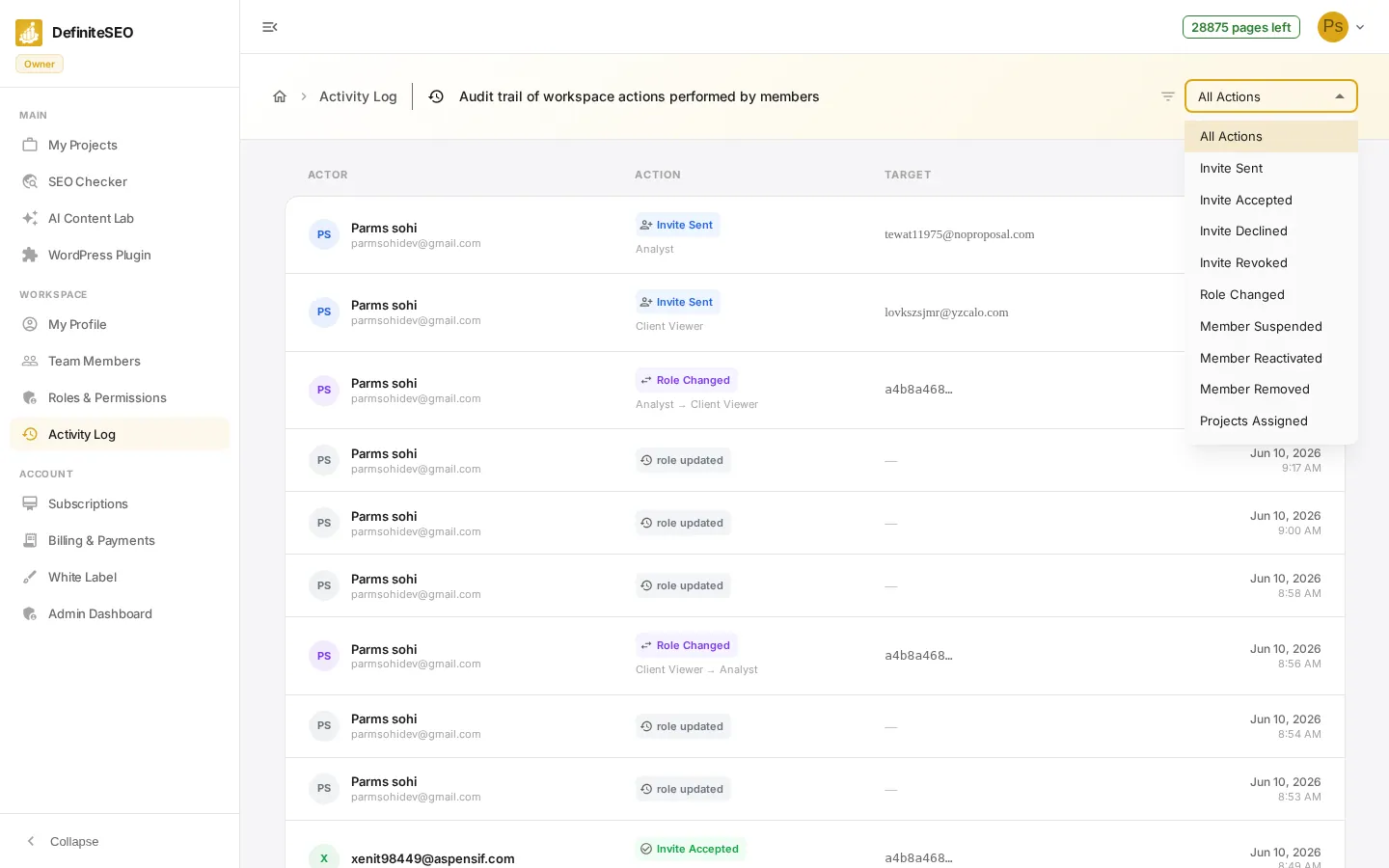
To focus on one kind of event, use the Action dropdown at the top right of the page (it reads All Actions by default). Pick an action, such as Role Changed, and the table updates to show only those entries and jumps back to the first page. Select All Actions again to clear the filter.
Move through the history
The log shows 25 entries per page. When there are more, a pager appears at the bottom right, so you can step back through older activity. If there is no activity yet, or your filter matches nothing, the page shows a No activity found message instead of the table.
💡 Tip Combine the filter with the pages to audit one kind of change over time, for example filter to Role Changed to review every permission change ever made in your workspace.