Your Profile
Your Profile page is a read-only summary of who you are inside a DefiniteSEO workspace. It pulls together three things on one screen: a profile header with your name, role, and status, the projects your role can reach, and a full breakdown of the permissions your role grants across the workspace.
This guide walks through every part of the page in detail, so you always know exactly what your role lets you see and do. Your sign-in credentials are deliberately not shown here: email and password are managed on the login screen, not on this page.
On this page
Open your profile
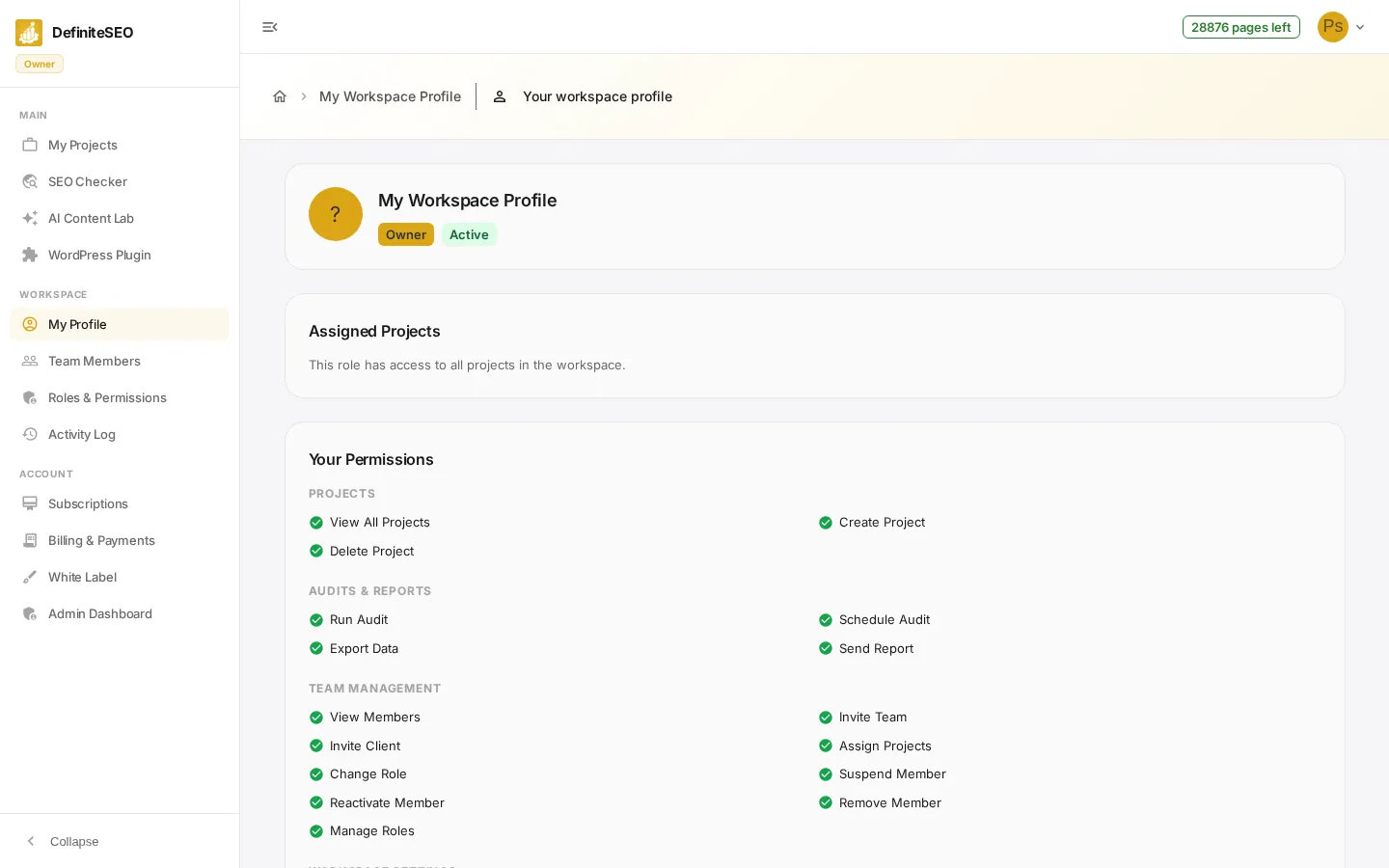
In the dashboard sidebar, under Workspace, click My Profile. The page opens to your own profile in self view, with the heading My Workspace Profile, followed by an Assigned Projects card and a Your Permissions card. Everything on this page is read-only: it reflects the role your workspace owner or admin gave you, and there are no buttons to change it from here.
📝 Note Your sign-in details, such as your email and password, are managed on the login screen rather than here. This page only shows your workspace role, status, projects, and permissions.
Read your profile header
The card at the top is your profile header. It identifies you and your standing in the workspace at a glance, using the same role and status styling you see elsewhere in the team area. Here is what each element tells you:
- Avatar with initials: A colored circle showing the first letter of your first and last name in uppercase. If your name is not set, it falls back to a question mark.
- Name: Your display name, shown as the heading My Workspace Profile in self view. In the admin view of another member, this is replaced by that person's name (or their email if no name is set), with their email shown directly beneath it.
- Role chip: A colored pill naming your workspace role. The built-in roles are Owner, Admin, Manager, Analyst, and Client Viewer; a custom role shows its own name. Owner and Admin use the primary and secondary brand colors, Manager uses an indigo chip, and Client Viewer uses a green chip.
- Status chip: Shows Active in green when your access is enabled, or Suspended in red if an owner or admin has temporarily blocked your access.
- Joined date: The date you joined the workspace, shown next to the chips when that date is available.
📝 Note When an owner or admin opens another member's profile instead of their own, the header also shows that member's email and a Last active date, plus management buttons such as Change Role, Assign Projects, Suspend, Reactivate, and Remove. On your own profile those controls do not appear.
Check your Assigned Projects
The Assigned Projects card shows which projects your role can reach. What it displays depends on whether your role has workspace-wide access or is scoped to specific projects:
- All-projects roles: If you are an Owner or Admin, the card simply reads This role has access to all projects in the workspace, because these roles can reach every project.
- Scoped roles with no assignments: If your role is scoped (such as Manager, Analyst, or Client Viewer) and no projects have been assigned to you yet, the card reads No projects assigned yet.
- Scoped roles with a project table: If your scoped role has projects assigned, the card shows a table of them, one row per project.
- Project Title column: The name of each project you can access, shown in emphasis as the first column.
See 2 more checks
- Website URL column: The site the project tracks, with a small open-in-new icon beside the address.
- Assigned column: The date that project was assigned to you, or a dash when no date is recorded.
💡 Tip To change which projects a scoped member can reach, an owner or admin uses Assign Projects from the Team Members page. See the Project Assignment guide for details.
Review Your Permissions
The Your Permissions card lists exactly what your role can do, organized into groups. Each permission shows a green check when it is enabled for your role and a gray cross when it is not, so you can see your full access at a glance. The permissions are grouped as follows:
- Projects: Whether you can View All Projects, Create Project, and Delete Project.
- Audits & Reports: Whether you can Run Audit, Schedule Audit, Export Data, and Send Report.
- Team Management: Whether you can View Members, Invite Team, Invite Client, Assign Projects, Change Role, Suspend Member, Reactivate Member, Remove Member, and Manage Roles.
- Workspace Settings: Whether you can Edit Branding and Configure CNAME for white-label setup.
See 2 more checks
- Billing: Whether you can View Plan Quota, View Billing, View Subscriptions, Upgrade / Downgrade Plan, Buy Add-on, Buy Subscription, and Cancel Subscription.
- Administration: Whether you can View Audit Log, the workspace activity trail.
📝 Note If you have full access (an Owner), every permission shows a green check. If a permission is missing, ask your workspace owner or admin to adjust your role on the Roles and Permissions page.