Billing & Payments
The Billing & Payments page is the complete financial record for your account. It is split into two tabs: Payments, a line-by-line history of every individual charge, and Auto-Pay Subscriptions, the list of recurring plans that are linked to a payment provider so they renew automatically.
This guide walks through both tabs in detail, explaining every column, what each color-coded status means, the per-row View action, and how cancelling a recurring subscription works. You reach the page from the dashboard sidebar under Account.
On this page
Open Billing & Payments
In the dashboard sidebar, under Account, click Billing & Payments. The page header reads Billing & Payment with the note Review invoices, payment history, and manage payment methods, and it opens on the Payments tab by default. The two tabs, Payments and Auto-Pay Subscriptions, sit just below the header so you can switch between your one-off history and your recurring plans at any time.
📝 Note You need to be signed in to view billing. If you are a workspace member rather than the owner, you see the workspace owner's billing in read-only mode, with a banner reading You are viewing the workspace billing. Contact the workspace owner to make changes.
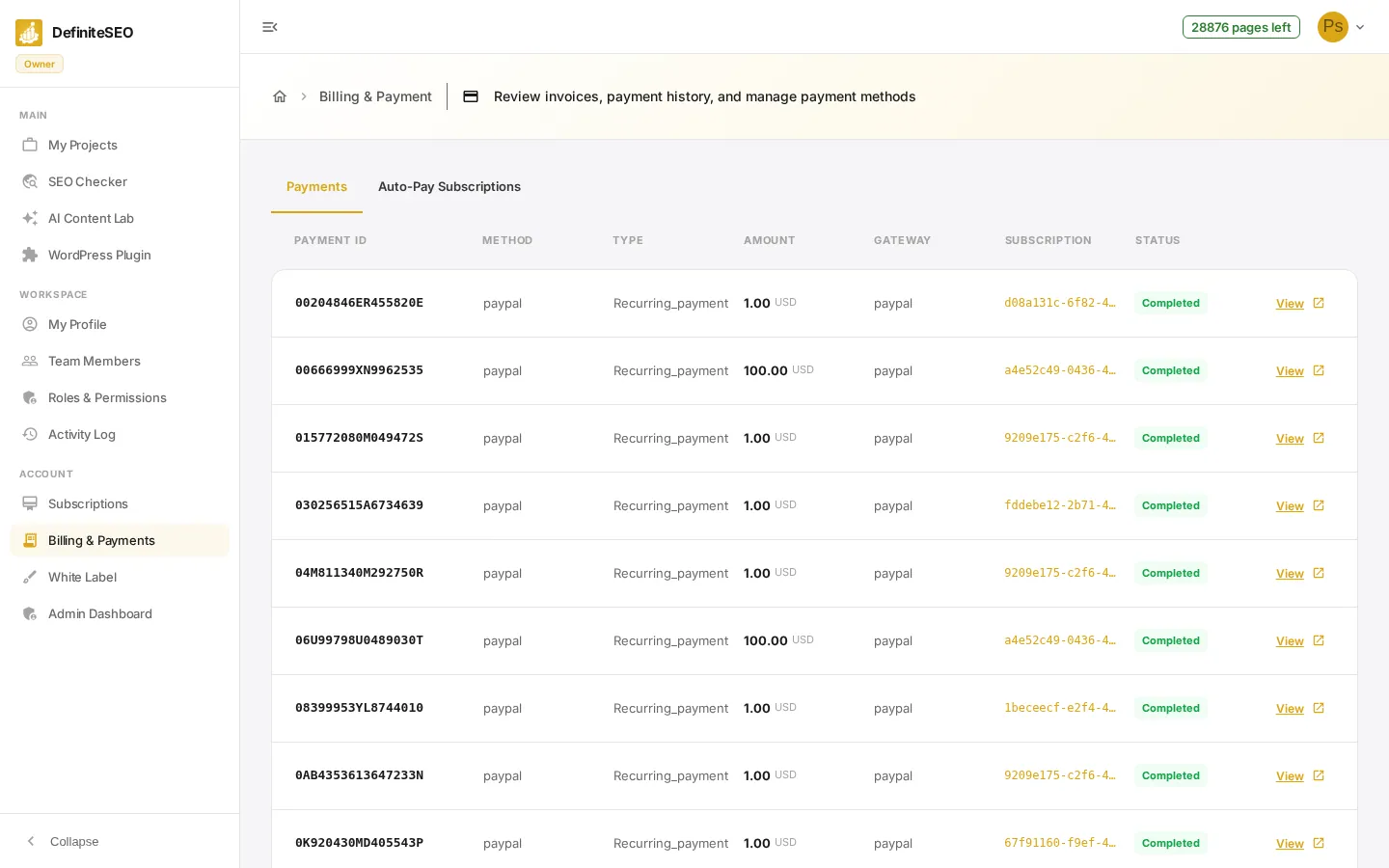
Read your payment history
Each row on the Payments tab is a single transaction, laid out across seven columns plus a per-row action. Reading left to right, here is exactly what every column means:
- Payment ID: The unique reference for the transaction, shown in a monospaced font so it is easy to copy. Quote this when you contact support about a specific charge.
- Method: How you paid, such as paypal or a credit card. Shows a dash when no method was recorded.
- Type: What the payment was for, for example a recurring payment, a new purchase, a renewal, or an upgrade. The value is shown with its first letter capitalized.
- Amount: How much you were charged, shown in bold, with the three-letter currency code (for example USD) printed in smaller text immediately after it.
See 4 more checks
- Gateway: The payment provider that actually processed the charge, such as paypal. Shows a dash when none is recorded.
- Subscription: The ID of the subscription this payment belongs to, shown as a clickable monospaced link. Click it to open that subscription's detail page. If the payment is not tied to a subscription, this column shows a dash instead.
- Status: The outcome of the payment, shown as a color-coded badge. See the status guide below for what each color means.
- View action: At the end of each row, the View button opens the full detail page for that single payment in a new view, so you can see everything recorded about the transaction.
What each payment status color means
The badge in the Status column uses a consistent color language across both tabs, so you can scan the list and spot anything that needs attention. Here is every status the page recognizes and its color:
- Completed (green): The payment went through successfully. This is the normal, healthy state for a finished charge.
- Pending (orange): The payment is still being processed and has not finished yet. No action is usually needed; it should settle on its own.
- Failed (red): The payment did not go through. This typically means a card or provider issue that needs your attention.
- Expired (red): The payment or its authorization lapsed before it could complete.
- Any other status (gray): Any status the page does not specifically recognize is shown in neutral gray, with its label capitalized. If a status is missing entirely, the badge reads N/A.
💡 Tip The same green for healthy, orange for in-progress, and red for problem colors are reused on the Auto-Pay Subscriptions tab, so the meaning of a badge never changes between tabs.
Check your auto-pay subscriptions
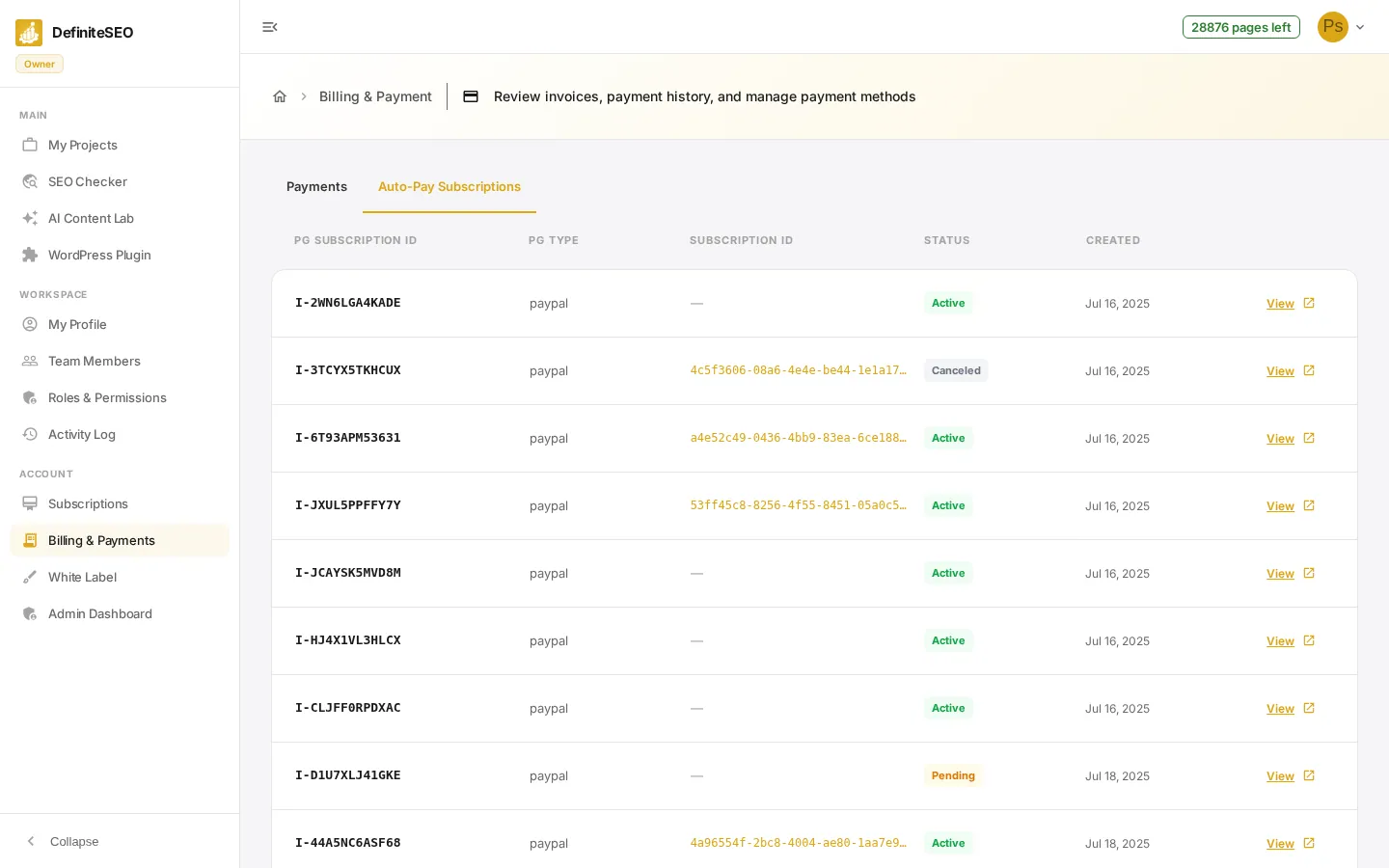
Click the Auto-Pay Subscriptions tab to see the recurring plans that are linked to a payment provider and renew automatically. Each row is one provider-side subscription, and the columns describe the provider, the plan it is linked to inside DefiniteSEO, its current state, and when it was set up.
- PG Subscription ID: The payment gateway's own identifier for the recurring subscription (for example a PayPal subscription ID), shown in a monospaced font. This is the reference the provider uses on their side.
- PG Type: The payment provider that manages the recurring billing, such as paypal. Shows a dash when none is recorded.
- Subscription ID: The DefiniteSEO subscription this provider-side plan is linked to, shown as a clickable monospaced link that opens that subscription's detail page. If nothing is linked, this column shows a dash.
- Status: The current state of the recurring subscription, shown as a color-coded badge: Active is green, Pending is orange, and a Canceled or otherwise unrecognized state is shown in neutral gray. The same color language as the Payments tab applies.
See 2 more checks
- Created: The date the recurring subscription was created, formatted as month, day, and year (for example Jul 16, 2025). Shows a dash if no date is available.
- View action: The View button at the end of each row opens the full detail page for that provider-side subscription, where its complete information lives.
📝 Note Use the View button on any row to open its full details. To cancel a recurring auto-pay subscription, open it and follow the contact-support option on its detail page; cancellation is handled through support rather than from this list.
Empty and loading states
Both tabs handle the case where there is nothing to show or something goes wrong, so you always know the page is working. While data loads, a spinner appears in place of the table. Once loading finishes, you will see one of the states below.
- No payments: If your account has no recorded charges, the Payments tab shows a No payments found message in place of the table.
- No auto-pay subscriptions: If you have no recurring provider subscriptions, the Auto-Pay Subscriptions tab shows a No payment gateway subscriptions found message.
- Load error: If billing data cannot be retrieved, the page shows a Failed to load payments message on the Payments tab, or Failed to load payment gateway subscriptions on the Auto-Pay tab, instead of the table.
📝 Note Workspace members viewing the owner's billing see exactly these same states, but cannot make any changes; billing actions remain with the workspace owner.