Understanding Your SEO Score & Issue Severity
DefiniteSEO grades every page on a 0 to 100 scale, both as one overall number and per category. The color tells the story at a glance: green means the page is in good shape, orange flags recommendations worth addressing, and red marks critical issues that need attention first. The exact thresholds are green above 70, orange from above 30 up to and including 70, and red at 30 or below, and the same colors are reused everywhere: the overall dial, the category dials, the sidebar score chips, the category bars, and the dot beside each individual check.
The overall score is not a simple average. It is a weighted blend of every category, so the categories that matter most to ranking carry the most influence and fixing a high-impact, low-scoring area moves the needle the most. This guide explains how the score is calculated, exactly which categories count and by how much, how the Critical / Recommended / Improved buckets are derived, and how to prioritize your fixes.
On this page
View your overall SEO score
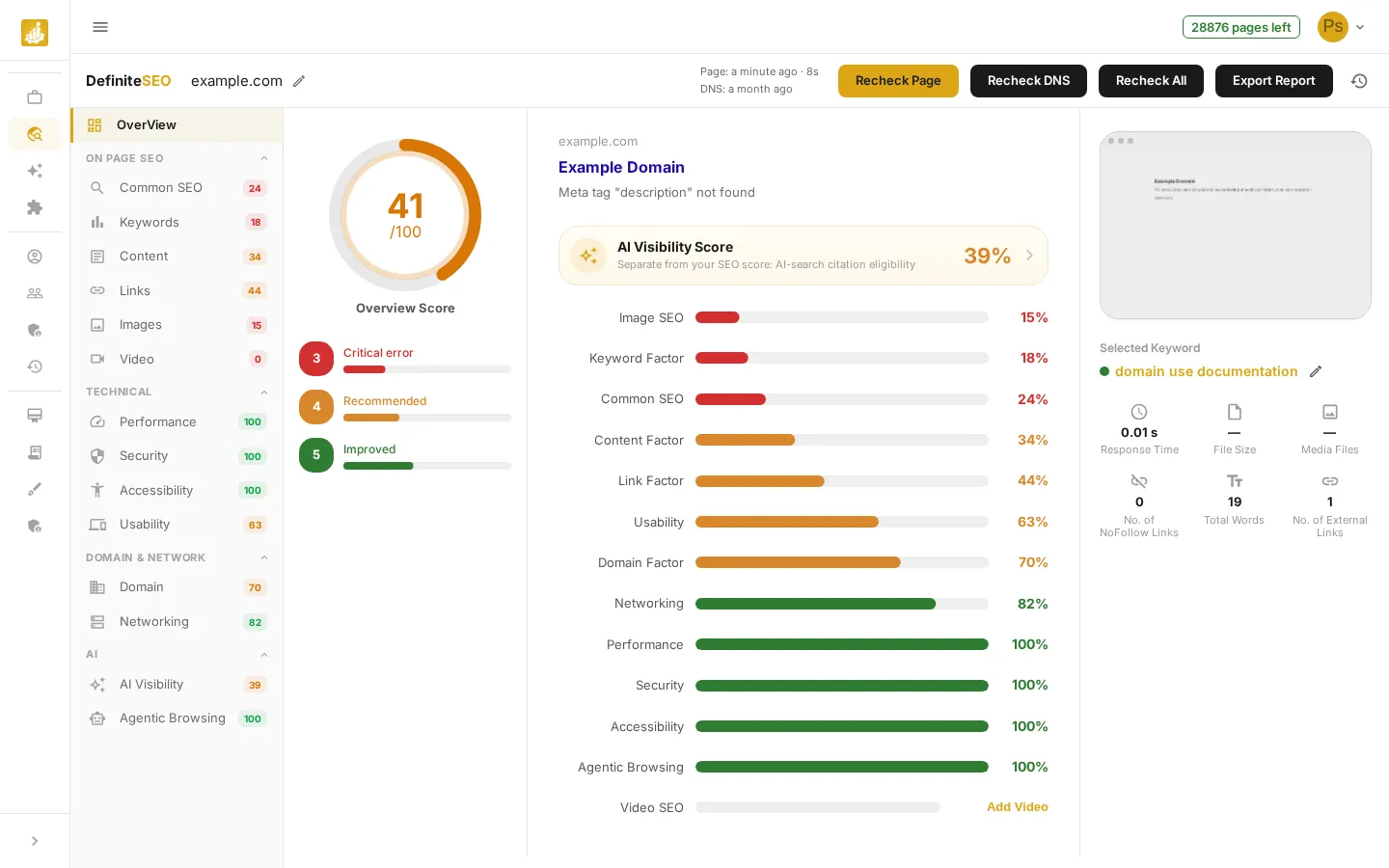
When a scan finishes, the Overview shows your overall SEO score as a large dial in the center, with the score out of 100 inside it. The dial color reflects your page health: green for good, orange for needs-improvement, red for critical. Beneath the dial, the Critical error, Recommended, and Improved cards count how many categories fall into each band, and the right-hand list shows every category as a colored bar with its score, sorted weakest first so your biggest problems are at the top.
⭐ Important Green is above 70, orange is from above 30 up to and including 70, and red is 30 or below. The same color language is used everywhere: the overall dial, the category dials, the sidebar chips, the bars, and each individual check.
How the overall score is calculated
The overall number is a weighted average of the category scores, not a plain average. Each category score (0 to 100) is multiplied by its weight, the results are summed, and the total is divided by the sum of the weights, then rounded. Because the weights differ a lot, the same 10-point gain is worth far more in a heavy category than a light one. Here are the exact weights DefiniteSEO uses:
- Keyword Factor (weight 22): How well the page targets its keyword across the title, headings, URL, and body. Tied for the single heaviest category, so keyword relevance has the biggest pull on your overall score.
- Content Factor (weight 22): Depth and quality of your copy: length, paragraphs, readability balance, and structure. Tied with Keyword Factor as the heaviest category.
- Image SEO (weight 14): Alt text, title attributes, image schema, filenames, and aspect ratio. The third-heaviest category, so image fixes often move the score noticeably.
- Common SEO (weight 8): Core on-page tags such as the title, meta description, canonical, and structured data.
See 9 more checks
- Performance (weight 7): Load speed and Core Web Vitals from the Lighthouse scan.
- Link Factor (weight 5): Internal and external links, anchor text, and nofollow balance.
- Domain Factor (weight 5): Domain-level signals such as age, expiry, and registration data.
- Video SEO (weight 4): Video markup and embedding. This weight only counts when the page actually has video; pages without video drop it from the total entirely.
- Security (weight 3): HTTPS, modern protocol, headers, and related safety checks.
- Accessibility (weight 3): WCAG checks such as contrast, labels, and heading order.
- Agentic Browsing (weight 3): How well AI agents can navigate and act on the page. Unlike AI Visibility, this category IS part of the overall score.
- Usability (weight 1): Readability scores. A light category, so it nudges rather than drives the total.
- Networking (weight 1): DNS and network-security checks. Also a light category.
📝 Note The weights add up to 94 for a page without video and 98 when the page has video (Video SEO adds its weight of 4 only then). AI Visibility is deliberately excluded from this calculation.
Why AI Visibility is scored separately
On the Overview you will see an AI Visibility Score card labeled Separate from your SEO score. It uses the same 0 to 100 scale and the same green, orange, and red colors, but it is deliberately left out of the weighted overall score because it measures AI-search citation eligibility, not classic ranking factors. It is shown on its own card and never feeds the Critical / Recommended / Improved counts. Agentic Browsing, by contrast, is a normal weighted category and does count toward your overall score.
- AI Visibility (excluded): Measures how likely AI assistants and answer engines are to cite your page. Reported on its own card with its own color, with zero weight in the overall score.
- Agentic Browsing (included): Measures how well AI agents can navigate and act on your page. It carries a weight of 3 and is part of the overall score and the bucket counts.
💡 Tip Improving AI Visibility will not change your overall SEO number, and a perfect overall score does not guarantee strong AI Visibility. Track and improve them as two separate goals.
How severity is color-coded
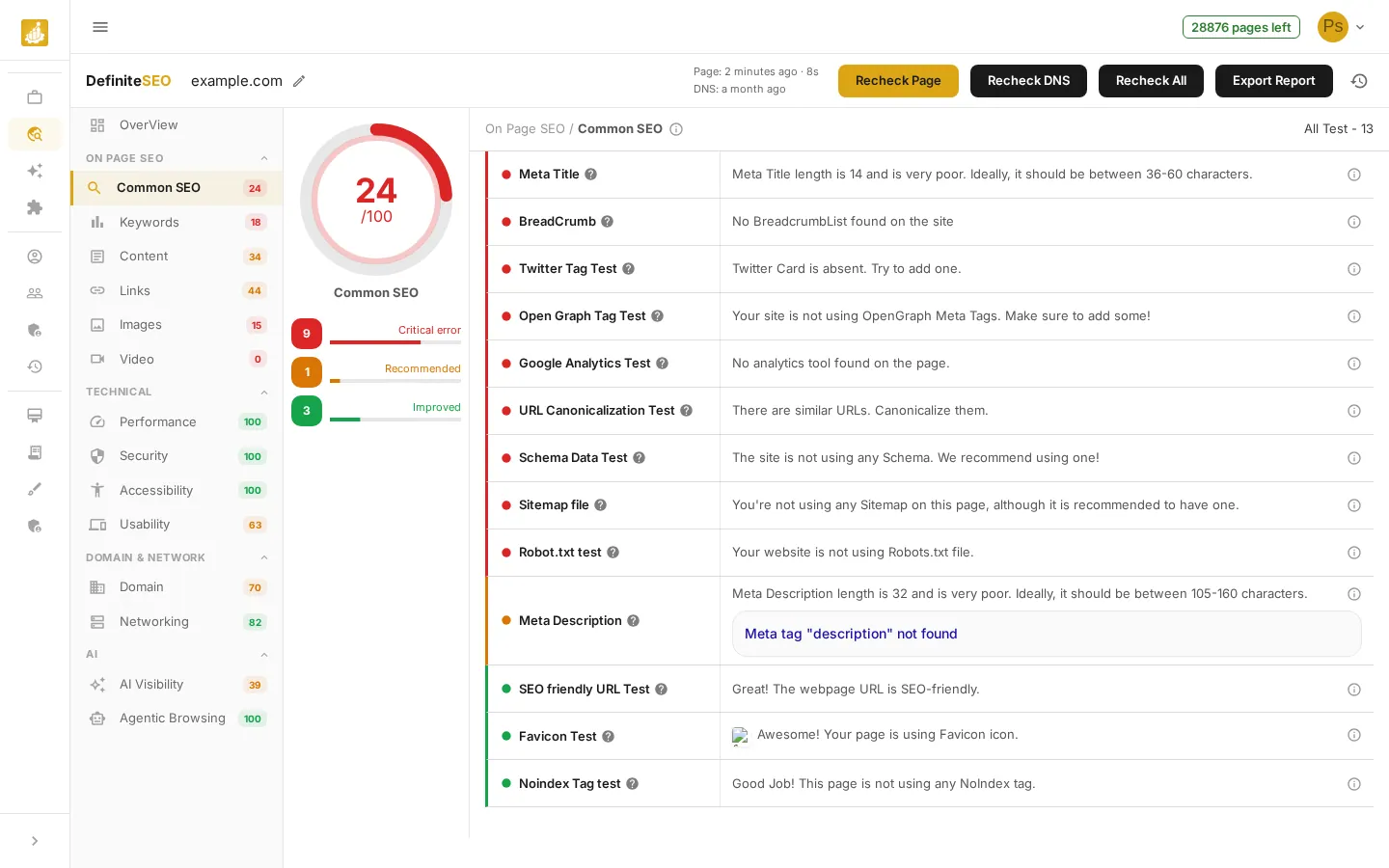
In the sidebar, click any category, such as Common SEO, to see check-level severity. Each check has a colored dot using the same scale as the scores: a green dot means the check is passing, an orange dot is a recommendation worth addressing, and a red dot is a critical issue to fix first. The category dial at the top of the list shows that category’s own score and color, and the small Critical error, Recommended, and Improved tallies count the checks inside it. The text beside each check explains what was found and what good looks like.
- Meta Title: Checks your page has a title tag of a good length (about 51-60 characters). It is what users see in search results and strongly affects clicks.
- Meta Description: Checks for a clear page summary (about 105-160 characters), which forms the snippet shown under your title in search results.
- BreadCrumb: Looks for breadcrumb navigation, which helps visitors and search engines understand where a page sits in your site.
- SEO Friendly URL: Checks the URL is clean and descriptive, so it is easy for search engines and people to read.
See 9 more checks
- Twitter Tag: Looks for Twitter Card tags that control how your link looks when shared on X (Twitter).
- Favicon: Checks for a site icon, which builds brand recognition in browser tabs, bookmarks, and search.
- Open Graph Tags: Looks for Open Graph tags that control how your link previews on Facebook, LinkedIn, and other platforms.
- Noindex Tag: Detects a noindex tag that blocks the page from search results, which is useful on purpose but harmful by accident.
- Google Analytics: Checks for an analytics tag so you can measure traffic and improve the page over time.
- URL Canonicalization: Checks for a canonical tag, which prevents duplicate-content confusion and consolidates ranking signals.
- Schema Data: Looks for structured data (JSON-LD) that can unlock rich results and helps engines understand your page.
- Sitemap: Checks for an XML sitemap, which helps search engines discover all of your important pages.
- Robots.txt: Checks for a robots.txt file, which tells crawlers which parts of your site they may access.
How the Critical, Recommended, and Improved counts work
The three cards on the Overview, and the matching tallies on each category, simply group scores by the same thresholds as the colors. A category or check is Critical when its score is 30 or below, Recommended when it is above 30 and up to 70, and Improved when it is above 70. Categories that do not apply (for example Video SEO on a page with no video) show as N/A and are left out of every bucket, so the counts always reflect only what was actually measured.
- Critical error (red, score 30 or below): The weakest categories or checks. These drag your overall score down the most and should be your first priority.
- Recommended (orange, score above 30 up to 70): Working but with clear room to improve. Address these after the critical items to push the score higher.
- Improved (green, score above 70): Already in good shape. Keep an eye on them after future changes, but they need no immediate work.
Fix critical issues first
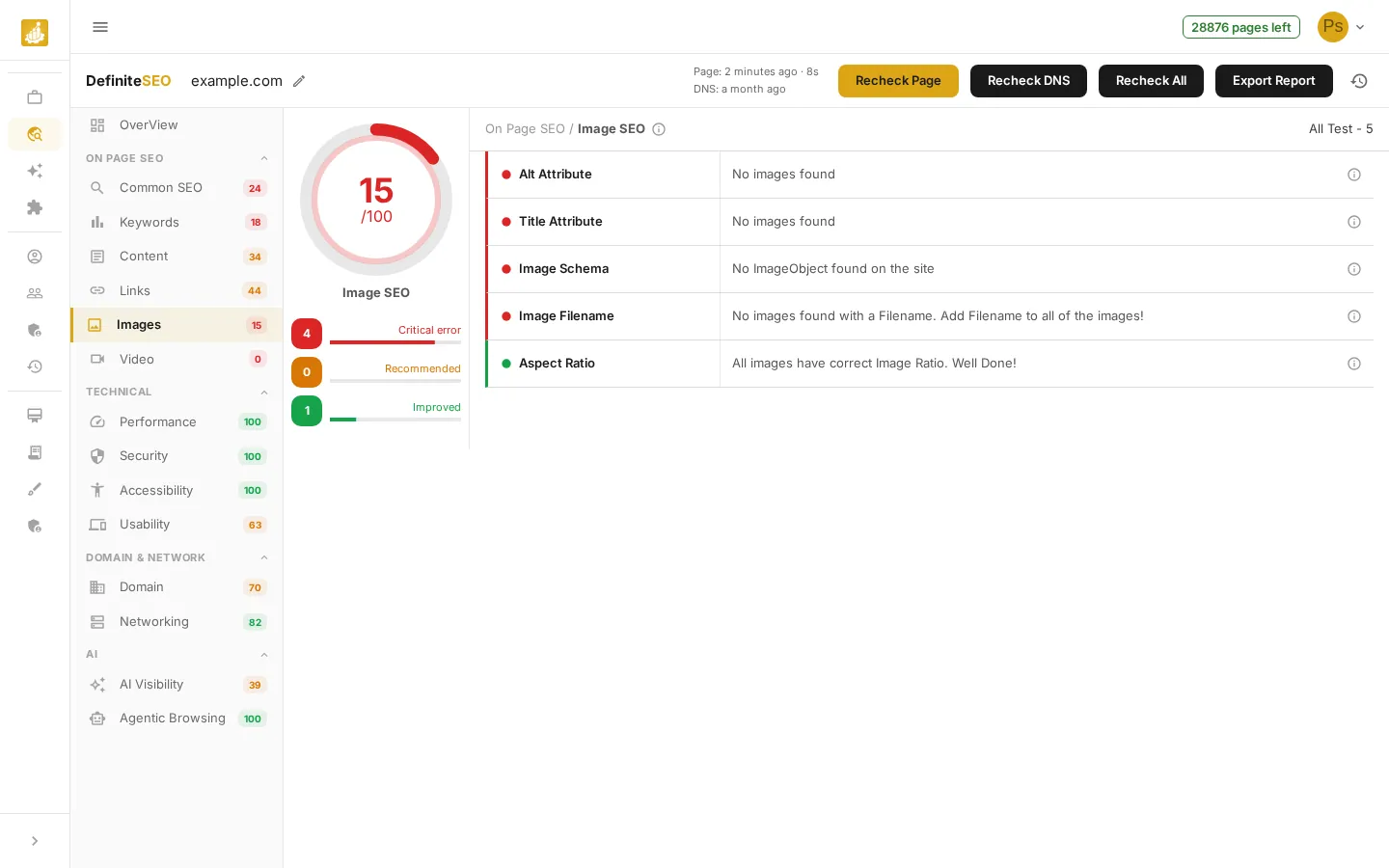
Use the sidebar score chips to find your lowest-scoring categories, such as Images, then work through their critical (red) checks before the orange recommendations. Because the overall score is weighted, clearing critical issues in a heavy, low-scoring category, such as Keyword Factor, Content Factor, or Image SEO, raises your overall score the fastest. A red dot in a heavy category is the single highest-leverage thing you can fix.
- Alt Attribute: Checks every image has alt text, which aids accessibility and tells engines what the image shows.
- Title Attribute: Checks images have title attributes that add context on hover.
- Image Schema: Looks for structured data on images so engines can better understand and surface them.
- Image Filename: Checks images use descriptive file names instead of generic ones like IMG_1234.
- Aspect Ratio: Checks images keep correct proportions, which improves layout stability and visual quality.
💡 Tip Prioritize by weight, not just by color. A red check in Keyword Factor or Content Factor (weight 22) moves your overall score far more than a red check in Usability or Networking (weight 1).