Your SEO Report – A Tour of Every Section
Every audit opens a full SEO Report – a single workspace that grades your page across every ranking factor and tells you exactly what to fix. A left-hand sidebar groups the report into four areas – On Page SEO, Technical, Domain & Network, and AI – with a live, color-coded score chip next to each category so you can spot your weakest areas at a glance.
Open any section and you get the same consistent layout: a circular score dial on the left with a Critical / Recommended / Improved breakdown, an All Test count in the header, and a list of individual checks. Each check has a colored status dot, a plain-language result, a ? tooltip explaining what is measured, and an (i) tooltip explaining how to fix it. This guide walks through the Overview and every one of the 14 report sections so you always know where to find each insight.
On this page
- 1. Open your report
- 2. Read the score chips and severity colors
- 3. How every section is laid out
- 4. Common SEO
- 5. Keywords
- 6. Content
- 7. Links
- 8. Images
- 9. Video
- 10. Performance
- 11. Security
- 12. Accessibility
- 13. Usability
- 14. Domain & Networking
- 15. AI Visibility
- 16. Agentic Browsing
- 17. Re-run, export, or jump back to the Overview
Open your report
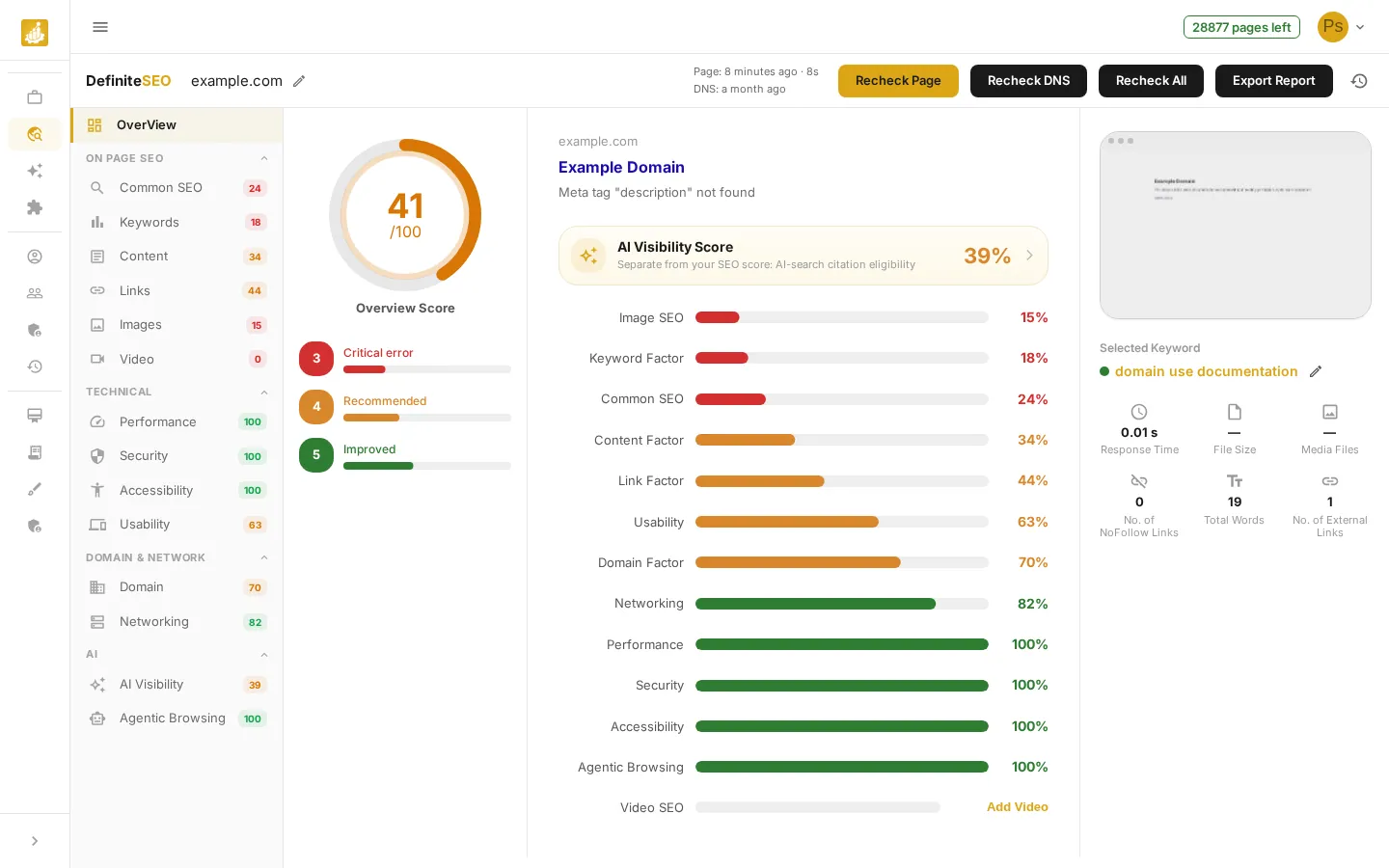
Run any audit from the SEO Checker. The report opens on the Overview, which summarizes your overall score and how the page performed in each category. The sidebar groups every section under On Page SEO, Technical, Domain & Network, and AI, with a colored score chip beside each one. Use it to jump straight to any section.
💡 Tip Each sidebar item shows a colored score chip, so you can spot your weakest categories before opening them. Click a group heading (such as Technical) to collapse or expand its sections.
Read the score chips and severity colors
DefiniteSEO uses one consistent color language across the whole report so priorities are obvious at a glance. The sidebar chips, the section score dials, and every individual check all share the same three colors. Here is exactly what each color means:
- Green (above 70): Passing. The score chip, dial, or check dot is green when the value is above 70, which means this area is in good shape.
- Orange (30 to 70): Recommended. An orange chip, dial, or dot flags a recommendation worth addressing once your critical issues are cleared.
- Red (30 or below): Critical. A red chip, dial, or dot marks a critical issue that needs attention first.
- Grey: Not applicable or not yet scored. A grey chip or dot means there is no score for that item, or the check did not apply to your page.
- Loading spinner: While a category is still being scanned, the sidebar shows a small spinner instead of a chip. The chip appears as soon as that category finishes.
📝 Note The same color scale is used everywhere – sidebar chips, the circular dial in each section, and the individual check dots. Green is above 70, orange is 30 to 70, and red is 30 or below.
How every section is laid out
Every section opens with the same structure, so once you learn it you can read any part of the report fast. From left to right and top to bottom:
- Score dial (left): A large circular dial shows that section's 0 to 100 score, colored green, orange, or red, with the section name beneath it.
- Critical / Recommended / Improved bars: Below the dial, three counters tally how many checks in this section are critical (red), recommended (orange), or improved/passing (green).
- Breadcrumb and All Test count (top): The header shows the group and section name (for example On Page SEO / Common SEO) on the left and an All Test count of how many checks ran on the right.
- Check rows (main column): Each check is a row with a colored status dot and its name on the left, a plain-language result in the middle, a ? tooltip that explains what the check measures, and an (i) tooltip that explains how to fix it.
- Expandable detail: Some checks expand to show extra detail rows or tables, such as the exact value found, the affected links or images, or DNS records.
💡 Tip Hover the ? next to any check name to see what it measures, and the (i) on the right to see how to improve it.
Common SEO
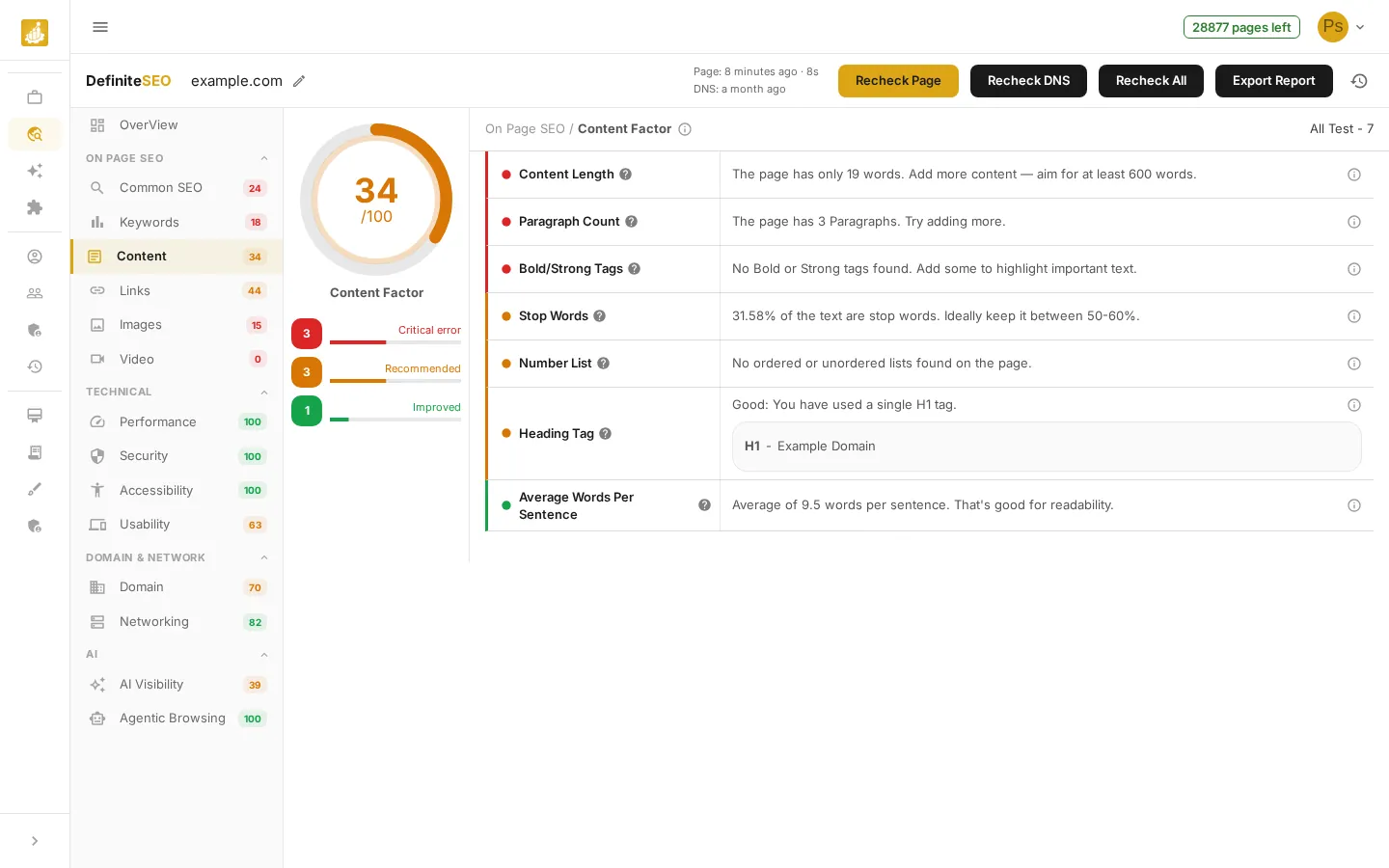
Click Common SEO to review the core on-page signals that search engines read first – the title tag, meta description, social and discovery tags, indexing controls, and structured data. Each row is marked passing (green), a recommendation (orange), or a critical issue (red), with a result you can act on directly.
- Meta Title: Checks your page has a title tag of a good length (ideally about 51 to 60 characters). It is what users see in search results and strongly affects clicks.
- Meta Description: Checks for a clear page summary (about 105 to 160 characters), which forms the snippet shown under your title in search results.
- BreadCrumb: Looks for BreadcrumbList navigation, which helps visitors and search engines understand where a page sits in your site.
- SEO Friendly URL Test: Checks the URL is clean and descriptive, so it is easy for search engines and people to read.
See 9 more checks
- Twitter Tag Test: Looks for Twitter Card tags that control how your link looks when shared on X (Twitter).
- Favicon Test: Checks for a site icon, which builds brand recognition in browser tabs, bookmarks, and search.
- Open Graph Tag Test: Looks for Open Graph tags that control how your link previews on Facebook, LinkedIn, and other platforms.
- Noindex Tag Test: Detects a noindex tag that blocks the page from search results, which is useful on purpose but harmful by accident.
- Google Analytics Test: Checks for an analytics tag so you can measure traffic and improve the page over time.
- URL Canonicalization Test: Checks for a canonical tag, which prevents duplicate-content confusion and consolidates ranking signals onto one URL.
- Schema Data Test: Looks for structured data (JSON-LD) that can unlock rich results and helps engines understand your page.
- Sitemap file: Checks for an XML sitemap, which helps search engines discover all of your important pages.
- Robot.txt test: Checks for a robots.txt file, which tells crawlers which parts of your site they may access.
Keywords
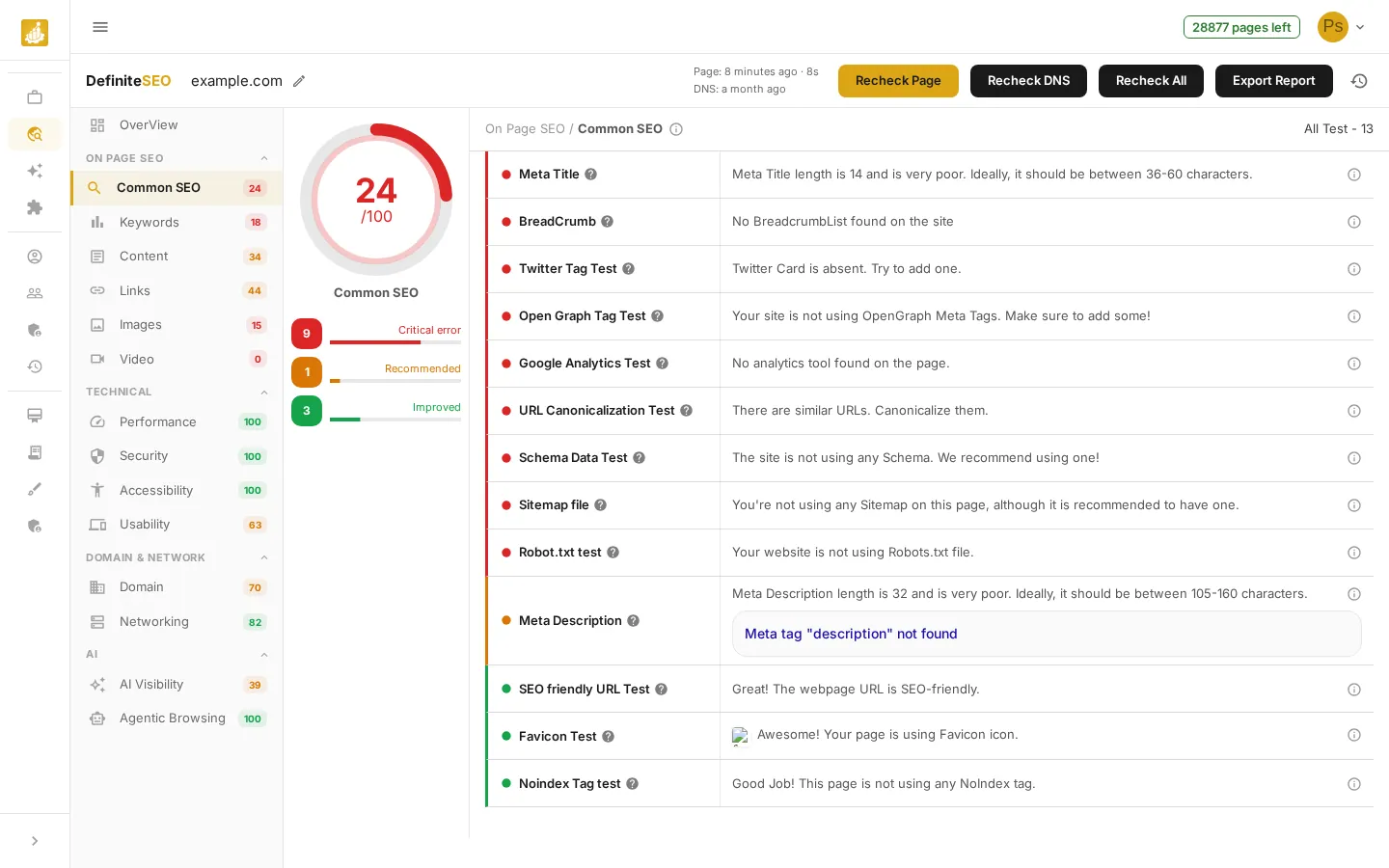
Click Keywords to see the terms your page targets and how prominently they appear across the most important on-page locations. A keyword cloud lets you pick the term to score against, and a density readout shows whether you are using it naturally (DefiniteSEO flags density above roughly 2 percent in red). The checks below confirm the page is optimized for the right query.
- Keyword in Domain: Checks whether your target keyword appears in the domain name, a strong relevance signal.
- Keyword in Title: Checks the title tag contains your target keyword, one of the most important on-page signals.
- Keyword in Description: Checks the meta description includes your keyword, which reinforces relevance in search snippets.
- Keyword in URL: Checks the page URL contains your keyword, giving extra context to engines and users.
See 5 more checks
- Keyword in Image Alt: Checks images use your keyword in alt text, which helps both accessibility and image search.
- Keyword in Image Filename: Checks image file names include your keyword for additional indexing context.
- Keyword in First 100 Words: Checks your keyword appears early in the content, signalling the page topic quickly.
- Keyword in Subdomain: Checks whether your keyword is part of the subdomain, a domain-level relevance signal.
- Keyword in Heading Tags: When your page has headings, the section also reports whether the keyword appears in the H1, H2, and H3 tags.
💡 Tip Use the keyword cloud at the top to switch which term the section scores against – the density readout and all keyword checks recalculate for your selection.
Content
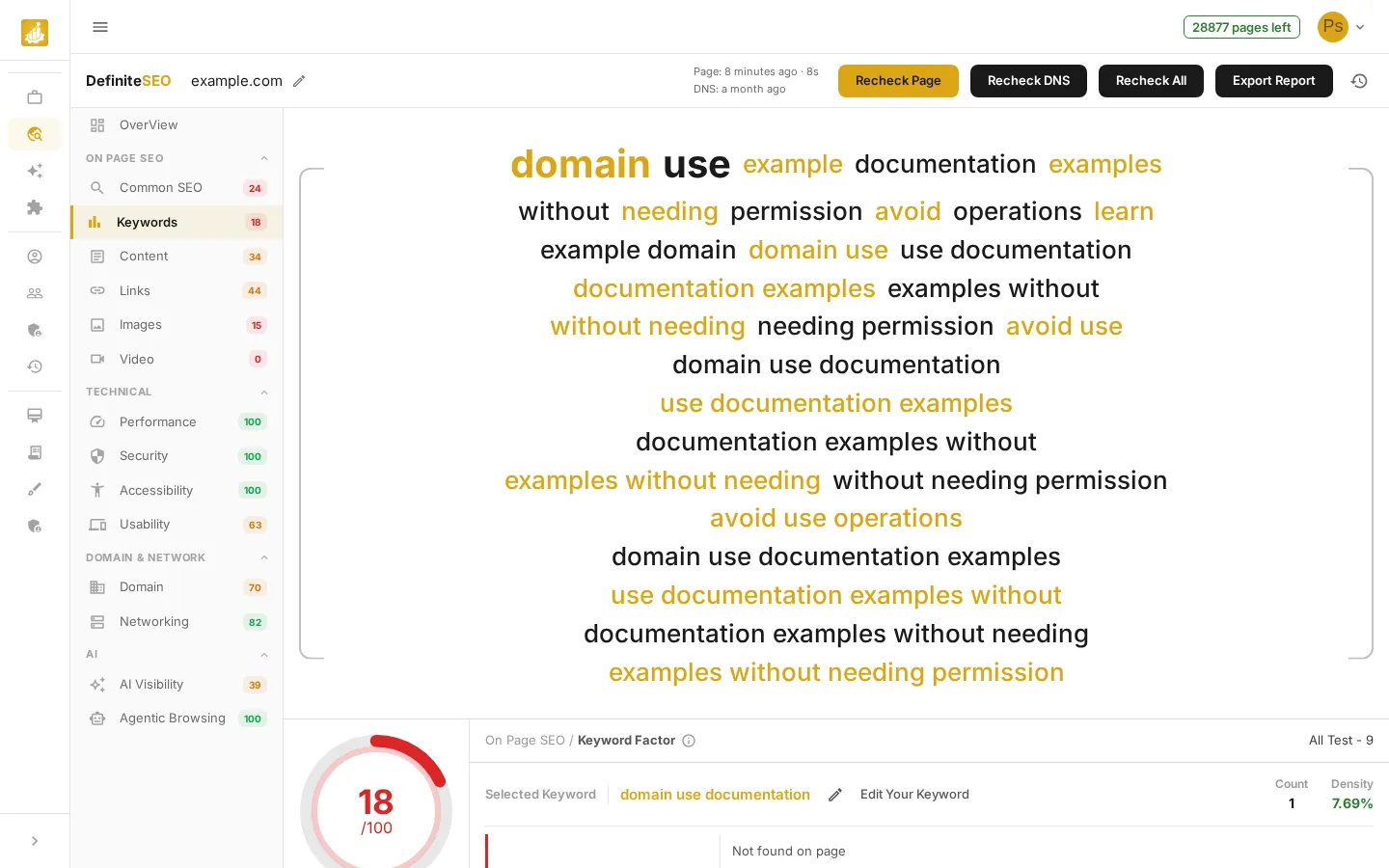
Click Content to evaluate the depth and readability of your copy. It looks at how much you have written, how it is structured into paragraphs and lists, and how it reads – so you can confirm the page gives search engines (and people) enough to work with.
- Content Length: Measures total word count, since in-depth content tends to rank better and hold attention.
- Paragraph Count: Checks the page is broken into enough paragraphs for comfortable reading.
- Stop Words: Checks the balance of common filler words (around 50 to 60 percent is natural), so content reads well without over-optimizing.
- Bold and Strong Tags: Looks for emphasized text that highlights key phrases and improves scannability.
See 3 more checks
- Average Words Per Sentence: Checks sentence length (about 14 to 20 words is ideal) for easy reading.
- Lists: Counts ordered and unordered lists, which break information into digestible chunks.
- Heading Tags: Checks for a clear H1 to H6 heading structure that organizes content for readers and engines.
Links
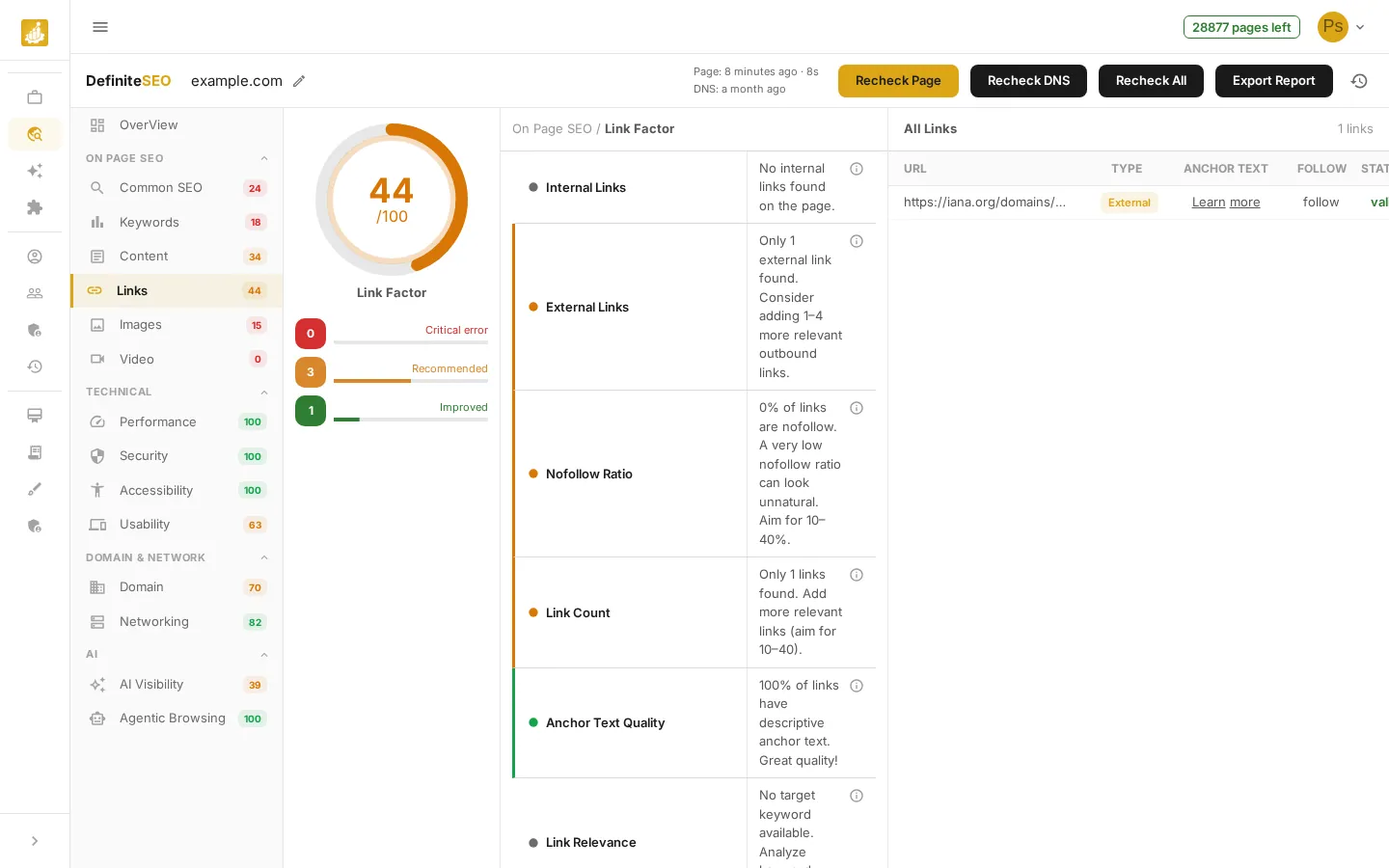
Click Links to audit how your page links out, both internally and externally. Beyond the pass or fail checks, the section lists stat rows – total, internal, external, follow, and nofollow counts plus broken and redirected links – and a table of every link with its type, anchor text, follow status, and HTTP status so you can fix problem links directly.
- Internal Links: Reviews links to other pages on your site (about 5 to 20 is healthy), which spread authority and aid discovery.
- External Links: Reviews outbound links to trusted sources (about 2 to 5), which can boost credibility.
- Nofollow Ratio: Checks the share of nofollow links (roughly 10 to 40 percent), a sign of a natural link profile.
- Link Count: Counts total links on the page (about 10 to 40), so navigation stays useful without diluting authority.
See 3 more checks
- Anchor Text Quality: Checks links use descriptive anchor text rather than vague phrases like click here.
- Link Relevance: Measures how well anchor text matches the linked content and your topic.
- Broken and Redirected Links: The links table flags broken links in red and redirected links in orange, so you can repair or update them quickly.
Images
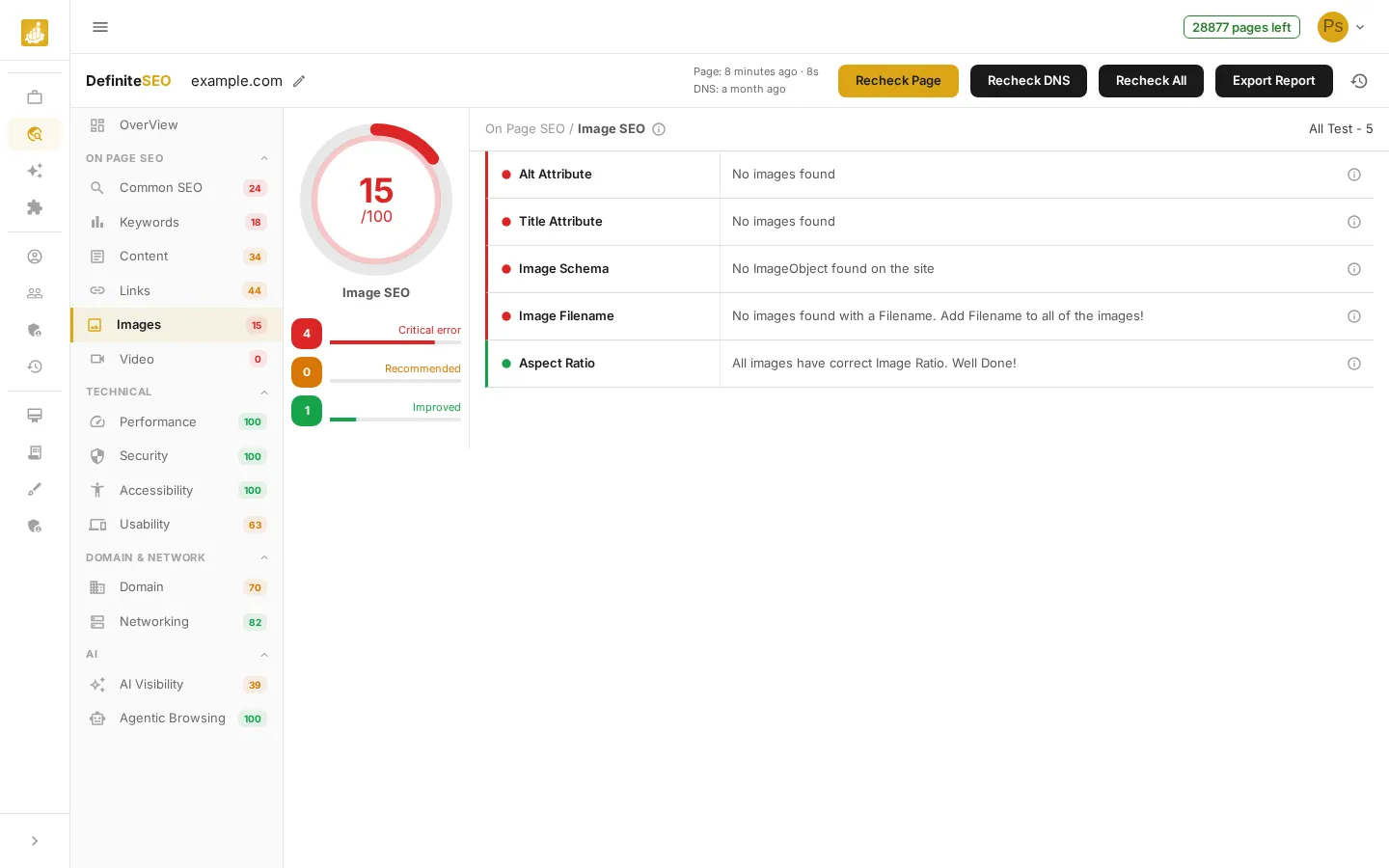
Click Images to check image optimization, which affects both SEO and page speed. Alongside the checks below, the section shows a table of the images it found with their alt text (marked Missing in red when absent) and file names, so you can see exactly which images need attention.
- Alt Attribute: Checks every image has alt text, which aids accessibility and tells engines what the image shows.
- Title Attribute: Checks images have title attributes that add context on hover.
- Image Schema: Looks for structured data on images so engines can better understand and surface them.
- Image Filename: Checks images use descriptive file names instead of generic ones like IMG_1234.
- Aspect Ratio: Checks images keep correct proportions, which improves layout stability and visual quality.
Video
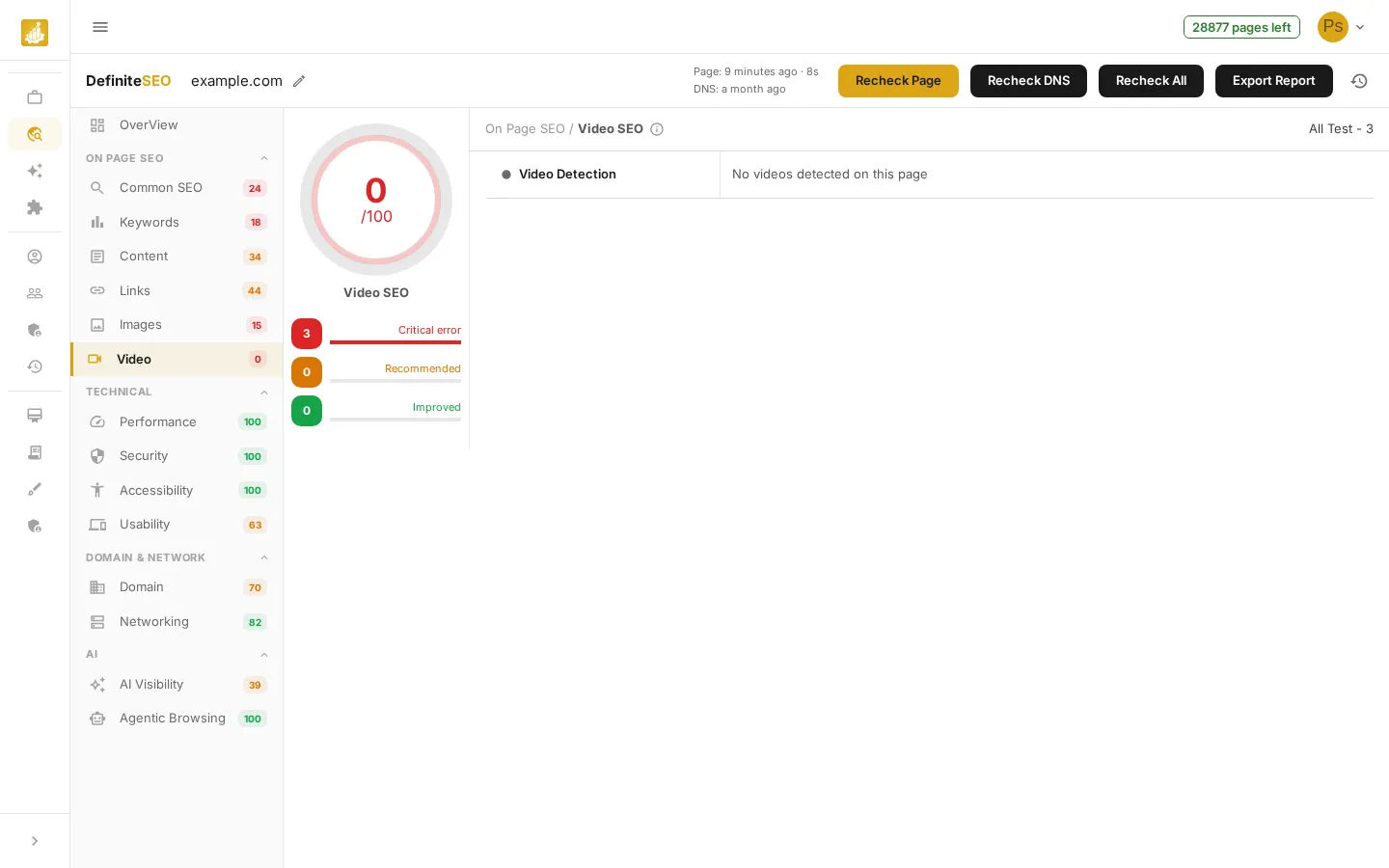
Click Video to review any video content on the page. It checks for proper markup and presentation so search engines can index and surface your videos. If no videos are found, the section shows an Add Video prompt instead of results.
- Thumbnail: Checks videos have a poster or thumbnail image so users can preview them before playing.
- Video Subtitle: Checks videos include captions or subtitles, improving accessibility and engagement.
- Video Schema: Looks for VideoObject structured data so search engines can index your video for rich results.
📝 Note Video is the one On Page SEO category that is skipped when your page has no video, so a zero or empty result here is normal for text-only pages.
Performance
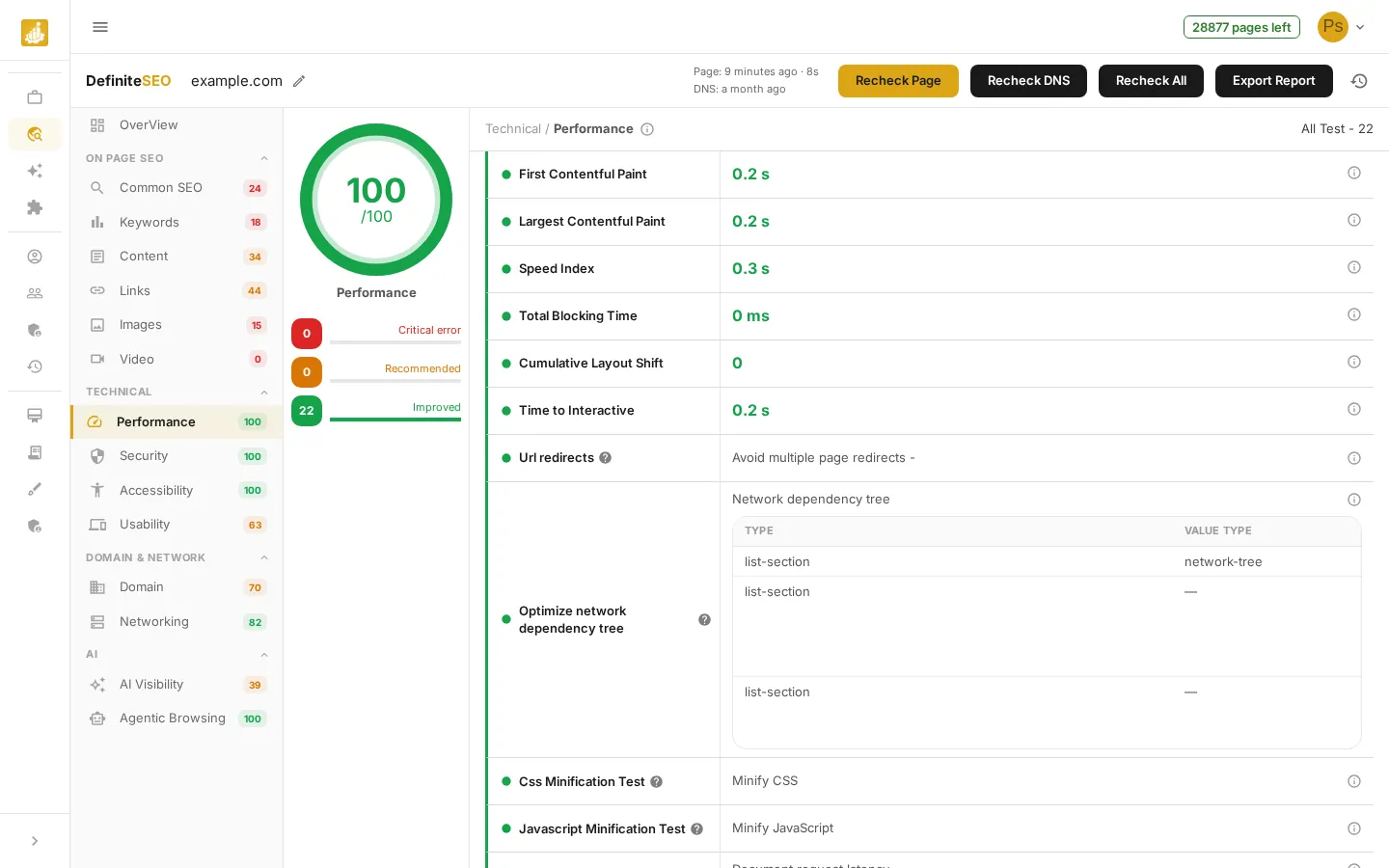
Click Performance to see load speed and Core Web Vitals from a Lighthouse scan. The Core Web Vitals are highlighted at the top, followed by the diagnostics below. When timing data is available, the section also renders a Resource Waterfall and a Connection Timing by Host chart so you can see exactly what is slowing the page down.
- Largest Contentful Paint (LCP): Time until the largest visible element loads. A Core Web Vital that Google uses for ranking.
- Cumulative Layout Shift (CLS): How much the layout unexpectedly shifts while loading. A Core Web Vital for visual stability.
- Total Blocking Time (TBT): How long the page is blocked from responding to input. A Core Web Vital for interactivity.
- First Contentful Paint (FCP): Time until the first content appears, which shapes how fast the page feels.
See 10 more checks
- Speed Index: How quickly the page visibly fills in during load.
- Time to Interactive (TTI): When the page becomes fully usable for clicks and typing.
- Server Response Time: How quickly your server returns the first byte of the page.
- Render-Blocking Resources: Flags CSS and JavaScript that delay the first paint of the page.
- Unused CSS: Identifies stylesheet code the page never uses, which adds needless weight.
- Unused JavaScript: Identifies script code that loads but never runs, slowing the page down.
- Efficient Cache Policy: Checks static files are cached so repeat visits load faster.
- Image Delivery: Checks images are properly sized, compressed, and in modern formats.
- Total Page Size: Measures the combined weight of everything the page downloads.
- DOM Size: Counts page elements, since very large pages are slower to render.
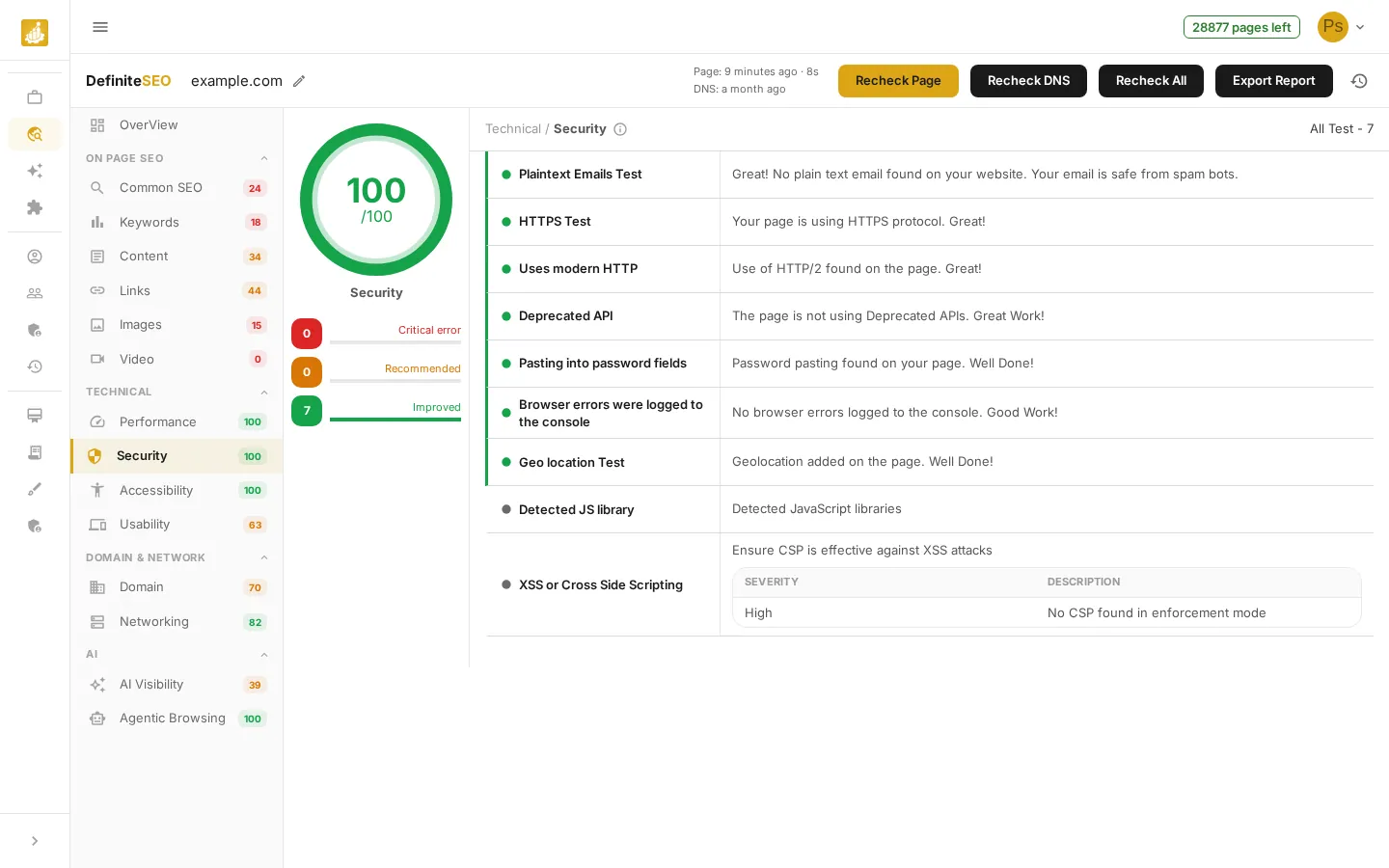
Security
Click Security to verify how safely your page is served. It confirms HTTPS, checks the protocol and headers, and surfaces client-side risks and exposures – issues that erode trust with visitors and search engines. The results merge two scans (a page scan and a Lighthouse-based scan) into one list.
- HTTPS: Confirms the page is served over secure HTTPS, which protects visitors and is expected by search engines.
- Plaintext Emails: Detects exposed email addresses that spam bots can harvest.
- Modern HTTP: Checks the page uses a modern protocol (HTTP/2 or HTTP/3) for better speed and security.
- Detected JS Library: Identifies JavaScript libraries and versions in use, which helps spot outdated, risky dependencies.
See 5 more checks
- Deprecated API: Flags use of outdated browser APIs that signal aging, less secure code.
- Password Field Pasting: Checks password fields allow pasting, which supports password managers and good security habits.
- Console Errors: Detects JavaScript errors logged in the browser, a sign of instability.
- Cross-Site Scripting (XSS): Reviews your Content Security Policy for gaps that could expose visitors to script injection.
- Geolocation: Checks that access to a visitor location is controlled rather than left open.
Accessibility
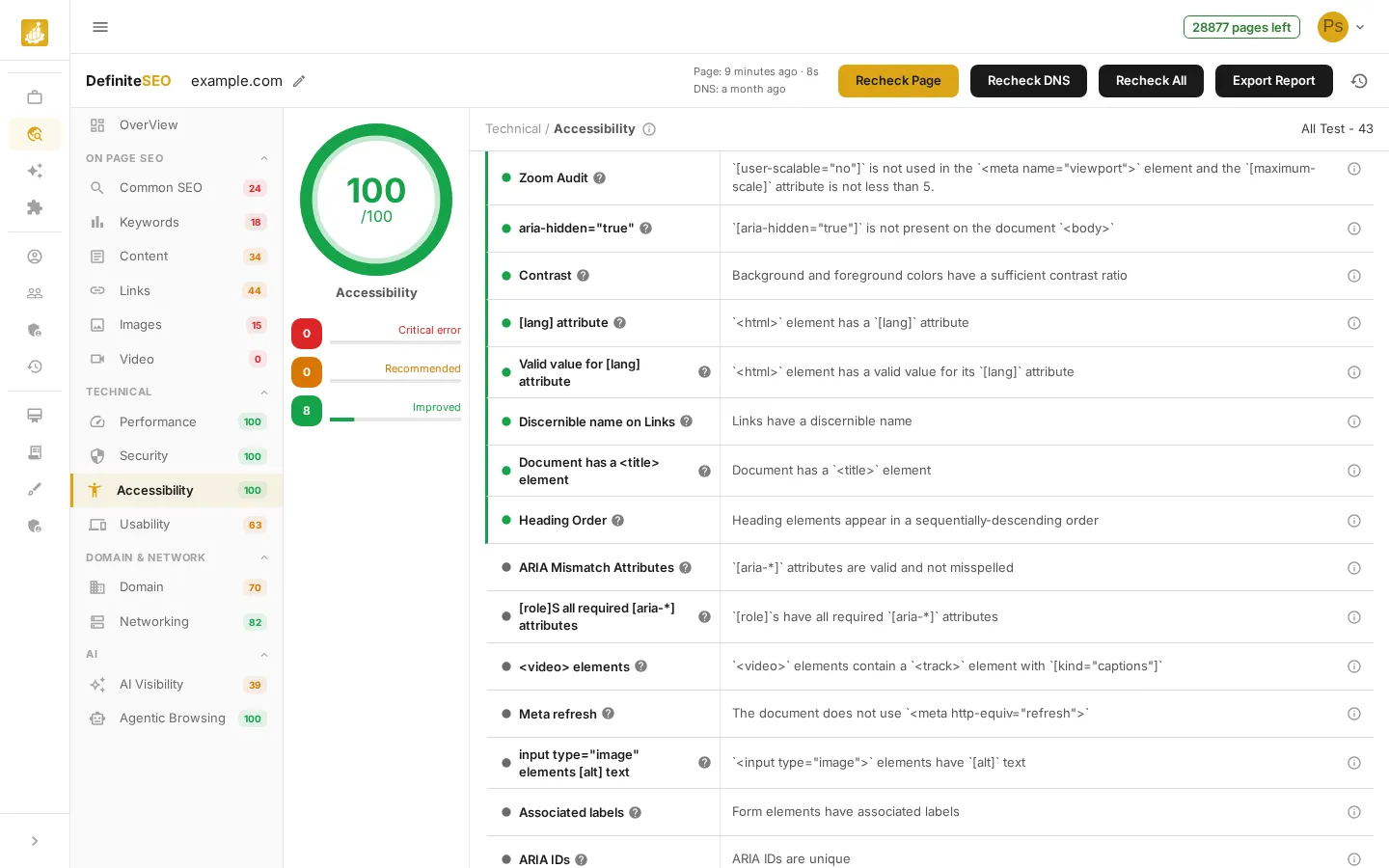
Click Accessibility to run WCAG-aligned checks such as contrast, labels, and structure. These improve the experience for every visitor – including people using screen readers and keyboards – and reinforce your SEO at the same time.
- Image Alt Text: Checks images have alternative text so screen-reader users understand them.
- Color Contrast: Checks text stands out enough from its background to be readable by low-vision users.
- Accessible Button Names: Checks every button has a name that assistive technology can announce.
- Clear Link Text: Checks links have meaningful text instead of vague phrases.
See 8 more checks
- Form Field Labels: Checks form inputs have labels so everyone knows what to enter.
- Valid ARIA Attributes: Checks ARIA attributes are spelled correctly and used properly.
- Valid ARIA Roles: Checks ARIA roles are legitimate and correctly nested.
- Logical Heading Order: Checks headings follow a sensible order that screen readers rely on.
- Page Language: Checks the page declares its language so screen readers pronounce it correctly.
- Document Title: Checks the page has a title so users can identify it in tabs and history.
- Keyboard Tab Order: Checks the tab order is sensible for people navigating without a mouse.
- Video Captions: Checks videos provide captions for deaf and hard-of-hearing users.
Usability
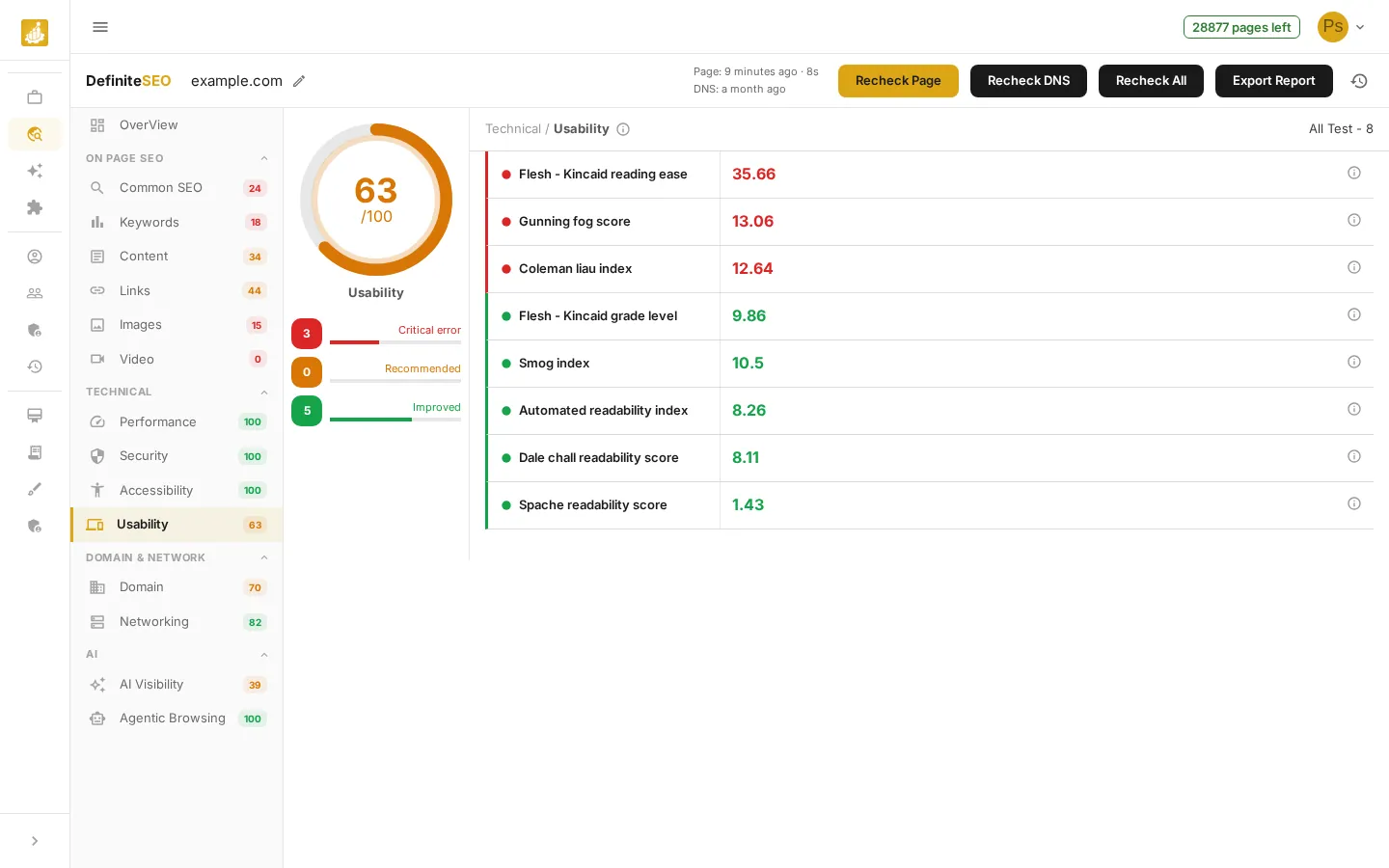
Click Usability to gauge how easy your writing is to read. This section runs your content through several established readability formulas and shows each score, so you can tell whether your copy matches the reading level of your audience. Lower difficulty generally means a wider audience can follow along.
- Flesch Reading Ease: Scores how easy your text is to read, with higher scores being simpler.
- Flesch-Kincaid Grade Level: Estimates the school grade needed to understand your writing.
- Gunning Fog Index: Estimates the years of education a reader needs to follow your text.
- Coleman-Liau Index: Gauges readability from word and sentence length using character counts.
See 4 more checks
- SMOG Index: Estimates reading difficulty based on the number of complex words.
- Automated Readability Index: Rates readability from characters, words, and sentences.
- Dale-Chall Readability: Checks how many words fall outside a list of commonly understood words.
- Spache Readability: Measures simplicity for younger or general audiences.
Domain & Networking
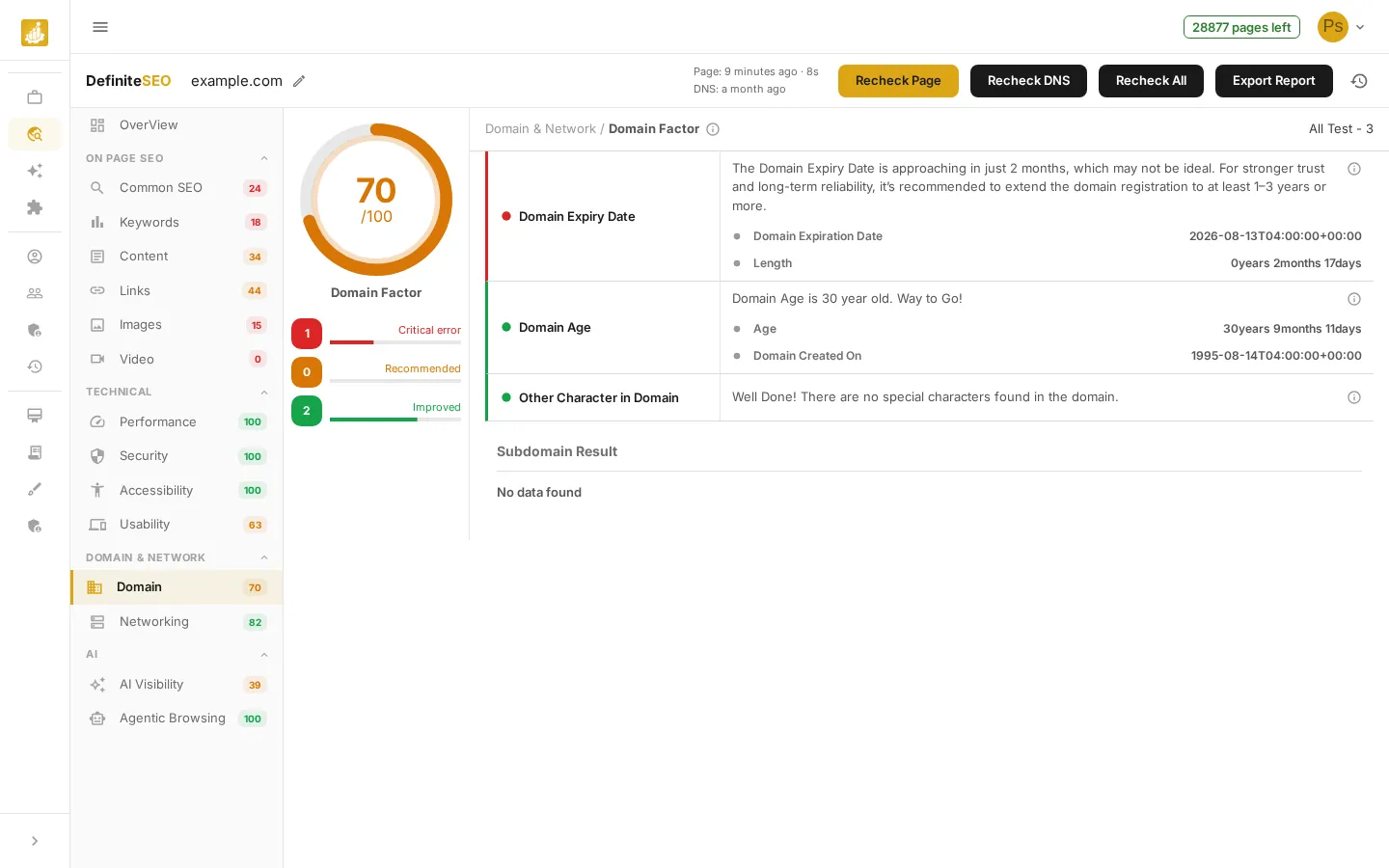
Click Domain and Networking to review the foundations behind your page. Domain covers domain age, expiry, special characters, and any subdomains found. Networking opens a tabbed view of DNS and email records – an Overview plus tabs for A, AAAA, MX, CNAME, TXT, SOA, WHOIS, Reverse DNS, SPF, DKIM, and DMARC. Together these underpin trust, reliability, and email deliverability.
- Domain Age: Checks how long the domain has been registered, since older domains read as more established. The detail expands to show the exact age and the date the domain was created.
- Domain Expiry Date: Checks how long until the domain expires, as long registrations signal commitment. The detail expands to show the expiration date and the remaining length.
- Other Character in Domain: Flags hyphens or unusual characters in the domain that can hurt trust and recall.
- Subdomain Result: Lists any subdomains discovered for the domain, or shows No data found when none are detected.
See 11 more checks
- A Record: Confirms the domain points to a valid IPv4 server address.
- AAAA Record: Confirms an IPv6 address exists for modern network connectivity.
- CNAME: Checks subdomain aliases resolve to the right hostnames.
- MX Record: Checks mail server records exist so email can be delivered to the domain.
- TXT Record: Checks for TXT records that hold email-authentication and verification data.
- SOA Record: Checks the zone configuration that controls how DNS is published.
- SPF: Reads the SPF record from your TXT records, which authorizes which servers may send email as you, reducing spoofing.
- DKIM: Reads the DKIM record from your TXT records, which cryptographically signs your email to prove it is genuine.
- DMARC: Reads the DMARC record from your TXT records, the policy that tells receivers how to handle unauthenticated email from your domain.
- WHOIS: Shows public registration data – registrar, created, updated, and expiry dates, and domain status – that proves the domain is legitimate.
- Reverse DNS: Checks the IP maps back to a valid hostname, which improves email deliverability.
💡 Tip In Networking, use the tabs across the top (A, MX, TXT, WHOIS, SPF, and so on) to inspect each record type. Each DNS tab shows a table with Name, Type, TTL, and Value.
AI Visibility
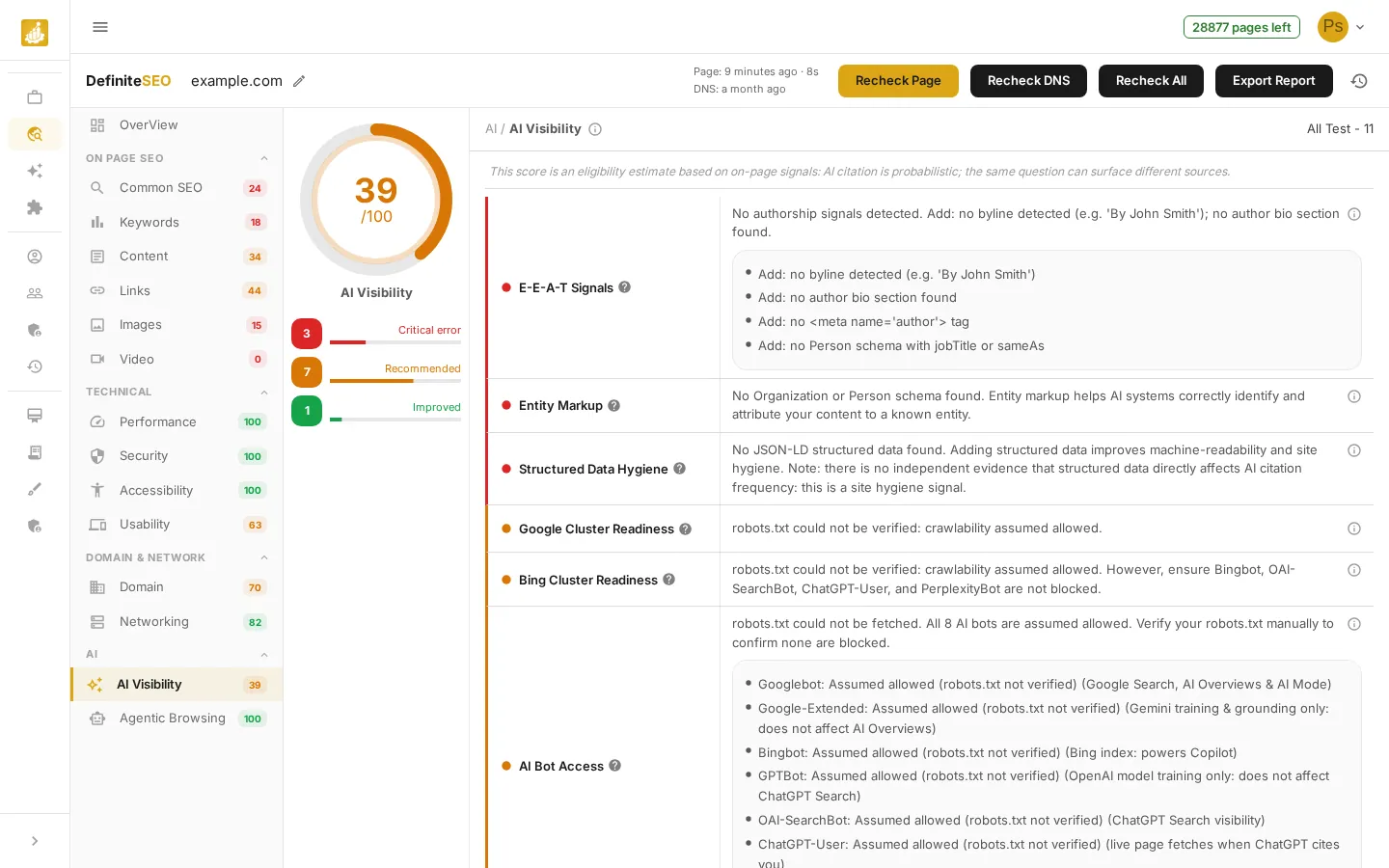
Click AI Visibility to see how likely your content is to be surfaced and cited by AI assistants and answer engines such as Google AI Overviews, ChatGPT Search, Bing Copilot, and Perplexity. The score is an eligibility estimate based on on-page signals – AI citation is probabilistic, so the same question can surface different sources. The checks group into whether AI crawlers can reach you (retrievability), whether they can understand and quote you (extractability), and basic machine-readability (hygiene).
- Google Cluster Readiness: Confirms Googlebot and Google-Extended are allowed in your robots.txt. This powers Google Search, AI Overviews, and AI Mode, so blocking it removes you from Google AI answers.
- Bing Cluster Readiness: Confirms the Bing and OpenAI family of crawlers (Bingbot, GPTBot, OAI-SearchBot, ChatGPT-User, PerplexityBot, ClaudeBot) can reach you. These feed Bing Copilot, ChatGPT Search, and Perplexity.
- AI Bot Access: A per-bot breakdown of which AI crawlers you allow or block, and whether each affects live search visibility or only model training (for example Google-Extended only affects Gemini training, not AI Overviews).
- Content in Raw HTML: Checks your main content is in the initial HTML rather than loaded later by JavaScript, since many AI crawlers do not run scripts.
See 7 more checks
- Answer-First Structure: Looks for a clear summary near the top and focused sections, so an AI can lift a direct answer from your page.
- Statistics and Quotations: Rewards backing claims with concrete numbers and citing authoritative sources, which AI engines prefer to quote.
- Freshness: Checks how recently the page was updated, since AI answers favor current content.
- E-E-A-T Signals: Looks for signs of real expertise: an author byline, an author bio, an author meta tag, and Person schema with jobTitle or sameAs.
- Entity Markup: Checks for Organization or Person structured data with sameAs links, so AI can correctly identify and attribute your content to a known entity.
- Structured Data Hygiene: Verifies you use valid JSON-LD structured data for better machine-readability and site hygiene.
- llms.txt: Notes whether your site publishes an llms.txt file. This is informational only, with no proven impact on AI citations yet.
📝 Note AI Visibility is tracked separately from your overall SEO score – it reflects AI-search citation eligibility, not classic ranking factors. The section header shows a disclaimer that the score is an estimate and AI citation is probabilistic.
Agentic Browsing
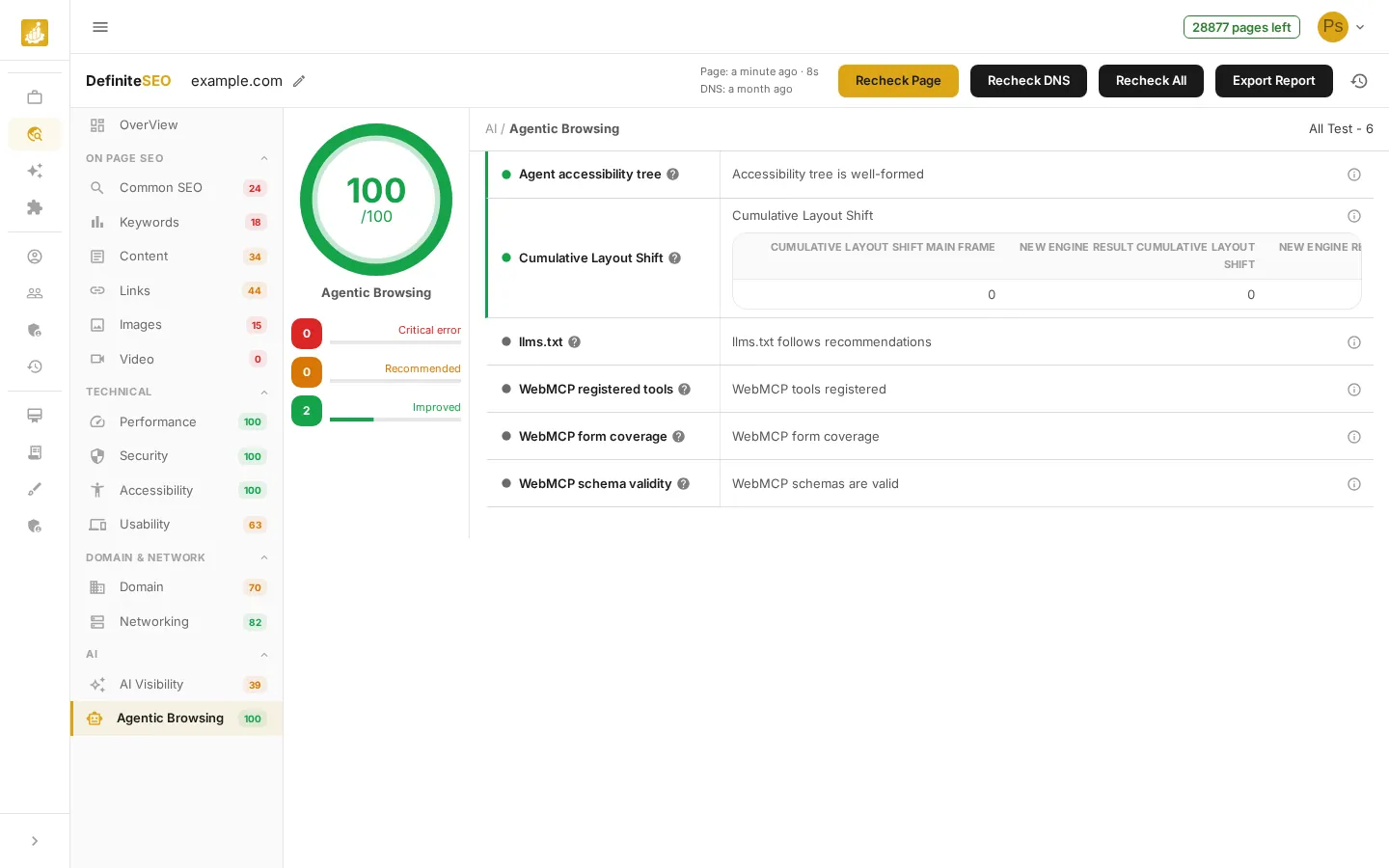
Click Agentic Browsing to see how well AI agents can navigate and act on your page – a growing factor as assistants start completing tasks on the web. It checks the accessibility tree, llms.txt, and WebMCP tool, form, and schema support, plus layout stability. Unlike AI Visibility, this section does count toward your overall SEO score.
- Agent accessibility tree: AI agents read your page through its accessibility tree. This checks interactive elements have clear names and valid roles so agents can act reliably.
- llms.txt: Looks for an llms.txt file, which lets you give AI agents curated, machine-readable guidance about your most important pages.
- WebMCP registered tools: WebMCP is a standard that lets your page expose defined commands (tools) an agent can call. This reports the tools your page registers.
- WebMCP form coverage: Checks how much of your form functionality is exposed through WebMCP, so agents can complete forms through a defined interface.
See 2 more checks
- WebMCP schema validity: Validates that your WebMCP tool definitions are well-formed, so agents can call them without errors.
- Cumulative Layout Shift: A stable layout matters for agents too: elements that move after load can make an agent act on the wrong target. The detail expands to show the measured shift values.
Re-run, export, or jump back to the Overview
The report toolbar stays available across every section. Use Recheck Page, Recheck DNS, or Recheck All to re-scan on demand, and Export Report to download, copy a shareable link, or email the report. Click OverView at the top of the sidebar at any time to return to the summary, where the category bars are sorted weakest-first so you always know what to fix next.
💡 Tip On the Overview, the AI Visibility Score is shown in its own card, separate from the overall SEO score, because it measures AI-search citation eligibility rather than classic ranking factors.