Schema Markup in DefiniteSEO WordPress Plugin : Complete Guide
Structured data plays a vital role in helping search engines understand your website’s content and display it as rich snippets in search results. The DefiniteSEO WordPress SEO Plugin makes this process simple yet powerful by providing an all-in-one solution for managing schema markup on your site. Whether you want to apply ready-to-use schema templates, build fully customized structured data with the Schema Builder, import schemas from other websites, or validate them before publishing, DefiniteSEO gives you the flexibility and control to do it all from within your WordPress dashboard. This article will walk you through the key schema markup features of the plugin, how to apply them to posts, pages, products, and custom post types, and how to take advantage of advanced customization options like schema variables and Pro-exclusive templates.
Schema Markup : Table of Contents
- Understanding Schema Markup Features of DefiniteSEO Plugin
1.1 Inbuilt Schema Templates
1.2 A Powerful Schema Builder
1.3 Import Schema Markup from Existing Third-Party Websites
1.4 Schema Markup Validator
1.5 Advanced Schema Editor - Applying Schema Markup on Posts, Pages, Products, Custom Post Types, and Taxonomies
2.1 Altering and Setting Default Schema Markup
2.2 Setting Multiple Default Schemas
2.3 Default Schema Support for Major Plugins
2.4 Applying Schema Markup on Specific Content Types
2.5 Applying Multiple Schemas on a Single Content Type - Schema Markup Variables List
- Free vs Pro Schema Features Comparison
1. Understanding Schema Markup Features of DefiniteSEO Plugin
Schema markup is one of the most effective ways to help search engines better understand your website content. With DefiniteSEO, you get a full set of schema tools directly inside your WordPress dashboard. These tools make it easier to create, import, add, and validate schema markup, so you can generate rich snippets that increase your visibility in search results. Instead of relying on third-party generators, you can manage everything in one place with flexibility for both beginners and advanced users.
1.1 Inbuilt Schema Templates
DefiniteSEO offers numerous pre-designed schema templates that you can use instantly. These templates save time and ensure that you follow proper schema guidelines without needing to code manually.
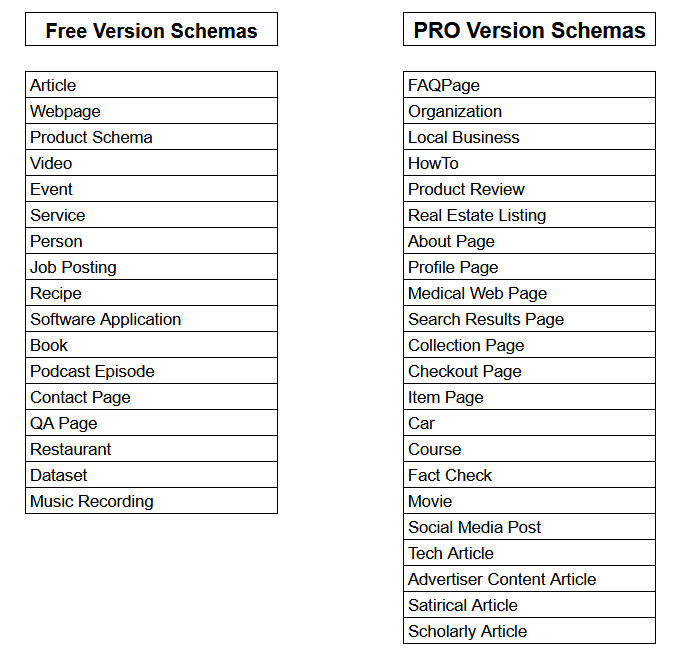
Free Version Templates:
- Article
- Webpage
- Product Schema
- Video
- Event
- Service
- Person
- Job Posting
- Recipe
- Software Application
- Book
- Podcast Episode
- Contact Page
- QA Page
- Restaurant
- Dataset
- Music Recording
Pro Version Templates:
- FAQPage
- Organization
- Local Business
- HowTo
- Product Review
- Real Estate Listing
- About Page
- Profile Page
- Medical Web Page
- Search Results Page
- Collection Page
- Checkout Page
- Item Page
- Car
- Course
- Fact Check
- Movie
- Social Media Post
- Tech Article
- Advertiser Content Article
- Satirical Article
- Scholarly Article
1.2 A Powerful Schema Builder
One of the standout features of DefiniteSEO Pro is the Schema Builder. Unlike pre-built templates that are limited to specific schema types, the builder gives you the freedom to create completely customized schemas tailored to your content and business needs.

When you open the Schema Builder, you’ll find a clean interface where you can:
- Select a Schema Type – Choose from hundreds of schema types defined by Schema.org, from niche ones like “RealEstateAgent” to broader ones like “LocalBusiness” or “Event.”
- Add and Customize Fields – Each schema type comes with recommended and optional properties. The builder lets you add, edit, or remove these fields according to your requirements.
- Insert Dynamic Variables – Instead of hardcoding values, you can use DefiniteSEO’s variables (like
%post_title%,%site_title%, or%list_of_h2_tags%) so your schema updates automatically when content changes. - Switch Between Visual & Code Mode – Beginners can use the form-based builder, while advanced users can toggle to raw JSON-LD editing for complete control.
- Save as Reusable Template – Once you’ve created a schema, you can save it and reuse it across multiple posts, pages, or products.
This feature is particularly useful if your business type or content format isn’t fully covered by the inbuilt templates.
1.3 Import Schema Markup from Existing Third-Party Websites
Creating schema markup from scratch can sometimes be time-consuming, especially if you’re looking at highly detailed or industry-specific implementations. To save you time, DefiniteSEO Pro includes a Schema Import feature, which allows you to bring in ready-made schema markup from any third-party website and then customize it to fit your own needs.

This feature is designed with maximum flexibility, offering three convenient ways to import schema markup:
- Import by URL
- Simply enter the URL of any website or webpage.
- DefiniteSEO will automatically crawl that page and extract all available schema markups.
- Once extracted, you can preview, edit, and apply the schema to your own content.
- Example: If you find a competitor’s product page with a rich schema setup, you can import it, fine-tune it for your own product details, and save it as a reusable template.
- Import from HTML Code
- Copy the raw HTML code from any third-party website and paste it into the Import from HTML field.
- The plugin will parse the code, detect embedded schema markup, and import it directly.
- This is particularly useful when you have the page source but not the live URL.
- Import from JSON-LD Code
- If you already have a JSON-LD snippet from another tool, competitor website, or developer, simply paste it into the Import from JSON-LD field.
- The plugin will instantly read the structured data, validate its format, and let you save or customize it.
After importing, you can use DefiniteSEO’s Advanced Schema Editor to adjust the imported data. This ensures that even though the schema originated elsewhere, it is perfectly aligned with your own site’s content, branding, and SEO strategy.
Key Benefits of Schema Import:
- Saves time by reusing existing markup instead of building from scratch.
- Learn from competitors by analyzing and adapting their schema implementations.
- Ensures flexibility by supporting multiple import methods (URL, HTML, JSON-LD).
- Customizable: Every imported schema can be edited, expanded, or combined with other schema types.
With this functionality, you’re not limited to starting fresh every time. Instead, you can borrow, adapt, and optimize schemas from anywhere on the web, while still keeping full control inside your WordPress dashboard.
1.4 Schema Markup Validator
Having schema markup on your website is only useful if it’s valid and follows the proper guidelines. Even a small syntax mistake, a missing required property, or a formatting error can cause Google and other search engines to ignore your structured data completely. To solve this, DefiniteSEO Pro comes with a built-in Schema Markup Validator.
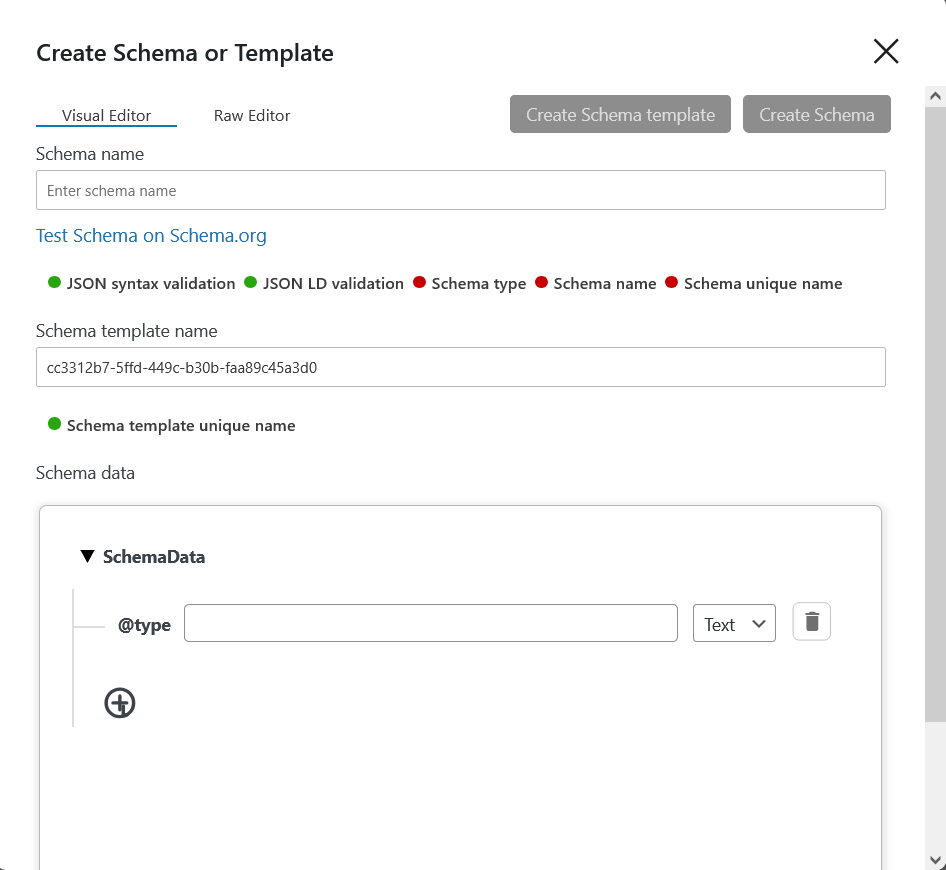
This tool allows you to instantly test the schema markup you create, edit, or import without leaving your WordPress dashboard. Whenever you click the Validate button, the plugin automatically sends your schema’s JSON-LD code to the official Schema.org Validator or Google Schema Validator for verification.
The validators checks your markup against multiple parameters, including:
- Syntax Errors – Ensures your JSON-LD structure is properly formatted and free of typos.
- Required Fields – Confirms that all mandatory properties for the selected schema type are included.
- Recommended Properties – Highlights missing fields that can improve your chances of rich results.
- Overall Compliance – Validates whether your schema matches Schema.org’s official standards.
Once the check is complete, the results are displayed in a clear and actionable format. If there are any issues, you’ll know exactly what needs to be fixed. You can then open the Advanced Schema Editor to make corrections and revalidate until the markup is error-free.
Schema Markup Validator ensures that your structured data isn’t just present, but also 100% correct and search-engine ready, giving you peace of mind before publishing.
1.5 Advanced Schema Editor
While pre-designed templates and imported schemas are convenient, sometimes you need a markup that’s slightly different from the default. That’s where DefiniteSEO’s Advanced Schema Editor comes in.

This feature allows you to edit any existing schema template, whether it’s one you created with the Schema Builder, imported from another site, or selected from the inbuilt templates. Once edited, the updated schema can be saved as a new template and reused across your posts, pages, products, taxonomies, or custom post types.
Key highlights of the Advanced Schema Editor include:
- Visual Editor – A form-style interface where you can easily adjust fields without touching code. Perfect for beginners who want flexibility without worrying about syntax.
- Raw Code Editor – A direct JSON-LD editor that lets advanced users write or modify schema code manually. This option gives you complete control over every detail.
- Template Versioning – Instead of overwriting the original template, you can save your edits as a new template. This helps you maintain both a base schema and its variations.
- Reusability – Once saved, your modified schema template can be instantly applied to any page, post, product, taxonomy, or custom content type.
- Consistency Across Content – If you need uniform schema markup (like a specific FAQ structure or product layout), the editor ensures your schema remains consistent across multiple pages.
For example:
- You could take the default Product Schema, add custom properties such as
brand,gtin, oraggregateRating, and save it as Product Schema with Ratings. - A blog could adapt the Article Schema template to always include
author,datePublished, andheadlinevariables, then apply it sitewide.
By combining the visual editor’s simplicity with the raw code editor’s flexibility, DefiniteSEO gives you the best of both worlds. Whether you’re just starting with schema or fine-tuning complex structured data, the Advanced Schema Editor makes sure your markup is both accurate and reusable.
2. Applying Schema Markup on Posts, Pages, Products, Custom Post Types, and Taxonomies
Creating or importing schema templates is just the first step. To truly benefit from structured data, you need to apply it correctly across your website content. DefiniteSEO makes this process straightforward by giving you full control over how and where schemas are applied. Whether you want to set global defaults for all posts or customize schemas on individual pages, the plugin offers flexibility to match any workflow.
2.1 Altering and Setting Default Schema Markup
For most websites, different content types serve different purposes, and applying the right schema markup to each of them is critical for SEO success. DefiniteSEO makes this process simple with its Default Schema Settings panel. This feature allows you to configure which schema type should be automatically applied to posts, pages, products, custom post types, or taxonomies.
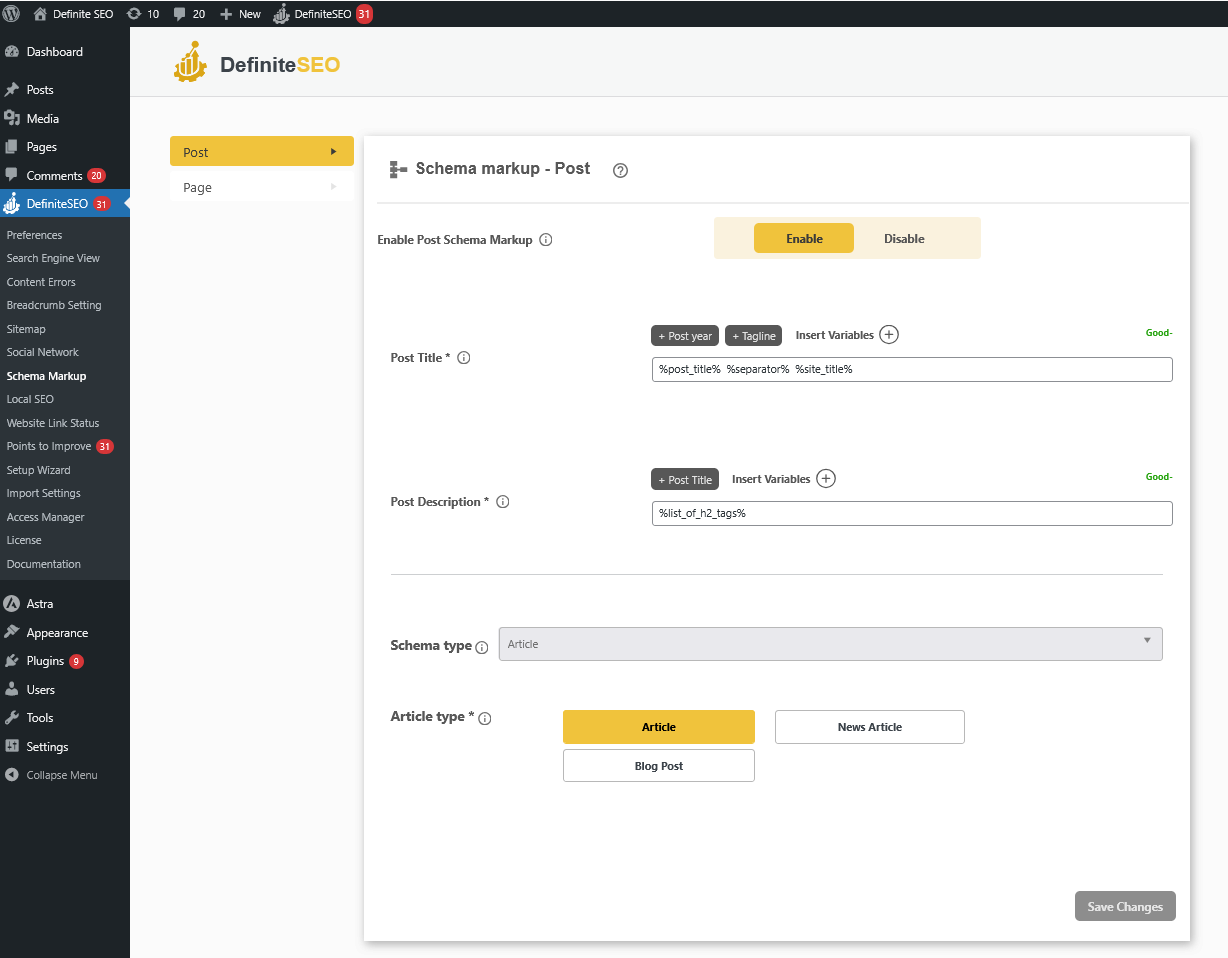
When you set default schemas, you eliminate the need to manually assign schema markup every time you create a new piece of content. For example:
- Blog posts can be assigned Article Schema by default.
- Pages like your About or Contact page can default to Organization Schema or LocalBusiness Schema.
- WooCommerce product listings can automatically use Product Schema.
- Taxonomies such as categories or tags can be configured with schema types relevant to their content.
- Custom post types (like portfolios, directories, or listings) can have unique default schemas set according to your needs.
DefiniteSEO also allows you to alter these defaults at any time. If your content strategy changes or you find that another schema type delivers better rich snippet opportunities, you can update the default schema for any content type with just a few clicks. The new schema will then apply automatically to all future content of that type, while existing content retains the schema that was already applied unless you manually reassign it.
This approach provides a balance of consistency and flexibility:
- Consistency – Every new post or product is structured correctly from the start.
- Flexibility – You can still override schema on individual posts, pages, or products whenever needed on post editor page.
By setting up default schemas correctly, you ensure that your entire website maintains a solid foundation of structured data. This not only improves your chances of achieving rich snippets in search results but also saves significant time in managing schema across larger sites.
2.2 Setting Multiple Default Schemas
In many real-world scenarios, a single schema type is not enough to describe a piece of content accurately. Some pages combine multiple types of information, and using only one schema would limit the way search engines understand and display that content. To address this, DefiniteSEO Pro allows you to set multiple default schemas for your posts, pages, products, custom post types, or taxonomies.
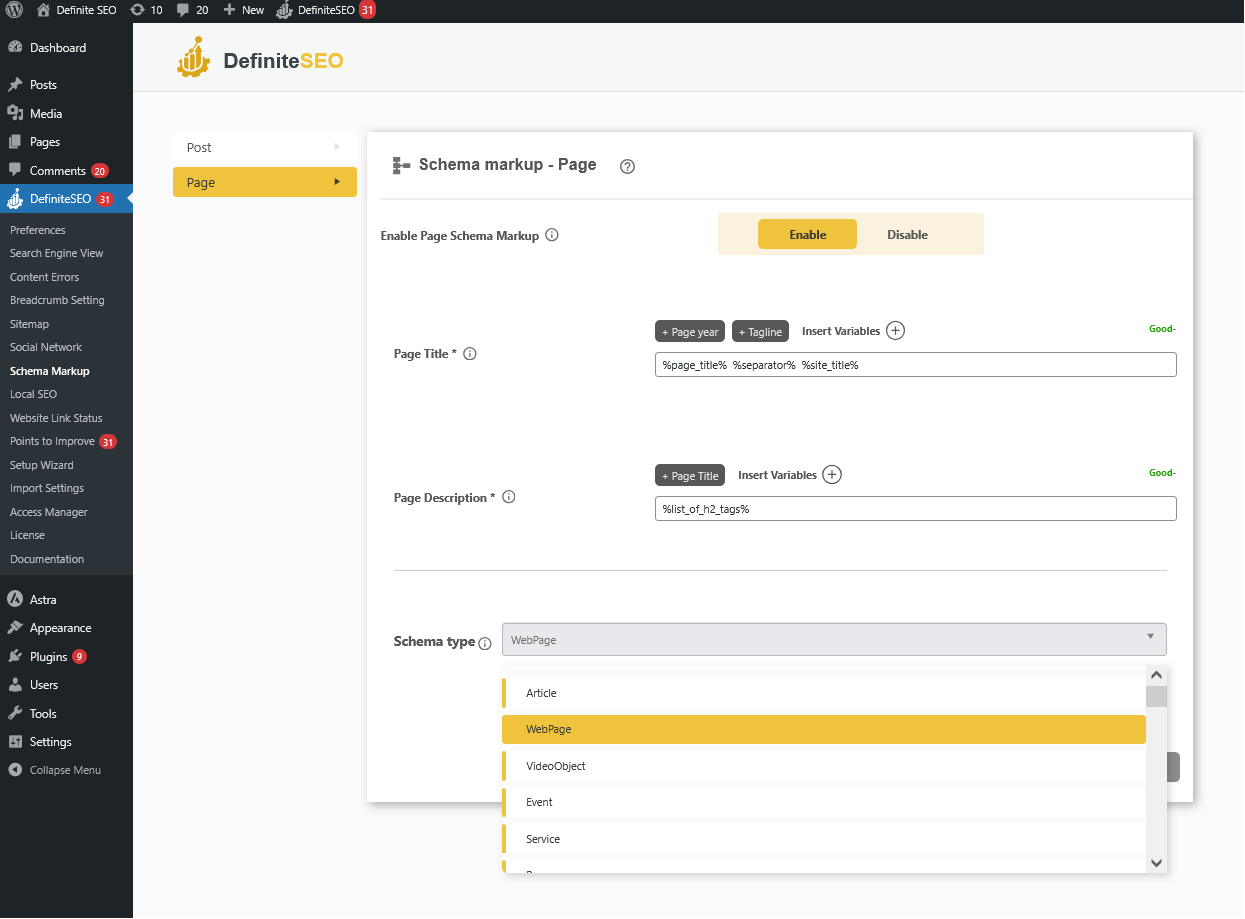
This means that instead of being restricted to just one schema type, you can apply two or more at the same time, ensuring richer and more comprehensive structured data.
For example:
- Blog posts with videos – You could set both Article Schema and VideoObject Schema as defaults. This way, Google can recognize the post as an article while also detecting the embedded video, increasing the chance of rich video snippets.
- Product pages with reviews – You can apply Product Schema along with Review Schema to highlight product details and customer feedback together.
- Event landing pages – Both Event Schema and Organization Schema could be applied so search engines understand who is hosting the event as well as the event details.
- Recipe blogs – Recipes often include step-by-step instructions, so you could combine Recipe Schema with HowTo Schema to give Google more structured context.
The benefit of this feature is twofold:
- Improved search visibility – Multiple schemas give search engines more structured information, which increases the chances of enhanced results like carousels, star ratings, or knowledge panels.
- Time-saving automation – Once multiple defaults are set, every new piece of content of that type automatically inherits them, removing the need for manual setup.
Even with multiple defaults in place, you can still override or add more schemas to individual content items if needed. This ensures maximum flexibility, especially for websites where different types of structured data need to coexist on the same page.
By using multiple default schemas, DefiniteSEO helps you create a richer, more detailed representation of your content, which directly supports better indexing, context recognition, and visibility in search engines.
2.3 Default Schema Support for Major Plugins
Configuring schema markup manually for every plugin can be overwhelming, especially when dealing with large websites or multiple third-party tools. To make things easier, DefiniteSEO Pro includes automatic schema detection and setup for popular WordPress plugins. This means the plugin can recognize certain plugins installed on your site and automatically assign the most appropriate schema type without requiring manual configuration.
For example:
- If you are using a WooCommerce store, DefiniteSEO automatically applies Product Schema to your product pages. This ensures that key details such as price, availability, and ratings are structured correctly right from the start.
- When an Events management plugin is detected, DefiniteSEO sets Event Schema as the default, making sure your event listings include structured data for dates, locations, and ticketing information.
- If you are running a Job Listings plugin, DefiniteSEO can assign JobPosting Schema by default so your job ads are eligible for display in specialized job search results.
- For websites using Learning Management Systems (LMS) plugins, DefiniteSEO can apply Course Schema to course listings, giving search engines clear context about lessons, instructors, and duration.
This feature ensures that users don’t have to spend time researching which schema type fits their plugin content. Instead, DefiniteSEO takes care of the initial setup automatically, so your content is search-ready out of the box.
The benefits of this feature include:
- Time efficiency – No need to manually set schema defaults for each plugin.
- Accuracy – The plugin chooses the schema type that best matches the content generated by the detected plugin.
- Better SEO performance – Automatic schema mapping ensures rich snippets are available for plugin-generated content without additional work.
- Flexibility – Even with automatic setup, you can still override or adjust the defaults if your use case requires customization.
In short, DefiniteSEO intelligently bridges the gap between third-party plugins and structured data requirements. By auto-assigning the perfectly matching schema types for recognized plugins, it ensures your website remains fully optimized without extra effort.
2.4 Applying Schema Markup on Specific Content Types
While default schemas help automate structured data setup, there are many cases where you may want to assign a schema manually to a specific piece of content. DefiniteSEO makes this process quick and intuitive by integrating schema options directly into the WordPress editor.
- On Posts – Choose schema types like Article, BlogPosting, or NewsArticle.
- On Pages – Apply schemas such as WebPage, AboutPage, or FAQPage.
- On Products – Use Product Schema, Review Schema, or Item Page.
- On Taxonomies – Apply schemas to categories, tags, or custom taxonomies.
- On Custom Post Types – Any schema can be applied to custom post types like portfolios, directories, or real estate listings.
When editing any content type, whether it’s a blog post, a WooCommerce product, a custom post type, or even a taxonomy you’ll find the Schema Markup panel inside the DefiniteSEO settings. Depending on your WordPress editor configuration, this option will appear in the right-hand sidebar or at the bottom of the content editor.

Here’s how to apply schema markup step by step:
- Open the content for editing – Navigate to the post, page, product, taxonomy, or custom post type you want to optimize.
- Locate DefiniteSEO settings – Scroll down to the DefiniteSEO section, or check the sidebar if your editor is set up that way.
- Click on Schema Markup – This will open a dedicated schema management popup.
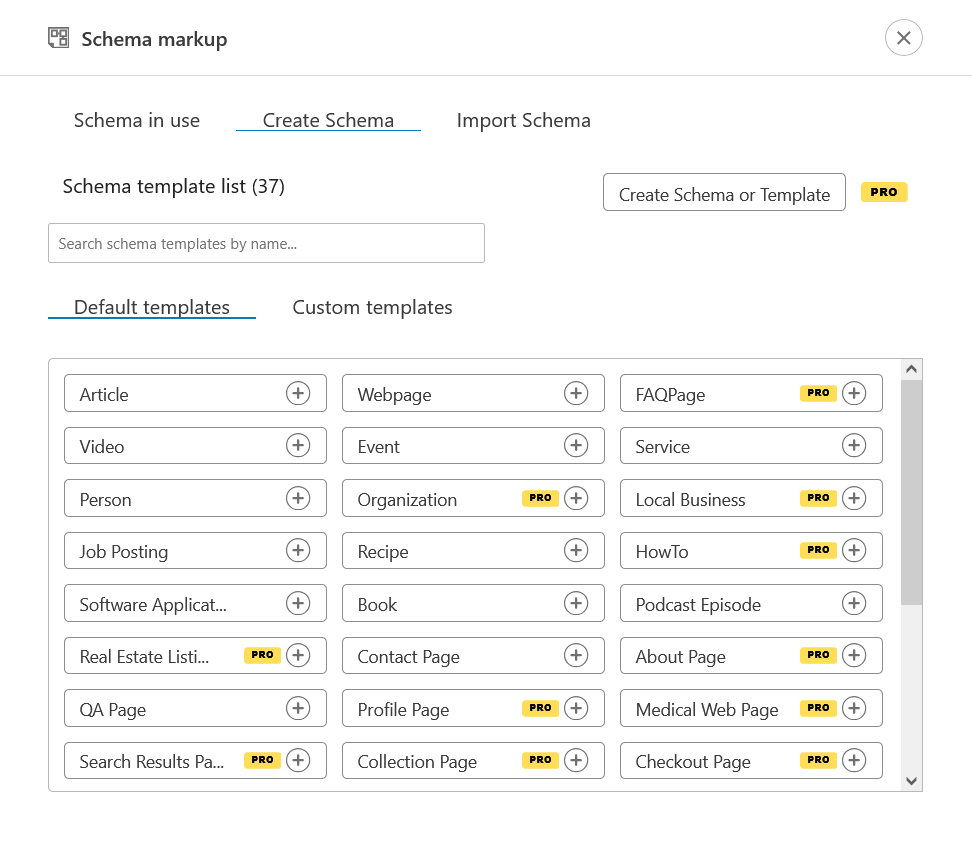
- Go to “Create Schema” – Inside the popup, you’ll see a list of schema templates (both inbuilt and custom ones you’ve created or imported).
- Choose a schema type – Select the schema type that best matches the content. For example:
- Blog posts → Article Schema
- Product pages → Product Schema
- FAQs → FAQPage Schema
- Local business info pages → LocalBusiness Schema
- Click “Create Schema” – Use the button at the top-right corner of the popup to add the selected schema to your content.
- Save/Update your content – Once added, the schema will be included in your page’s source code, ready for search engines to detect.
This manual schema application gives you full flexibility. Even if a default schema exists for that content type, you can override it by adding a more specific or different schema. For example:
- A regular blog post may default to Article Schema, but if the post includes a recipe, you can override and add Recipe Schema instead.
- A WooCommerce product might already have Product Schema applied, but you could add FAQ Schema if the product description contains a Q&A section.
- A custom post type such as “Portfolio” could have a schema created specifically for showcasing projects, and you can apply it directly while editing portfolio entries.
By keeping schema assignment so close to the content editing workflow, DefiniteSEO ensures you don’t have to jump between tools or dashboards. Everything happens within the editor you already use daily, making structured data management a natural part of content creation.
2.5 Applying Multiple Schemas on a Single Content Type
In many situations, a single schema type isn’t enough to fully represent the information on a page. For example, a product page may also include customer reviews, FAQs, or even instructional videos. To capture all these details, DefiniteSEO Pro allows you to apply multiple schemas to the same content type.
This feature ensures that search engines can interpret every important element of your content and present it with the most relevant rich snippets in search results.
How to Apply Multiple Schemas Step by Step
- Open the content item – Go to the post, page, product, taxonomy, or custom post type you want to edit.
- Access DefiniteSEO settings – Scroll to the DefiniteSEO panel (bottom of editor) or find it in the right-hand sidebar, depending on your editor layout.
- Open the Schema Markup option – This launches the schema management popup.
- Add your first schema – Click Create Schema, choose your desired schema type, and confirm by clicking the Create Schema button in the top-right corner.
- Repeat the process – Reopen the Create Schema option and add additional schema types one by one.
- Save/Update content – Once you’ve added all necessary schemas, update your content to apply the structured data to your site.
Practical Use Cases
- Product pages – Combine Product Schema, Review Schema, and FAQ Schema to highlight product details, ratings, and answers to common questions.
- Blog posts with media – Use Article Schema alongside VideoObject Schema or ImageObject Schema if the post includes rich media.
- Event promotions – Apply Event Schema with Organization Schema so that both the event and the organizer are clearly defined.
- Recipe content – Mix Recipe Schema and HowTo Schema if the post contains both ingredients and step-by-step cooking instructions.
Benefits of Multiple Schemas
- Comprehensive structured data – Every relevant detail about your content is marked up.
- Increased visibility – Multiple schemas increase eligibility for rich snippets, star ratings, knowledge panels, and other SERP enhancements.
- Granular control – You decide exactly which schema types apply to each piece of content, no matter how complex.
By allowing multiple schemas on the same content type, DefiniteSEO ensures that your structured data reflects the full scope of your content. This gives search engines the maximum amount of context and boosts your chances of standing out in search results.
3. Schema Markup Variables List
One of the most powerful features of DefiniteSEO’s schema functionality is the ability to use dynamic variables inside schema templates. Instead of manually filling in details for every page or post, you can insert variables that automatically pull the right information from your WordPress site. This makes schema markup flexible, scalable, and accurate, even across large websites.
Variables act as placeholders that get replaced with actual values at runtime. For example, if you add %schema_global_title% to a schema template, it will automatically insert the page or post’s title when that schema is applied. This saves time, reduces the chance of errors, and ensures your structured data is always up-to-date.
DefiniteSEO provides a wide range of variables, grouped into categories for different use cases.
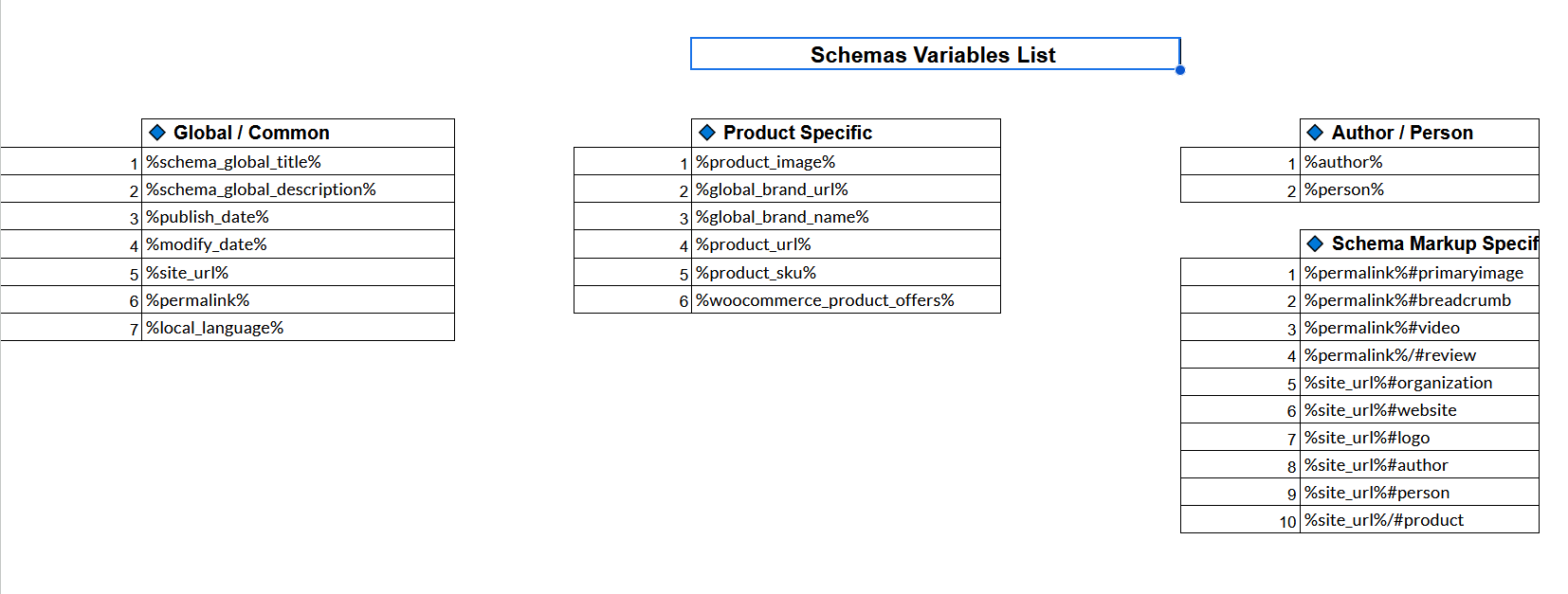
Global / Common Variables
These variables work across all content types and are useful for pulling general site and page information.
- %schema_global_title% – Inserts the current page or post title.
- %schema_global_description% – Inserts the current page or post description (SEO description if available).
- %publish_date% – Displays the original publish date of the content.
- %modify_date% – Inserts the last modified date of the content.
- %site_url% – Inserts the base URL of the website.
- %permalink% – Inserts the direct URL of the current page or post.
- %local_language% – Pulls the website’s language setting (e.g., en-US).
Product-Specific Variables
These are tailored for WooCommerce and other product-driven websites, ensuring rich product details appear in search results.
- %product_image% – Inserts the main product image.
- %global_brand_url% – Adds the global brand’s website URL.
- %global_brand_name% – Inserts the brand name for the product.
- %product_url% – Adds the direct URL of the product.
- %product_sku% – Displays the product’s SKU (Stock Keeping Unit).
- %woocommerce_product_offers% – Automatically structures product offers, including price, availability, and currency.
Author / Person Variables
These variables help highlight content creators, business owners, or other individuals tied to your site.
- %author% – Inserts the author name of the current post or page.
- %person% – Allows adding a defined person entity (can be linked to schema profiles such as Person schema).
Schema Markup-Specific Variables
These are advanced variables that allow you to link schema entities to specific parts of your website. They are especially useful when building interconnected structured data.
- %permalink%#primaryimage – References the main image of the page.
- %permalink%#breadcrumb – Adds breadcrumb structured data referencing the current page.
- %permalink%#video – Links to a video entity on the page.
- %permalink%/#review – Adds a review entity for the page or product.
- %site_url%#organization – References the site’s Organization schema.
- %site_url%#website – Links to the Website schema entity.
- %site_url%#logo – References the site logo entity.
- %site_url%#author – Connects to the Author schema entity.
- %site_url%#person – References a Person schema entity defined on the site.
- %site_url%/#product – Links to the Product schema entity.
Why Schema Variables Matter
- Automation at scale – Instead of editing every schema manually, variables keep everything updated automatically.
- Consistency – Values like author names, brand details, and organization info remain uniform across the site.
- SEO accuracy – Search engines always receive correct, structured information even if content is updated.
- Flexibility – You can combine variables with custom values for hybrid schema templates.
By leveraging these variables, DefiniteSEO allows you to create dynamic and intelligent schema templates that adapt to different content types without requiring constant manual input.
4. Free vs Pro Schema Features Comparison
DefiniteSEO is designed to be flexible enough for beginners who need quick schema setup, while also offering advanced capabilities for professionals and agencies who manage complex websites. To make this possible, the plugin comes in two versions: Free and Pro.
The Free version gives you access to essential schema templates and the ability to apply them to your content. This is ideal for small site owners, bloggers, or businesses who want to implement structured data without spending extra time or money. You can cover the basics like Articles, Products, Local Business, and FAQ schema, ensuring that your content is eligible for rich snippets in Google Search.
The Pro version, on the other hand, unlocks the complete power of schema management. It is designed for site owners, agencies, and professionals who want full control over their structured data. With Pro, you not only get access to more advanced templates but also tools like the Schema Builder, Import and Validation features, and the ability to apply multiple schemas on a single content type. This makes it possible to craft custom, highly detailed schema structures that match your exact site needs and maximize visibility in search results.
Free Version Highlights
- Access to a set of basic pre-designed schema templates
- Apply templates directly on posts, pages, products, and custom post types
- Support for common schemas like Article, Local Business, Product, and FAQ
- Automatic insertion of schema data with minimal setup
- Perfect for beginners who want quick schema coverage without complexity
Pro Version Highlights
- Advanced Schema Builder for creating fully customized schemas
- Ability to save custom schemas as reusable templates
- Schema Import from URLs, HTML, or JSON-LD
- Schema Markup Validator for testing against schema.org validation rules
- Advanced Schema Editor with both visual and raw code editing
- Support for multiple schemas on a single page or post
- Default schema detection for major plugins (e.g., Event, WooCommerce)
- Full access to the Schema Variables system for dynamic schema customization
- Ideal for professionals, agencies, and websites needing tailored structured data
Schemas Available in the Free Version
The Free version of DefiniteSEO includes the following schema templates:
- Article Schema – Highlight your blog posts and news articles for better visibility in search results.
- Product Schema – Add essential details for eCommerce products, including price and availability.
- Local Business Schema – Showcase your business name, address, and contact details for local SEO.
- FAQ Schema – Add frequently asked questions with answers to improve search appearance.
- Breadcrumb Schema – Help search engines understand the structure of your site.
- Organization Schema – Define your company or organization information for brand recognition.
- Person Schema – Represent individuals such as authors, speakers, or business owners.
Schema markup is an essential part of modern SEO, helping search engines clearly understand your content and present it through rich snippets and enhanced search results. With the DefiniteSEO WordPress Plugin, managing structured data becomes a practical and scalable process rather than a technical challenge. From ready-to-use templates to advanced schema builders, import tools, validators, and dynamic variables, DefiniteSEO gives you the flexibility to implement schema markup in a way that matches your website’s structure and goals. By applying the approaches outlined in this guide, you can maintain consistent, accurate schema across your site and ensure your content is prepared for both traditional search engines and evolving AI-driven search experiences.